Phil Ciraolo

I have been in the security industry for over 44 years. During this time I held many positions including installer, service technician and design engineering. Systems worked with include intrusion systems, video surveillance, card access, intercoms and many others. Installations ranged from small residential to large integrated systems. I have walked across overhead cranes, crawled in under floor dirt crawl spaces, hung from 50 foot bucket truck in -10 degree temperatures all with the sole purpose to install security systems. To help with todays App crazy world I also have formal training in software programming and app development. I hope that with my experience I will be able to help you with anything security and home automation related.

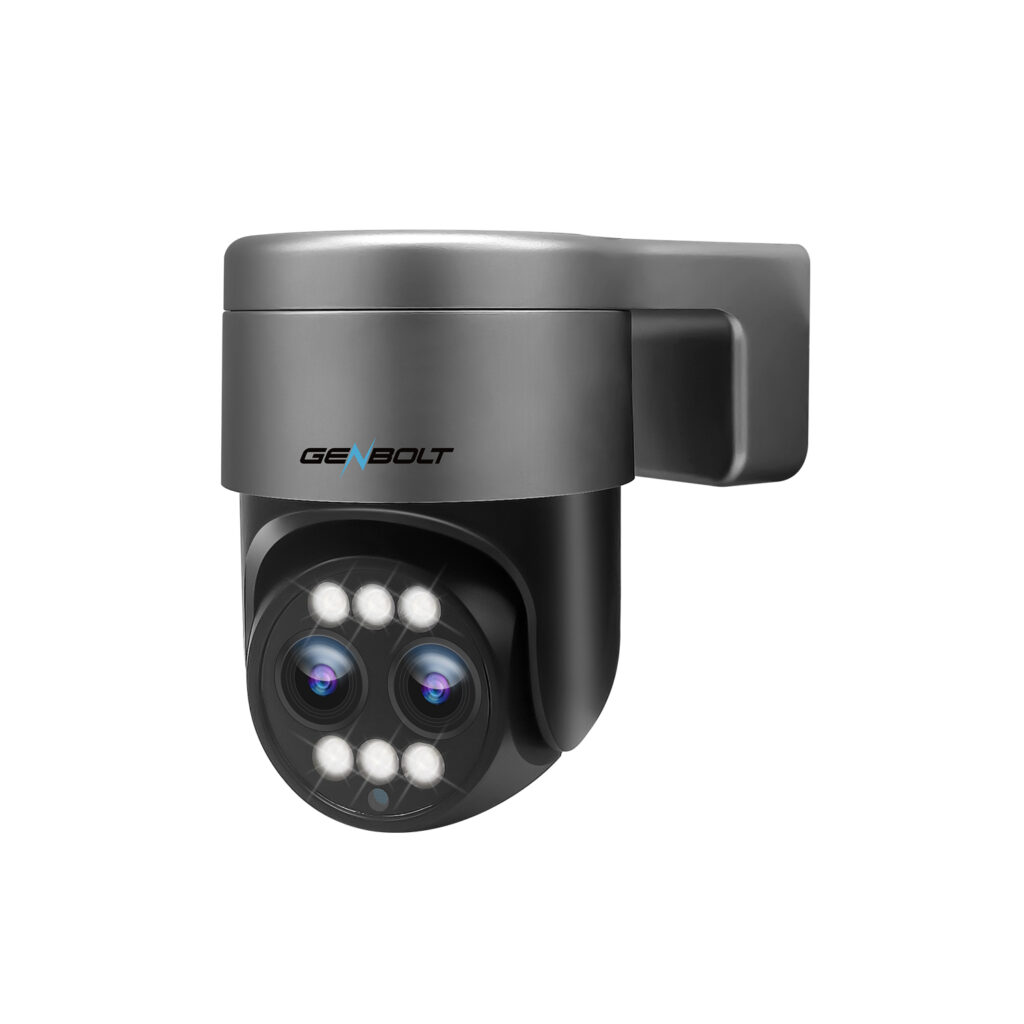
Genbolt GB216-4G

Gb216-4G Cellular Camera

GENBOLT GB216-4G Cellular Security Camera Review

An outdoor PTZ cellular camera that works on cellular 4G LTE

I recently had a requirement to install a security camera at the storage lot where I keep my 5th Wheel Trailer. This lot is remote from my home and does not have any power or Wi-Fi available.  This meant that the usual security camera installation would not be an option. To resolve this issue I took a look at the Genbolt GB216K-4G (GB216H-4G) security camera. I can honestly say that I was impressed by this camera which seemed to have all the features needed for the application.  In this review I will cover my experience with the installation and the performance of this camera.  

What you Get

What U Get

The GB216-4G cellular camera comes with the following items:

1 x GB216-4G security camera 

1 x 6W  Solar panel

1 x SIM Card

1 x Bracket

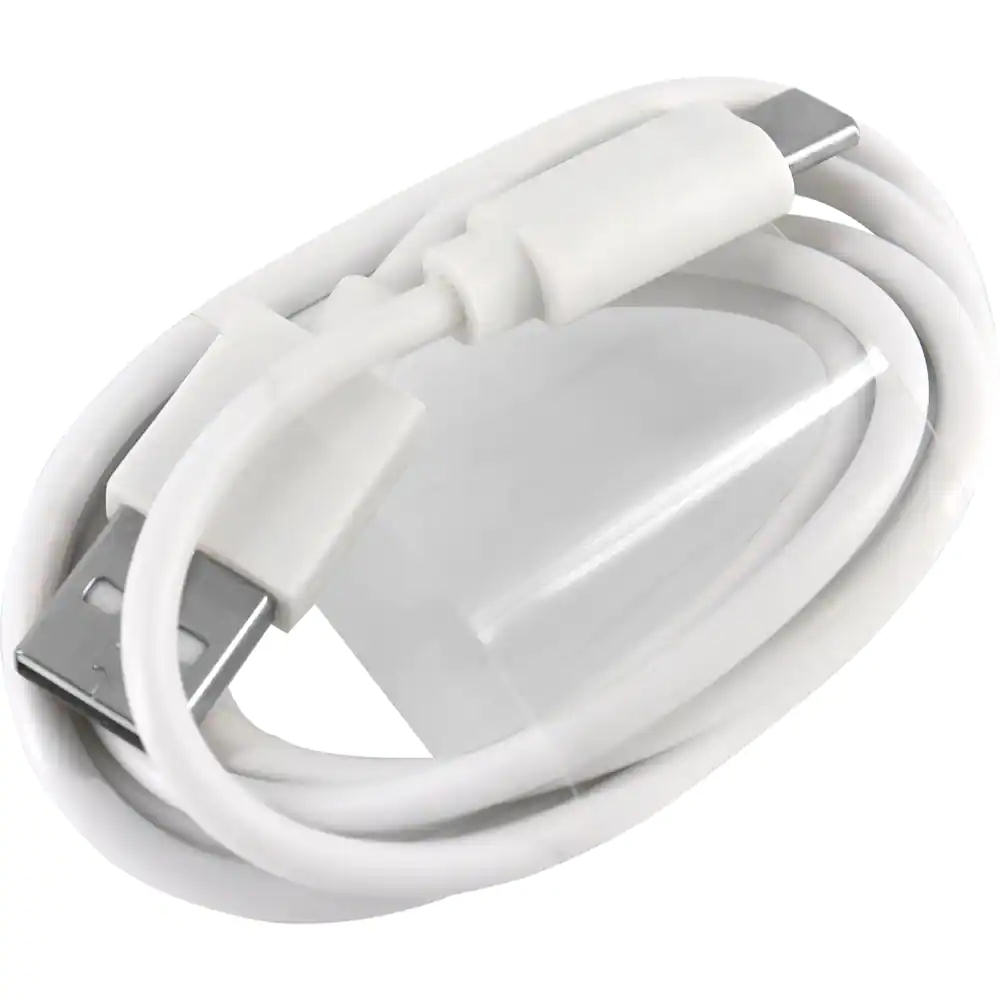
1 x USB Cable

1 x Screw Driver 

4 x Screws & Anchors

1 x User Manual

1 x Decal

The Basics

The GENBOLT GB216-4G cellular camera is different than most other outdoor cameras in that it does not require external power or a network to work.  The supplied Solar panel will power the camera and the built in 4G LTE cellular radio will provide the connectivity.   As long as you have a cellular signal you will be able to view this camera anywhere in the world.

The overall size is typical for an outdoor security camera even though it has a built in cellular radio and battery.  It measures approximately 14.5cm high x 9.5cm  wide (5.7 x 3.75 inches).   The antenna will add another 9.5 cm (3.7 inches) to the height if you extend them vertically. 

Overall rotation on the horizontal (Pan) is up to a 355 deg and 90 deg on the vertical (Tilt).  This amount of range is typical and would be plenty for a field of view in most home or small business applications. 

As far as color options you are limited to white.  Again, I would have liked to see them offer this camera in the new silver/black color scheme found in some other Genbolt models like the GB216D-K

Specifications

Night Vision
Night Color Yes Night Vision 10 Meters
Connectivity
Communication Type 3G/4G LTE Cellular Night Color Yes
Optics
Field of View 120 Degrees Horizontal Viewing Angle 355 Degrees
Zoom Type Digital Opticalr Yes
Video
Video Format MP4 Resolution 3 Megapixels
Max Frame Rate (FPS) 20 Video Capture Resolution 1080p
Alarm & Storage
PIR Detection Yes Video Motion Yes
Video Storage Yes SD Card Max 128MB (not included)
Siren Yes Humanoid Detection Yes
Floodlight Yes
Software-Smart Phone
Apple Store Yes Google Play Store Yes
Power
Power Source Solar Wattage 8 watts
Battery Power 1500 mAh Voltage 5 Volts
Batteries Included Yes Cable 2 Meter
Environmental
Waterproof Rating IP66 Mounting Type Wall Type

Plenty of High-Quality Features

Cellular Camera Detailed Diagram
Cellular Camera Bracket Details

The GENBOLT model GB216-4G cellular camera provides a 3MP image which is quite clear and sharp.  The image provides more than enough picture detail 

The camera has no optical zooming capabilities but does  provide Digital zoom.  Digital zoom uses technology (software) to manipulate pixels in the image when zooming in/out.  Optical zoom  uses a physical change in the lens.   Optical zoom is always the better way to zoom as it provides the best overall details and/or image quality.  As a general surveillance camera the  GB216-4G cellular camera provides sufficient zooming capabilities but don’t expect to zoom in to read license plates at a distance.

The camera comes with a Auto focus feature.  When you zoom in/out it will try to adjust and provide the best focus.  This works fine and the focus was good throughout the zoom.

Setup

Setup was extremely easy. In fact this cellular camera could easily be the quickest setup I have done with any camera.  It was just a matter of turning on the switch, scanning the QR code and bang the camera was up.  I wish all cameras were this easy.

Cellular Communications

The GENBOLT  GB216-4G cellular camera can be used with a 3G/4G LTE cellular network.  The camera comes with two cellular antennas and a built-in SIM card.  

Prior to installing this cellular camera I had a regular Wi-Fi camera using the RV’s built-in cellular router.  I had purchased a data plan (SIM Card) specifically for this RV router from my cellular provider.   Installing this camera allowed me to cancel my existing plan and save approx. 50% in data costs.  The data re-fill plans offered are actually better than what I could purchase on my own.   

You can easily re-fill your data through the Genbolt App and they offer a number of different plans that should address every application.

Night Vision

The GENBOLT GB216-4G cellular camera provides above average night vision.  During our test it did provide adequate scenes at the advertised 10M or 30ft .

It accomplishes this by using an array of 4 infrared LEDs and White LED’s.  IR LED’s emit an invisible light that humans can’t see but will help camera see at night. 

As a bonus the camera has some white LED’s built into the camera that acts as a flood light. When movement is detected these lights activate and will allow the camera to see color at night.  Normally you would see Black and White images when using just IR LED’s.

Recording & Storage

 The GENBOLT GB216-4G cellular camera provides a SD Card slot that will allow you to insert a SD Memory card (max 128GB). You can configure the camera to record on PIR detection and/or Humanoid Detection.  You can also limit recording by using a weekly schedule.  The playback was very smooth and responsive.  

Storage of video events can be done directly on the camera using a SD Card (memory card).  A  SD card slot is provided on the camera which allows you to insert up to 128GB SD Card.    Video events are then stored on this card.   When the SD card becomes full it will start overwriting old video.  Depending on how many video events you have in your environment it is possible to store up to a month or more of video events/clips.

128 GB Memory SD Card

Playback and searching your stored video was also easy and intuitive .  The App allows you to find your recorded events by using the timeline or by specific dates using the calendar.  

Alarm & Detection

False alarms from standard camera video detection can be extremely annoying.  Things like plants moving in the breeze, snow, rain, dogs, moths, fog, leaves falling, sun and lights from cars passing by can cause standard detection systems to false alarm. 

 The GENBOLT GB216-4G cellular camera comes with a built-in Passive Infrared sensor (PIR).  This has some huge benefits over the typical video motion detection systems in that the normal cause of false alarms do not affect the PIR sensor.  This will greatly reduce the number of false alarms.  Of course,  the standard AI humanoid alarm detection is also available and can be used to supplement the PIR sensor.  Humanoid detection uses the camera video to detect changes.  When it sees a change it will analyze the change to determine if it’s a human.  This helps to reduce false alarms generated by video motion. During my tests I found it to be pretty accurate  but as with most cameras in the range it was not perfect.  You can expect some false alarms. 

You can also set a schedule for your alarm detection to operate.  For example, you could setup detection to work only between certain hours and specific days. 

Notifications

The GENBOLT GB216-4G cellular camera Wi-Fi camera can notify you of detection events by sending notifications to your phone.    

FAQ

How do you power the camera?

The cellular camera comes with an 8 watt solar panel that provides all power and charges the internal battery.  You can also use the supplied USB cable to power and charge the camera (USB block required – not supplied). The cable for the solar panel is approx. 2 meters long (not the 3 Meter listed).

Do I need a Internet Connection?

No. To be able to use the GENBOLT GB216-4G cellular camera you will need a 3G/4G LTE cellular signal at the camera location.  The cellular connection  will allow you to view your cameras from anywhere in the world.

Are there any monthly fees?

Yes.  After the initial free 300MB is used or the trial period ends, you will need to purchase additional cellular data.  They offer multiple plans like 30, 90, 180, 360 days.  Additional data can be ordered through the Genbolt App.  

Can I mount this on a corner of my house?

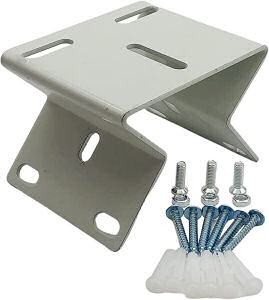
Yes.  But you will need to purchase an corner mount bracket.  We have provided a suitable bracket below.

Pro's & Cons

During my review I have identified the following Pros and Cons 

Pros

  • Can be mounted anywhere that has 3G/4G LTE cellular coverage
  • No household power required.  The solar panel supplies all required power.
  • Mounting bracket allows you to mount the camera on a ceiling or wall.  Provides you with more options when selecting a location.
  • Great price point for all the features you get.

Cons

  • The cameras zoom capabilities could be better.   
  • Missing some features like presets (saved positions) and auto-tracking.  

Alternatives
Conclusion

During the testing of the GENBOLT GB216-4G cellular camera I found it to be above average for cameras in that price range.  I did find overall that this is a good choice for those specific applications requiring remote monitoring.  With good image quality and above average night vision I don’t think you can go wrong with this camera.  

Products Covered in this Article

GENBOLT GB216D-K OUTDOOR PTZ CAMERA REVIEW

Outdoor Ptz Camera Gb216D-K

GENBOLT GB216D-K PTZ Camera Review

An outdoor PTZ camera with Dual Lens and 12x Hybrid Zoom 

In this review we will look at the new GENBOLT Outdoor PTZ Camera GB216D-K .   We will cover the basics along with what I feel are the major pros and cons of this dual lens Wi-Fi outdoor PTZ camera.

What you Get

What-You-Get

The GENBOLT outdoor PTZ camera model GB201 comes with the following items:

1 x GB216D-K Outdoor PTZ Camera with dual lens

1 x User Manual

1 x 12VDC Power Adapter – 2A

1 x Ethernet 32″ network cable

1 x Waterproof kit 

4 x Screws & Anchors

1 x Decal

Specifications and Basics

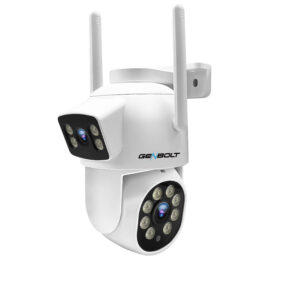
The GENBOLT Outdoor PTZ camera model GB216D-K stands out from most other other outdoor cameras in that it has a Dual Lens.  This along with the 4K resolution provides excellent zooming capabilities for identification.  The built-in 4mm lens provides a wide angle overview while the 12mm lens is used to provide closeup views.   In the Genbolt app you will see a single image/view which uses the  4mm lens and then automatically switches to the 12mm lens when you zoom in.  This essentially gives you two cameras in one.  Great for general surveillance as well as identification. 

Dual Lens

The overall size is small.  It measures approximately 15.5cm high x 9.5cm  wide (6.1 x 3.75 inches).   This is small enough to be aesthetically pleasing while  large enough to be a deterrent.

Overall rotation on the horizontal (Pan) is 355 deg and 90 deg on the vertical (Tilt).  This amount of range would be plenty for a field of view in most home or small business applications. 

As far as color options go you are limited to silver/black.  I actually like this color combo and would like to see all Genbolt cameras come in this color scheme.   

Plenty of High-Quality Features

Gb216D-K-Features

The GENBOLT outdoor PTZ camera model GB216d-k (GB203) provides a 4MP image which is suited for those applications where you need to identify objects like facial features and/or license plates.  

The camera provides 12x Hybrid zoom.  Meaning it uses both optical and digital zoom.  Digital zoom uses technology (software) to manipulate pixels in the image when zooming while Optical zoom  uses a physical change in the lens to adjust the distance between the camera lens and the subject.   Optical is always the better way to zoom as it provides the best details or image quality.  

The GENBOLT outdoor PTZ camera GB216D-K comes with Presets.  Presets are a great feature which allow you to define and store different camera positions that can then be called up by simply entering the preset number and pressing a button on the app.  For example,  you could create a preset for your front door. When called (through App) the camera would move to that position you set for that particular preset.   

The App says you can define up to 255 positions. However,  if I entered anything over 64 it didn’t work.   This may be a glitch in the App but 64 presets are probably 60 more than I would ever need.

The camera comes with a Auto focus feature.  When you zoom in/out it will try to adjust and provide the best focus.  This works fine and the focus was good throughout the zoom.

Communications

The GENBOLT  outdoor PTZ camera GB216D-K can be used with a Wi-Fi network or a hardwired ethernet cable.  I always recommend a hardwired cable connection using a CAT5 or CAT 6 ethernet cable where possible.  Hardwired connections will typically provide for a better overall user experience.   However, when running cables is just not feasible then the Wi-Fi capability will work just fine.   This camera supports both 2.4 & 5 GHz Wi-Fi which is not the norm for most IP cameras.   Of course, when using Wi-Fi you will still need to provide power via a cable or a local 120VAC receptacle for the power adapter.  If using a network cable you can power the camera through the same network cable using Power Over Ethernet (POE). My preferred method.

Tip

Note: If you would like to learn more about the Wi-Fi 2.4 & 5 GHz bands then check out our popular video How to connect to 2.4 GHz Wi-Fi

The GENBOLT GB216D-K camera comes with internal Wi-Fi antennas which is certainly unique as most cameras will have dual external antennas.  The internal antennas provide a more sleek appearance in my opinion. 

The Wi-Fi can provide an approximate  range of up to 15m or 50′.  This is in ideal situations with no obstacles between the camera and Wi-Fi router. Your range will vary depending on your particular environment.  

TipTip:  If your camera is located at a larger distance or if having issues connecting then using the 2.4 GHz band instead of the 5 GHz as it may give you a little bit more range as it is better at going through obstacles (walls).  

Night Vision

During our test it did provide adequate scenes at the advertised 40M or 130ft .

It accomplishes this by using an array of 6 Floodlights built into the face of the camera.  Theses lights allow you to view a color image. 

Recording & Storage

Every camera system needs some sort of recording and storage capability.  The GENBOLT outdoor PTZ camera GB216D-K can be setup to record based on a schedule or by alarm detection events.  I recommend the alarm detection method as this will reduce the amount of storage needed as it records only when something is detected in its Field of View (FOV).  Of course you could also set it up to record all the time or by a schedule.

Storage of video events can be done directly on the camera using a SD Card (memory card).  A  SD card slot is provided on the camera which allows you to insert up to 128GB SD Card.    Video events are then stored on this card.  You would normally enable the Looping option (defaults ON) which will cause the camera to overwrite old video when the card becomes full.  Depending on how many video events you have in your environment it is possible to store up to a month of video events/clips.

128GB SD Card

Playback and searching your stored video was also easy and intuitive .  The App allows you to find your recorded events by using the timeline or by specific dates using the calendar.  

Screenshot 20240221 103236

Alarm & Detection

False alarms from standard camera alarm detection can be extremely annoying.  Things like plants moving in the breeze, rain, snow, dog, leaves falling, moth, fog, and lights from cars passing by can cause standard detection systems to false alarm.  The GENBOLT GB216D-K comes with AI humanoid alarm detection.  The camera sensor will only send you notifications when it detects a humanoid form in the field of view.  This helps to reduce false alarms and the constant annoying notifications.  During my tests I found it to be pretty accurate  but was not perfect.  You can expect some false alarms.  I haven’t found a camera yet that can provide 100% accuracy but with Humanoid AI it gets close.

This Outdoor PTZ camera also comes with Intelligent auto tracking technology, the GB216D-K will track or follow people’s path automatically once they  enter the surveillance area.  This is a very cool feature and I found it to work pretty well during our tests.  However, like any tracking system you can out run the tracking just by moving very fast or by moving temporarily behind an object .   In this scenario the camera may lose track of the person and return to its home position.   Open areas with no objects will provide for a almost perfect track capability.

You can also set a schedule for your alarm detection to operate.  For example, you could setup detection to work only between certain hours and/or specific days. 

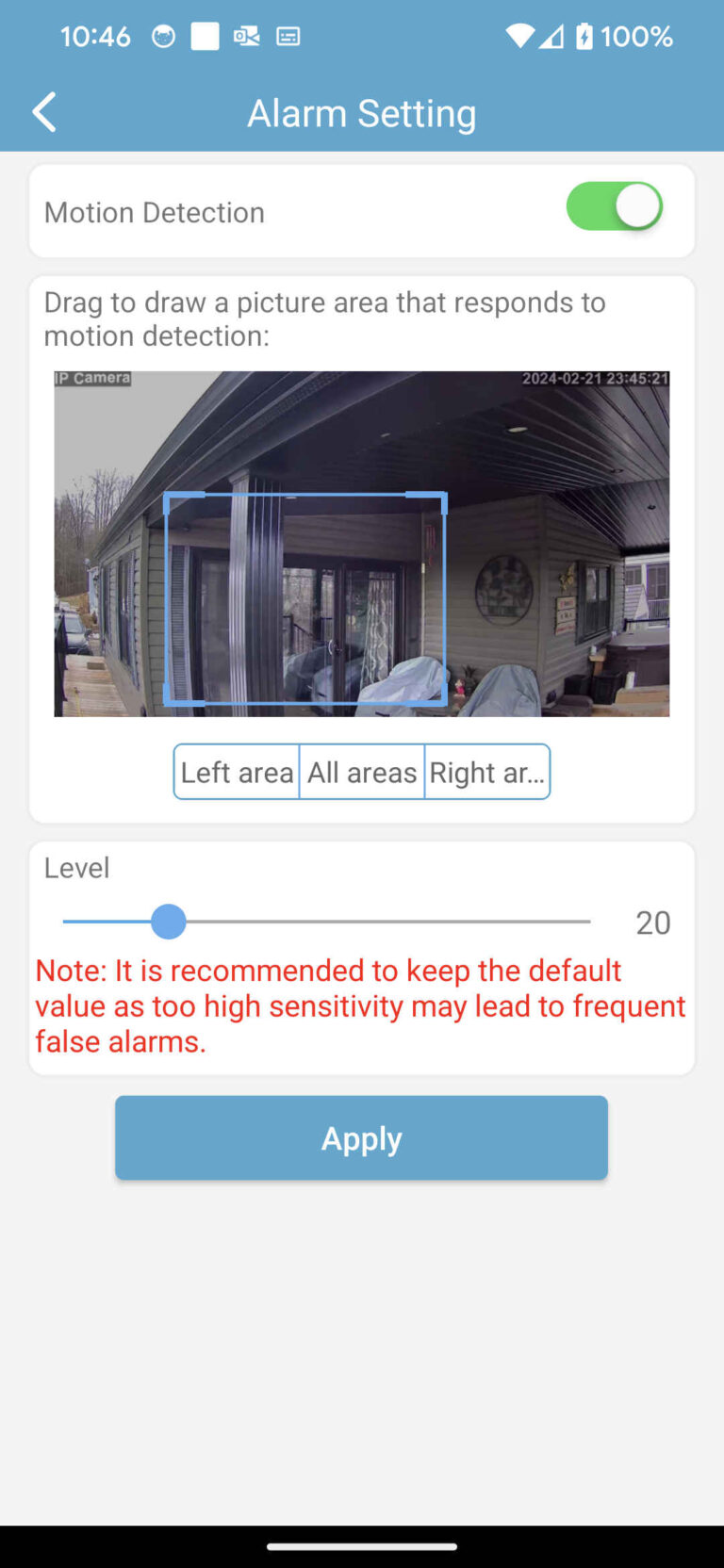
Motion detection zones are also available.  This allows you to set a specific area of your view that will generate alarms.  This worked flawlessly.  I could set an area or zone and only if I entered that area would the camera detect and send alarms.   Great for masking out areas that might have movement that you don’t want to detect.

Alarm-Setting

Notifications

The GENBOLT outdoor PTZ camera GB216D-K Wi-Fi camera can notify you of detection events by email and/or by notifications on your phone.    You can set it up to send your multiple live photos with an event occurs.

Resolution

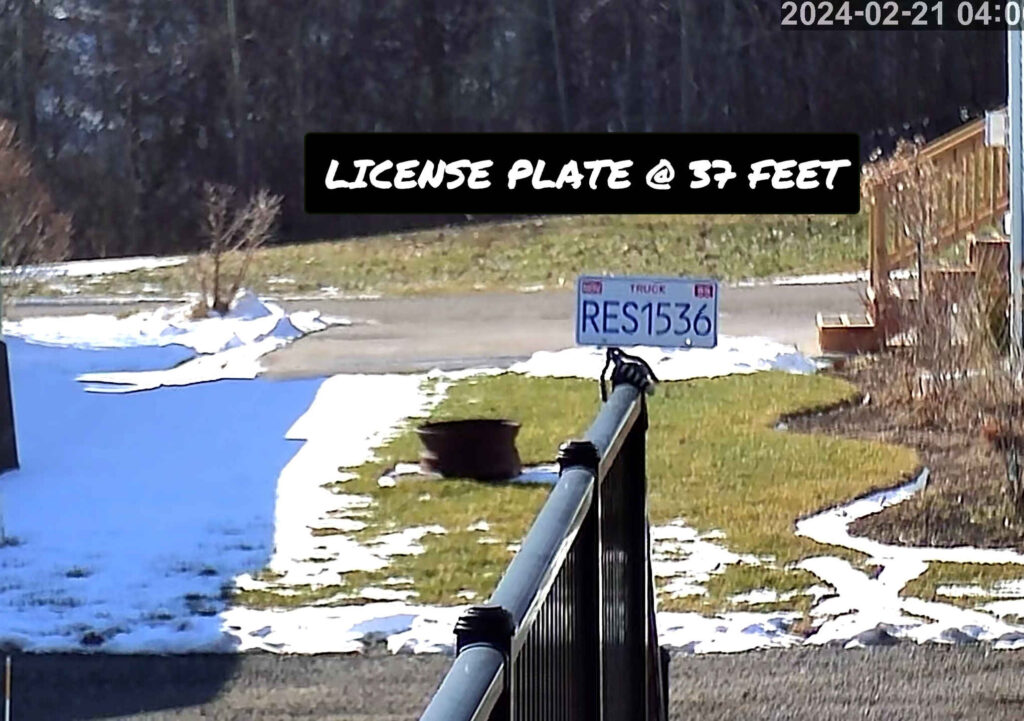
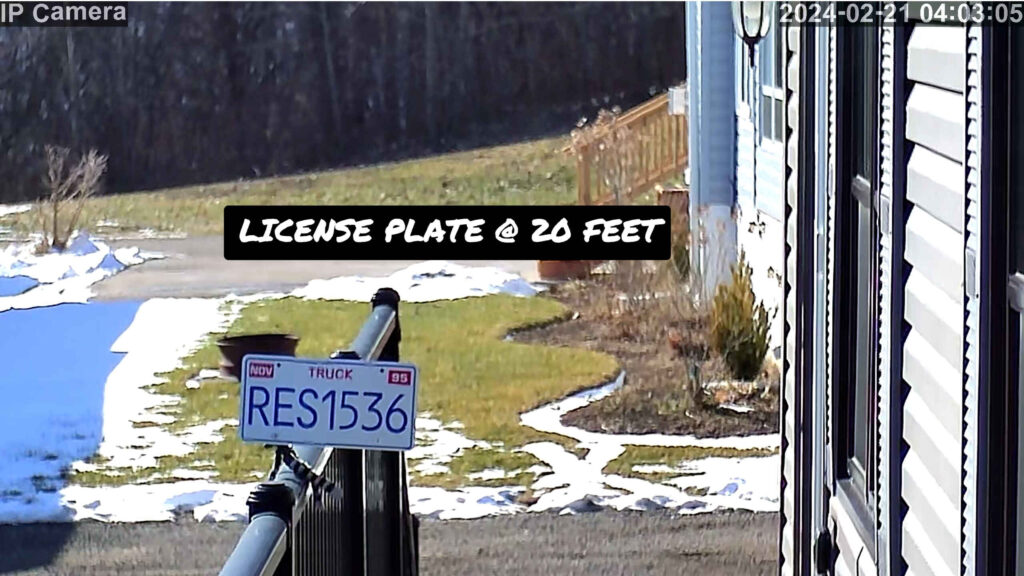
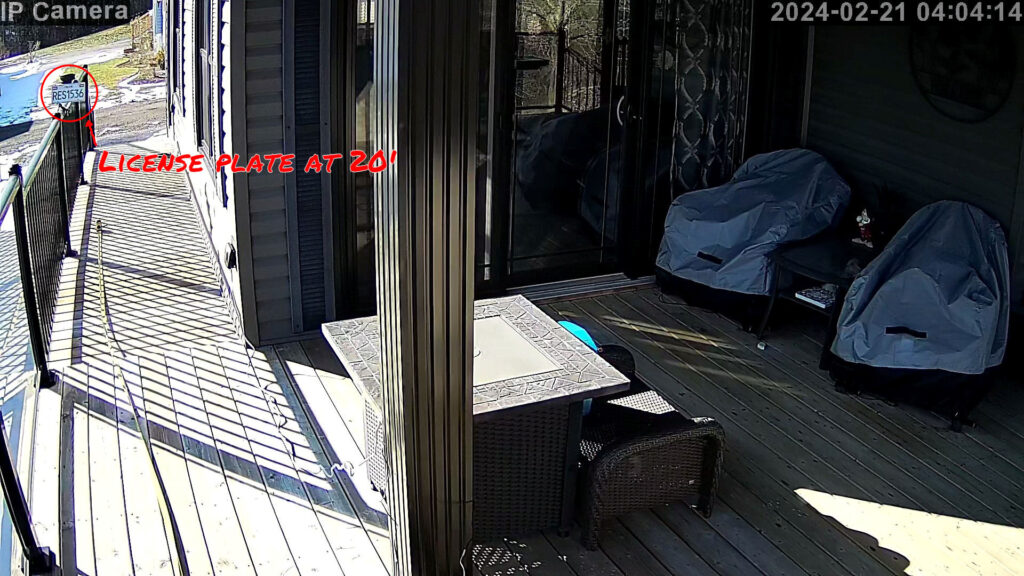
In this section we have provided some real life images using this camera to give you an idea on what you can expect in your environment.  To demonstrate we placed a license plate at approx. 37 feet and 20 feet from the camera.  We then zoomed in on the plate.

GB201 @ 37′ fully zoomed in:

Zoomed License Plate At 37 Feet

GB201 @20′ zoomed in:

License Plate At 20 Feet

FAQ

How do you power the camera?

The Outdoor PTZ camera comes with a 12Vdc 2 amp power adapter that needs to be plugged into a standard household receptacle.  The adapter is not rated for outdoors so it should be placed indoors close to the camera.  The cable is approximately 3 meters long but you can also purchase extension cable if needed.

When running network cables the camera also supports Power Over Ethernet (PoE).  This allows yo to power the camera with the same network cable used for the video (only one cable to camera).  Your router will need to support PoE or you can purchase a separate PoE injector/router that will provide the needed power.  

Do I need a Internet Connection?

Yes. To be able to use the GENBOLT outdoor PTZ camera GB216D-K you will need a Wi-Fi or Ethernet network (hard wired) with Internet connectivity.  The internet connectivity will allow you to view your cameras from anywhere in the world.

Are there any monthly fees?

No.  No monthly fees when you use the onboard memory card or a Network Video Recorder (NVR).   They do offer Cloud storage for a fee but this is not mandatory.

Can I mount this on a corner of my house?

Yes.  But you will need to purchase an corner mount bracket.  We have provided a suitable bracket below.

Pro's & Cons

During my review I have identified the following Pros and Cons 

Pros

  • Can be connected using both Wi-Fi or Ethernet (Network cable) with POE
  • Two cameras for the price of one provides for greater coverage
  • Supports both 2.4 & 5 GHz Wi-Fi  for better network connection.
  • Internal Wi-Fi antennas give the camera a modern sleek look.
  • Great color scheme 
  • Dual lens provides outstanding zoom capability while still giving you wide angle general surveillance
  • Easy to use App. Very intuitive.
  • Great price for what you get

Cons

  • No Alexa or Google Home support.  
  • The mounting lends itself to wall mounting only.  While it is certainly possible to ceiling mount using a bracket (not provided) it would have been nice if it had the required ceiling mounting bracket.  
  • Only 4x Digital zoom provided.  No Optical zoom.  

Alternatives

Conclusion

During the testing of the GENBOLT outdoor PTZ camera GB216D-K I found the dual lens feature to work extremely well.  I was able to zoom in to read a license plate at  a long distance  while still being able to obtain a wide angle view when zoomed out. You get the best of both worlds.   For the price I don’t think you can go wrong this camera and would recommend it for any home or small business.  

Products Covered in this Article

Other articles you may like

GENBOLT GB201H CAMERA REVIEW

Genbolt Gb201H Ptz Camera

GENBOLT GB201H Camera Review

The Genbolt GB201H camera is an outdoor PTZ security camera with a unique design and overall appearance.  

I recently had the chance to unbox and try out the GENBOLT Outdoor Camera GB201H and can honestly say that I was impressed by the dual lens feature.   In this GENBOLT GB201H review, I cover everything you need to know about the basics along with what I consider to be the major pros and cons of this dual view Wi-Fi outdoor PTZ camera.

What you Get

Package Contents

The GENBOLT GB201H camera comes with the following items:

1 x GB201 Outdoor PTZ IP Camera with dual lens

1 x 12VDC Power Adapter

1 x Ethernet 32″ network cable

1 x Waterproof kit 

4 x Screws & Anchors

1 x User Manual

1 x Decal

Specifications and Basics

The GENBOLT GB201H camera is different than most other outdoor cameras in that it has 2 cameras in one.  There is a Fixed camera mounted on the upper area of the outdoor housing to provide a wide angle view and a Pan & Tilt camera (PTZ) in the lower area.   Both cameras can be viewed at the same time on the Genbolt App.  

The overall size is quite small but you wouldn’t get that from looking at the photos.  It measures approximately 15.5cm high x 9.5cm  wide (6.1 x 3.75 inches).   Large enough to be a deterrent and small enough to be aesthetically pleasing.

Overall rotation on the horizontal (Pan) is up to a whopping 355 deg and 90 deg on the vertical (Tilt).  This amount of range would be plenty for a field of view in most home or small business applications. 

As far as color options you are limited to white.  I would have liked to see them offer this camera in the new silver/black color scheme found in some other Genbolt models like the GB216D-K

Plenty of High-Quality Features

Camera Details

The GENBOLT model GB201H camera provides a 2MP (1920x1080p) image which these days is not huge but it does provide sufficient detail for general surveillance.  It would have been nice if this camera provided 4 or 5 MP image at the same great price.

The camera provides 4x Digital zoom.  Digital zoom uses technology (software) to manipulate pixels in the image when zooming while Optical zoom  uses a physical change in the lens to adjust the distance between the camera lens and the subject.   Optical is always the better way to zoom as it provides the best details or image quality.  As a general surveillance camera the 4x digital zoom is more than adequate.  However, don’t expect to zoom in to read license plates at greator distances.

The GENBOLT GB201H camera comes with up to 64 Presets.  Presets are a great feature which allow you to define up to 64 different camera positions that can be called up by simply pressing a button on the app.  For example,  you could create a preset for all your doors, windows or patio. Then when called (through App) would move the camera to the same position you set for that particular preset.   

The camera comes with a Auto focus feature.  When you zoom in/out it will try to adjust and provide the best focus.  This works fine and the focus was good throughout the zoom.

Communications

The GENBOLT  GB201H camera can be used with a Wi-Fi network or a hardwired ethernet cable.  I always recommend a hardwired cable connection using a CAT5 or CAT 6 ethernet cable where possible.  Hardwired connections will typically provide for a better overall user experience.   However, when running cables is just not feasible then the Wi-Fi capability will save the day.   The good news is that this camera supports both 2.4 & 5 GHz Wi-Fi which is not the norm for most IP cameras.   When using Wi-Fi you will still need to provide power via a cable or a local 120VAC receptacle for the power adapter.  If using a network cable you can power the camera through the same cable using Power Over Ethernet (POE).

Tip

Note: If you would like to learn more about the Wi-Fi 2.4 & 5 GHz bands then check out our popular video How to connect to 2.4 GHz Wi-Fi

The GENBOLT GB201H camera comes with two Wi-Fi antennas which can provide an approximate  range of up to 15m or 50′.  This is in ideal situations with no obstacles between the camera and Wi-Fi router. Your range will vary depending on your particular environment.  

TipTip:  If your camera is located at a larger distance then use the 2.4 GHz band instead of the 5 GHz as it will give you a little bit more range as it is better at going through obstacles (walls).  

Night Vision

The GENBOLT GB201H camera provides above average night vision.  During our test it did provide adequate scenes at the advertised 30M or 100ft .

It accomplishes this by using an array of 12 Infrared LEDs and White LED’s.  IR LED’s emit an invisible light that humans can’t see but will help camera see at night. 

As a bonus the camera has some white LED’s built into the camera that acts as a flood light. When movement is detected these lights activate and will allow the camera to see color at night.  Normally you would see Black and White images when using just IR LED’s.

Recording & Storage

Every camera system needs some sort of recording and storage capability.  The GENBOLT GB201H camera can be setup to record based on a schedule or by alarm detection events.  I prefer the alarm detection method as this will reduce the amount of storage needed as it records only when something is detected.  Of course you could also set it up to record all the time or by a schedule.

Storage of video events can be done directly on the camera using a SD Card (memory card).  A  SD card slot is provided on the camera which allows you to insert up to 128GB SD Card.    Video events are then stored on this card.  You would normally enable the Looping option (defaults ON) which will cause the camera to overwrite old video when the card becomes full.  Depending on how many video events you have in your environment it is possible to store up to a month of video events/clips.

128 GB Memory SD Card

Playback and searching your stored video was also easy and intuitive .  The App allows you to find your recorded events by using the timeline or by specific dates using the calendar.  

Alarm & Detection

False alarms from standard camera detection can be extremely annoying.  Things like plants moving in the breeze, snow, rain, dog, moth, fog, leaves falling, and lights from cars passing by can cause standard detection systems to false alarm.  The GENBOLT GB201H camera comes with AI humanoid alarm detection.  The camera sensor will only send you notifications when it detects a humanoid form in the field of view.  This helps to reduce false alarms and the constant annoying notifications.  During my tests I found it to be pretty accurate  but was not perfect.  You can expect some false alarms.  I haven’t found a camera yet that can provide 100% accuracy but with Humanoid AI it gets close.

This camera also comes with Intelligent auto tracking technology, the GB201 will track or follow people’s path automatically once they  enter the surveillance area.  This is a very cool feature and I found it to work pretty well during our tests.  However, like any tracking system you can out run the tracking just by moving very fast or by moving behind an object .   In this scenario the camera may lose track of the person and return to its home position. 

You can also set a schedule for your alarm detection to operate.  For example, you could setup detection to work only between certain hours and specific days. 

Motion detection zones are also available.  This allows you to set a specific area of your view that will generate alarms.  This worked flawlessly.  I could set an area or zone and only if I entered that area would the camera detect and send alarms.   Great for masking out areas that might have movement that you don’t want to detect.

Notifications

The GENBOLT GB201H camera Wi-Fi camera can notify you of detection events by email and/or by notifications on your phone.    You can set it up to send your multiple live photos with an event occurs.

Resolution

In this section we have provided some real life images using this camera to give you an idea on what you can expect in your environment.  To demonstrate we place a license plate at approx. 37 feet and 20 feet from the camera.  We then zoomed in on the plate.

GB201H camera @ 37′ fully zoomed in:

201 37Ft

GB201H camera @20′ zoomed in:

Gb201 Sample Zoom At 20'

Just for giggles here is a comparison sample using a different 4k Camera (Genbolt GB216D-K): You can check out our review here.

Gb203 @ 37'

FAQ

How do you power the camera?

The camera comes with a 12Vdc 2 amp power adapter that needs to be plugged into a standard household receptacle.  The adapter is not rated for outdoors so it should be placed indoors close to the camera.  The cable is approximately 3 meters long but you can also purchase extension cable if needed.

The camera also supports Power Over Ethernet (PoE).  This allows yo to power the camera with the same network cable used for the video.  Your router needs to support PoE or you can purchase separate PoE injectors/router that will provide the needed power.  

Do I need a Internet Connection?

Yes. To be able to use the GENBOLT GB201H camera you will need a Wi-Fi or Ethernet network (hard wired) with Internet connectivity.  The internet connectivity will allow you to view your cameras from anywhere in the world.

Are there any monthly fees?

No.  No monthly fees when you use the onboard memory card or a Network Video Recorder (NVR).   They do offer Cloud storage for a fee but this is not mandatory.

Can I mount this on a corner of my house?

Yes.  But you will need to purchase an corner mount bracket.  We have provided a suitable bracket below.

Pro's & Cons

During my review I have identified the following Pros and Cons 

Pros

  • Can be connected using both Wi-Fi or Ethernet (Network cable) with POE
  • Two cameras for the price of one provides for greater coverage
  • Supports both 2.4 & 5 GHz Wi-Fi  for better network connection.
  • Mounting bracket allows you to mount the camera on a ceiling or wall.  Provides you with more options when selecting a location.

Cons

  • No Alexa or Google Home support.  
  • Resolution of 1920 x 1080p compared to many cameras being 4 or 5MP theses days.  
  • Only 4x Digital zoom provided.  No Optical zoom.  

Alternatives

Conclusion

During the testing of the GENBOLT GB201H camera I found it to be above average for cameras in that price range.  While there is room for improvement, like the smaller image size (2 MP),  and not working with smart speakers like Alexa and Google Home.  I did find overall that this is a good choice for general home surveillance.  With good image quality and above average night vision I don’t think you can go wrong with this camera.  

Products Covered in this Article
Amazon Echo Show 5 2nd Generation Review

Featured1

Amazon Echo Show 5 2nd Generation Review

Smart displays have become an everyday part of many people’s homes. These individuals and families appreciate that they can combine the convenience of voice-and-motion-activated assistance with fast access to the content they need to complete daily tasks and enjoy their lives.

Amazon's Echo Series

I recently had the chance to unbox and try out the 2021 Amazon Echo Show 5 (2nd Generation). What can I say other than I consider it an excellent improvement for the most part over the 2019 (1st Generation) model. In this Amazon Echo Show 5 Review, I cover everything you need to know about the basics along with what I consider to be the major pros and cons of this smart display:

Specifications and Basics

The Echo Show 5, a hands-free smart display that flawlessly combines the best parts of Amazon’s Alexa Assistant with a 5.5-inch touchscreen, a 2MP camera and a lot of sensors, has an overall size of 5.8 x 3.4 x 2.9 inches (148 x 86 x 73 millimeters) and a unit weight of 14.5 ounces (410 grams).

As with all Echo displays, it comes with Wi-Fi connectivity. It doesn’t support peer-to-peer networks, but it does support dual-band 802.11a/b/g/n/ac networks and offers wireless connectivity to Bluetooth speakers. It has a 1.65-inch, built-in speaker with audio streaming with Advanced Audio Distribution Profile (A2DP) support and voice control with Audio/Video Remote Control Profile (AV RCP). It also offers both English and Spanish language support.

System compatibility includes web browsers and Amazon Fire OS, Google Android and Apple iOS. All software and security update automatically occur for up to four years after the last available-for-purchase date. It also comes with a standard 1-year, limited warranty. Additionally, Amazon offer several plans for purchasing and extending the warranty up to three years.

Convenience in a Smart Package

The Echo Show 5, which is sometimes also known as the Alexa Show 5, offers all the convenience that you would expect with this type of Amazon product. The device arrives with a 15-watt, 4.9-inch, glacier white, power adapter. You can order the device to arrive standalone or pay extra for a tabletop stand or Blink Mini bundle. As previously noted, the display comes standard with a 2 MP camera and several sensors designed to make voice and movement interactions with it easier.

Users can effortlessly make video calls, interact with news details or a calendar, stream music and shows from their favorite streaming services like Prime Music, Spotify, Apple Music, YouTube, Prime Video or Netflix and set alarms and timers. The smart display also offers preset routine options that you can set so that they activate when the display detects motion or at a particular time of day.

It interacts seamless with your home’s other smart device. For example, you can schedule interior lights to turn on when you enter a room and turn off when you leave the room or exit the house. These features along with other details outlined in a different section of this review make this device extremely eco-friendly. You can also set the lights to come on slowly and weather details to appear onscreen first thing in the morning, which makes it a great alternative to a separate weather alert system or an alarm clock.

For anyone who really feels the need to match the display with their home’s interior design, Amazon offers the unit in white, charcoal, sandstone, deep blue sea and chameleon. There’s also a version with the latter color specifically designed for kids.

Plenty of High-Quality Camera Functionality

With the 2 MP camera and 5.5-inch smart display, it’s easy to make the Echo Show 5 double as a digital photo frame to display photos from different sources as static, rotational or slideshow images. It’s also an excellent way to keep in touch with loved ones who have a similar device.

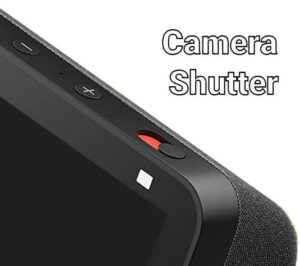
Amazon didn’t scrimp on security features with this unit. The system disables the camera entirely when you select mute or use the off button for the microphone and camera. More importantly (I love this feature), it has a physical, built-in shutter as an additional layer of security and protection to prevent hackers from using the device for spying.

With the 1080P HD indoor Blink Mini, a plug-and-play security camera that features two-way audio and motion sensors, you can monitor any room of your home at any time through the Alexa Show 5. The best part? It’s possible to use the Alexa app to set up a remote, home-monitoring feed. You can use a mobile phone, tablet or computer as a remote viewer through the Alexa Show 5 and any attached cameras. If the sensors detect certain types of sounds or movements, such as movement in what is supposed to be an empty house, the sound of broken glass or the sprinkler system turning on, you receive an immediate alert.

Echo Show Camera Shutter

Everything Kids Need to Learn and Thrive

The Alexa Show 5 is also one of the least expensive secure educational portals for children on the market today. if you’re a parent, you have total access over the parental controls, including filters and blocks designed to protect your children from certain types of content on the internet and different media platforms.

I really like how kids can use the display with the Alexa Assistant to discover answers to common and important questions about the world and life and explore videos, music and other useful educational content. If you don’t want your children underfoot while making preparations for different meals or events, such as holiday and birthday parties, you can set up the Alexa Show 5 in their bedroom.

With an extra Kids+ subscription, you can go one step further and guarantee that your children have access to an extensive library of information that includes games, skills and videos. You can even provide them with access to Audible audio books.

Accessibility Tools That Actually Work

Many people purchase a smart display or similar assistant because they’re dealing with health issues or disabilities that make it difficult for them to fully experience the world without assistance. These tools provide them with a better quality of life. In the past, people with hearing, vision and mobility problems, for example, might need a half dozen or more devices in their home to perform the tasks that the Echo Show 5 does on its own.

People with these and other difficulties can make their lives easier and make more efficient use of their time with the device’s many accessibility tools. The Alexa Show 5 comes standard with closed captioning and Alexa captioning. People with vision difficulties can use a VoiceView screen reader.

The screen also has color inversion and correction options and a magnifier! With internet connectivity, people coping with accessibility issues can also access online tools that offer even greater flexibility and freedom.

Excellent Sound Quality, But...

Speaker

I’ve now reached the point of this review that I have to discuss cons. The truth is that the Amazon Show 5 is near-perfect given its many features and price. It has few downsides. Beyond a smallish screen, the unit has two audio-related problems:

Through the speaker, Alexa is clear as a voice assistant without any strange after “echoes” or digitized sounds. The volume is fantastic. That said, it’s obvious that Amazon focused more on Alexa’s voice-and-speech recognition than on playback of music and other types of audio.

Although you can easily connect to your online playlists and other entertainment via a variety of platforms and Alexa can pick up commands even while music or movies play through it, the playback isn’t the best sound quality on the market. I agree with other reviewers who describe it as slightly “tinny.”

The biggest downside or “but” is that Amazon decided to remove the auxiliary audio 3.5-millimeter jack or port, which means that there’s no option for plugging in a wired headset or speaker with that size plug. Instead, you must depend on wireless connections.

Focus on Tomorrow's World

Recycle Symbol

Many people are worried about the changes humanity is making to the environment. They want to know if the companies they invest in when they buy products and services show the same concern and strive to leave the world a better place. One of the things I like about the Alexa Show 5 is that it has a high post-consumer recycling history. In some ways, it’s more renewable than many similar products.

The display is made with 38% post-consumer plastics and 100% recycled fabric. The power adapter is made of 50% post-consumer plastics. The packaging it arrives in is made of 96% wood-fiber materials from recyclables and carefully managed forests. There’s also an extensive trade-in and recycling program. As a result, you know that your device goes back into the recycling process any time you upgrade to a new model.

Power consumption is another important area to consider. A lot of personal electronics on the market are power hogs during use and vampires that pull leaked energy from outlets in standby mode. When it comes to power consumption, the Alexa Show 5 offers a lower power mode and an energy dashboard designed to make electricity usage more efficient. Amazon has also announced that it’s working to make solar and wind farms available to improve electric utility usage and markets everywhere.

An Affordable Option

Affordable Prices

My main thought about the Echo Show 5 is that it’s a worthwhile, inexpensive deal at approximately $55 before taxes. Even though it has a small 5.5-inch touch screen, it has many potential uses that aren’t hindered too much by the screen’s size. The touch capability and voice-and-motion capabilities are well above average. Many similar smart displays in the market just don’t respond as quickly or as well.

Although it might work in a pinch, I don’t recommend using this display as the main speaker in a kitchen. There are always things to consider when deciding to set up any types of electronic, non-appliance device in a kitchen because of heat and humidity. The greater concern is sound. Music might sound “fine,” but it won’t be at a high enough quality for long-term, prep zone or breakfast-bar or nook enjoyment.

Instead, I think it’s a great secondary system for the living room or a bedroom, especially in a room for kids or an elderly member of the household who has mobility issues and rarely leaves their room. Of course, for the safety of everyone in the home, I highly recommend that you close the 2MP camera shutter or mute the display when it’s not in use to prevent someone from hacking it from outside and breaching your security. That said, when the camera is in use, you definitely get to enjoy much better picture quality than the 2019 1st Generation model.

Lastly, if you already own the 1st Generation Echo Show 5 device, I don’t recommend that you upgrade even though the 2nd Generation is currently so inexpensive since the differences aren’t great enough to make an upgrade worthwhile. The 2nd Generation also doesn’t have that useful aux 3.5-millimeter jack found in the 1st Generation that’s great when you want to plug in a wired headset or even a second wired speaker.

When it’s time to upgrade, there are other models that are far more worth the time and money it takes to make this type of change in your home, such as the Echo Show 10 and Echo Show 15. The latter offers an impressively large screen that’s worth a second look. Amazon does provide simple setup of the Echo Show 5, but you might deal with a significant disruption while you’re trying to set up access to content and sync it with other smart devices in your home. You also need to take extra time to set up additional security cameras.

FAQ

Do you need to pay a monthly fee to use an Echo Show?

No.  There is no monthly fee.  There are optional services like Amazon Music but they are optional.

Do I need a Internet Connection?

Yes . To be able to use an Echo Show you will need a Wi-Fi network in your home.  

Do I need an Amazon account?

Yes.  You will need an Free Amazon account.

Can I use the Amazon Echo Show 5 as a security camera?

Yes.  You can use it as a security camera and monitor the live feed from your home on you smart phone.

Can I make video calls with the Echo Show 5?

Yes.  Echo Show devices can place video calls to other Echo Show devices and the Alexa phone app.

Pro's & Cons

During my review I have identified the following Pros and Cons 

Pros

  • Great price. A very inexpensive way to get started with a smart speaker
  • No monitoring fees or long term contracts
  • Compatible with other smart home devices
  • Integrates with surveillance cameras
  • Built-in security features – physical camera shutter.

Cons

  • Not the best sounding smart speaker on the market.  
  • Screen is a bit small at 5″.  
  • Missing the 3.5mm audio jack found on its predecessor.

Conclusion

All of that said, if you’re looking for a winter holiday gift that your loved ones will appreciate and enjoy day after day, then you don’t need to look any further. It’s an accessible, convenient, fun smart display.

Specifications

Approx. Size

148mm x 86mm x 73mm (5.8” x 3.4” x 2.9”)

Approx. Weight

410 grams (14.5 oz) Actual size and weight may vary by manufacturing process

Display

5.5” touch screen

Camera

2 MP - built-in security shutter

WiFi connectivity

Dual-band wifi supports 802.11a/b/g/n/ac Wi-Fi networks

Bluetooth connectivity

Audio streaming from your mobile device to Echo Show 5 or from Echo Show 5 to your Bluetooth speaker. Bluetooth speakers requiring PIN codes are not supported.

Audio

Full range 1.65” built-in speaker.

Processor

MediaTek MT 8163

Accessibility features

On Echo devices with screens, you can enable Alexa captioning and closed captioning, magnify the screen, toggle colour inversion, and choose between colour correction options. You can also enable the VoiceView screen reader to use gestures to navigate the screen and hear spoken feedback about the items you select. Learn more about Echo with a screen accessibility and Alexa accessibility.

Warranty and Service

1-year limited warranty and service included. Optional 1-year, 2-year, and 3-year extended warranty available for Canada customers sold separately. Use of Echo Show 5 is subject to these terms.

Included in the Box

Echo Show 5, glacier white power adapter (15W)/cable (4.9 ft.) and quick start guide.

Generation

Echo Show 5 (2nd Gen) - 2021 release

Privacy Features

Wake word technology, streaming indicators, microphone/camera off button, built-in camera shutter, the ability to view and delete your voice recordings, and more. Visit the Alexa Privacy Hub to explore how Alexa and Echo devices are designed to protect your privacy.

Recommended device footprint

Echo Show 5 device is 5.8”W x 2.9”D. Recommended footprint: 6”W x 4”D.

Sengled Bluetooth Smart Bulb Review

Sengled Smart Bluetooth Bulb

Sengled Bluetooth Smart Bulb Review

In this review we will take a look at the Sengled Bluetooth Smart Bulb by Sengled Co. Ltd.  This  bulb can be set to millions of different colors using voice commands vis your Amazon Alexa or by using an App.   Best of all it is very inexpensive compared to many of its competitors.    

What you get

The product we chose was the single smart bulb and basically that’s all you get other than a small instructional pamphlet. Of course you can purchase larger packages that contain 2, 3, 4 and 6 bulbs.  

Sengled Smart Bulb Instructions Pamphlet

Small instructional pamphlet.

How does the Sengled Bluetooth Smart Bulb work?

The model we chose for this review is the Bluetooth model B11-N1EW  smart bulb not the Wi-Fi version.  It is however in our plans to perform a review on the Wi-Fi version as well.  While the Wi-Fi version is more expensive than the Bluetooth model it does have its benefits in certain situations.  

The Bluetooth model does not use your Wi-Fi but rather it transmits and receives it data utilizing a radio frequency.  Bluetooth is a short range wireless technology standard used to exchange data between devices.  This is the same Bluetooth technology found on your smart phone that you likely already use for items like earbuds  or speakers.  Bluetooth is a very reliable technology with the only drawback being its ability to work at short distances only.  Typically its range would be approximately 10m (33ft). 

We will be using the smart bulb with our Amazon Alexa which also has Bluetooth technology built in which allows it to communicate directly with the smart bulb without any hub or app.  This makes it one of the easiest smart devices to get working in your home.  One thing to note here is that it will not work with Amazon Echo 1st Generation or the Echo Dot 1st generation.  If you have a newer version of Amazon Alexa then there should be any problems getting this to work.

Man Screwing In A Sengled Bluetooth Bulb

One of the other great features of this smart bulb is its ability to use a Mesh Network to extend its range through your home.  A mesh network can relay data(messages) between devices in your home.  For example,  a bulb situated near your Amazon Alexa receives a command to turn on.  This bulb would then re-transmit the command allowing other bulbs/devices that are further from the your Alexa to also receive the command.  It hops between bulbs/devices so that all bulbs will get the command even if they are out of range of your Alexa.

Features

Mesh 5.0 wireless technology

Allows for a farther reach, enabling whole-home installations. Each A19 smart bulb multicolor serves as a signal repeater, so that even if a Bluetooth light bulb is out of reach from the Alexa Echo device, it can still be controlled using the Mesh network.

Saves Energy

Sengled smart LED bulbs save 85% energy compared to incandescent lighting.

Light Schedules

Can be scheduled to turn lights On and Off automatically

Group Control

Dim, brighten or turn on and off by individual bulb or by room.

FAQ

Can you use this bulb with a dimmer?

No.  This bulb is not compatible with regular wall dimmers.  However, you can dim the bulb by giving Alexa the command “Dim my lamp to 10%” or what any percentage you want.

Do I need a Wi-Fi Connection?

No. The bulb in this review works on Bluetooth and does not use Wi-Fi.  However, there are other Sengled models that work on Wi-Fi.  

Can I use this outdoors?

Officially no.  However, I have used it in an outdoor light fixture which protects it from the weather and it works fine.   Any enclosure that protects the bulb from the outdoor environment should work.  Use it outdoors at your own risk but

Is it compatible with Google Home?

No.  At the Bluetooth bulb covered in this article is not compatible with Google Home.

How do I change the color?

Just say “Alex… change my light to red” or “Alex…Change my light to Green.  You can change to any color you want.  You can also change the color using the Alexa app.

Pro's & Cons

During my review I have identified the following Pros and Cons 

Pros

  • Great price. A very inexpensive smart bulb
  • Can be used with Alexa alone or in combination with the App. 
  • No hub required.
  • 3 year warranty

Cons

  • This model only works with Alexa. No Google Home.   
  • Not recommended for outdoors (see FAQ).  

Conclusion

If you are looking for an inexpensive way to add smart bulbs to your home then these would be a great addition.  Easy to setup and they won’t break the bank.  The best thing is that you have the ability to change colors.  

Specifications

Products Covered in this Article

Works-With-Alexa-Badge

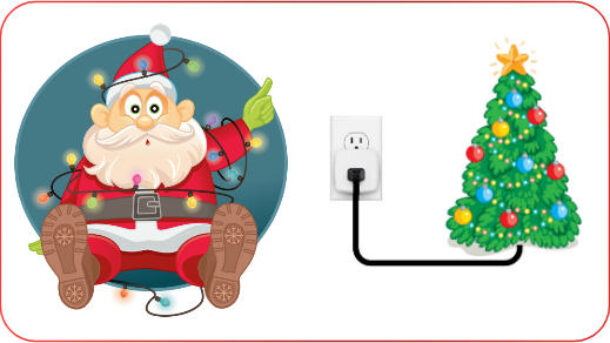
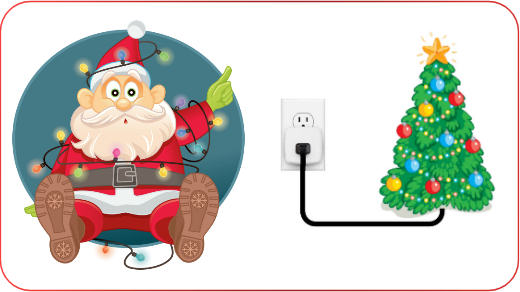
Turn on your Christmas lights with a Smart Plug

Santa With A Christmas Tree Controlled By A Hbn Smart Plug
Santa With Xmas Lights

Turn on your Christmas lights the smart way

Days
Hours
Minutes
Seconds
Until Christmas

Are you tired of crawling under your Christmas tree to plugin the lights?  Or wish your Christmas lights would turn on and off by themselves at certain times? Well you’re in luck as we will show you exactly how you can  do this without breaking the bank. 

Indoor Christmas Tree Lights

You can easily turn on/off your Christmas tree lights by using a smart plug from HBN.   What are Smart Plugs? These are inexpensive devices that plug into a normal household receptacle and can be turned on or off using your phone/tablet , by setting timers or by voice commands (if you have Alexa or Google Home).  

We recommend using the HBN Smart Plug Smart Plug for the following reasons:

Making the HBN Smart Plug work on your phone

Installing the App on your phone/device will allow you to manually turn the smart plug on/off or have it controlled by the time of day. For example,  turn on at 6pm and turn off at 11pm.  

Before you begin make sure your phone/device is connected to your 2.4GHz Wi-Fi network.  

The following instructions are also available in a video.

  1. Install the Smart Life App from your App Store.  This would be Google Play Google Play Icon or the Apple store Apple-Store-Icon depending on the type of phone/device you have. The App you need is called Smart Life and will have this icon Smart-Life-IconNote: You can also use the HBN app found in the same app stores.  The setup will be almost identical to the Smart Life App.  Either will work great but in this tutorial we have chosen the Smart life
  2. Open the App and it will ask you to log in or sign up. Login if you already have an account or select Sign Up to create one.  
  3. Next you need to read the user agreement and select Agree.  
  4. On the next screen Register by providing your Country and Email address then select Get Verification Code.  They will then send you a code by email.  Enter the code on the space provided once received.  Getting the code should only take a minute or less.  
  5. You will then be asked for a Password.  Enter one and select Done
  6. We are almost there!  Select the Add Device button to add your new smart plug.  
  7. You will then be prompted to allow the App to access your location.  Continue then Select “While using the app“. 
  8. A list of devices will be displayed.  Select the Socket (Wi-Fi) under the Electrical section.
  9. Next you need to provide your network name and password.  This is needed to enable the smart plug to communicate with the App.
  10. Select Next and you should be presented with a screen asking you to reset the smart plug (if already plugged in first unplug for 10 seconds then plug it in).  Press and hold the reset/power button on the side for 5 seconds.  The button/light should start flashing to signify that it’s in the pairing state.
  11.  Select Next then confirm the indicator is Blinking Quickly.
  12. The app will then begin searching for your smart plug on your network.  This could take a minute to complete.  When done you will get a screen stating your device was added successfully.  Select Done to finish

Congratulations you are now  connected to your smart plug and able to control it with the App.  You should see a screen with a power button.  Pressing this button will turn your smart plug On or Off.

Setting up a Timer for your smart plug

Let’s set a daily On/Off timer for your new smart plug.  

  1. Select the Timer button/link at the bottom of your screen.  The Schedule screen will be displayed.  
  2. Select + Add Schedule
  3.  Select the days you want the smart plug to be switch ON. 
  4. Select the time (hour/minute) 
  5. Select the Save button.  You should now see the new ON schedule for the smart plug.  You can disable this schedule at anytime by sliding the slide switch to Off
  6. Select + Add Schedule again to add the OFF schedule.
  7. This time you need to change the action to OFF.  Select the ON link and choose OFF from the available options.
  8. Now set the Days and time as you did in the ON schedule for the OFF times/days. Then select Save.
  9. You should now see both the On and Off scheduled listed in the schedules list.
  10. Select the Back arrow at the top left of the screen to return to the main screen.
You schedules should now be functional

Naming your Smart plug

When you added your smart plug it was automatically given a default name of Switch 1 or similar. We need to change tis to something more appropriate for your switch.

  1. To name your new switch select the Edit icon on the top right of your screen.  
  2. Select Device Information
  3. Enter a new name by selecting the current name then Save 
  4. Select the Back arrow to return to the main screen.  Your new name should no be display.

You are now done with the setup.  Enjoy your new smart plug.  Remember if you run into any problems you can always visit our Community form at https://senexhome.com and post your question.  

Frequently Asked Questions (FAQ)

The most common cause for this is that phone is not on the same Wi-Fi network as the smart plug.  In order for the smart plug to communicate it must be on your 2.4GHz network.  I will not work on a 5GHz Wi-Fi network.  You phone must also be on this same 2.4GHz Wi-Fi network.

When there is a power outage in your home, the smart plug will reconnect to your wifi network automatically and will retain all  schedules and information configured. However, the plug will remain OFF when the power restores for safety reasons.

not exceed the maximum rating of what the timer can handle. Which is rated: 1875W Resistive / 15A, 625W Tungsten / 5A, 1/2 HP

Yes.  This smart plug works with alexa.

It’s a small device that plugs into a standard home receptacle.  You then plugin  items like like lamps, appliances into the smart plug.  You can then turn the device On and Off by using voice commands, time schedules or manually through a smart app. 

Related Articles

Works-With-Alexa-Badge
Works-With-Google-Assistant-Badge

Products Covered in this Article
Tuya Wireless Alarm System Review

Tuya Wireless Alarm Kit With Sensors, Siren, Keychain Remotes, Fobs And Control

Tuya Wireless Alarm Review

In this article we will be reviewing the Tuya Wireless Alarm system. This  system comes in many different package sizes so it should be easy to find one that meets your needs.  It does a good job of providing you with the all the components needed for a do-it-yourself alarm security.   

The included keypad/control connects to your local network and provides easy cloud based remote control and notifications through the Internet.  This is a good choice  for a low cost DIY project as there are no set-up or monthly fees. You can use the iOS or Android app to control and monitor your system from anywhere.  Push notifications can be sent to your smartphone whenever an alarm is activated.   

What you get

The Tuya wireless alarm package we chose included  enough devices to protect a small home or business. You can easily add more sensors to expand your system as needed.   

Alarm-Display-Keypad

Kit includes one keypad/control.  This is the brain of the system which communicates with all of the other devices in your home.  It connects to the Internet through your existing Internet WiFi router.  It  can send notifications to your phone and receives commands (arm/disarm).  

There is a built-in battery that provides standby power during a power failure.  

Keychain Remote

Package includes four(4) Keychain Remotes with 4 buttons.  Arm Away, Arm Home, Disarm and  Panic.  

Kit includes one (1) Passive Infrared (PIR) Motion Detectors.  This detector can be placed on a table or mounted on a wall and will detect movement within its field of view. Again,  you can purchase additional detectors if/when needed. Requires two AAA batteries.

Kit includes eight (8) Wireless Door/Window sensors. Requires one (1) AAA battery.

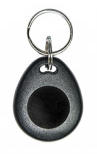
Key Fob

Two (2) RFID key fobs for easy arming/disarming of the system

Siren

One 6′ wired 100db siren.  

Usb Power Adapter

One power adapter with 3′ USB cable.

How does the Tuya WiFi System work?

The Tuya is a wireless alarm system so there is no need run cables throughout your home.  It will use your existing WiFi router to communicate to the iOS or Android Apps. Installing devices on your doors, windows and walls is easy. Just peel the double sided tape and mount the sensors on a door or wall.  

I found the sensors to be of fairly good quality.   However, I have found that any double sided tape will eventually dry out and the device could fall off.   I would recommend using a little bit of Silicone along with the double sided tape to provide a better mounting.

The Keypad/Control needs to be plugged onto a wall receptacle using the supplied adapter. So key this in mind when choosing a location for it.   

If you plan on mounting on a wall like a traditional alarm keypad keep in mind that both the siren and power cords need to plug into the side.  This may result in less than desirable appearance with cables running up your wall.  I found that using a adjustable stand (see below) and placing on a side table or counter is a great solution.  It hides the cables better.  Of course if you are of the handy type you could fish the wall or use wiremold to hide the cables.

The Keypad/Control connects to your existing Internet router using WiFi so there is no wire needed for this.  It just needs to be in range of your router which is normally not an issue a medium sized home.  The included siren was fairly loud at 100 decibels and does the job of warning would be intruders.

Keypad/Control sitting in an adjustable stand:

The Motion sensor was also easy to mount on a wall.  They come with a swivel bracket that allows you to angle the senor in any direction. You can mount the bracket using the supplied double sided tape or with screws.  I would always recommend screws if the installation is permanent.

Motion sensors are powered by two AAA batteries.  Depending on where they installed you could get up to a year of operation but this would be greatly reduced if in a busy area and are constantly being tripped.  In our test site the sensors located in a busy corridor lasted only 6 months.

Mounting the door/window sensor was also extremely easy.  Just peel and stick.  Again, a little silicone is recommended. Battery installation was a snap.  It uses a standard CR2032 battery.  The door sensors opened easily by pressing the side tabs and opening the motion with a small screwdriver. Another nice feature of these sensors is that they provide a LED that will flash red whenever the sensor detects the door/window is opened. 

The wireless alarm system comes with 2 RFID key fobs.  These worked flawlessly.  Just present the fob to the RFID location on the keypad/control instantly toggles the system status on/off.   

These Key Fobs makes arming/disarming your system quick and easy.  Its construction looks like it would withstand a lot of abuse.  It’s size is smaller than most which makes carrying around on your keychain  almost unnoticeable.

Four keychain remotes are also included in this package.  These allow you to arm/disarm and activate a panic alarm.  You can also arm your system in the Home mode.  

Mobile App - Smart Life

This wireless alarm system uses the Smart Life App which can be download from the Google Play store or  Apple store.  This App is used by many different products and I found it to be very reliable.  

The only issue I had was finding the Tuya WiFi wireless alarm system within the many many screens of products.  I eventually found it under Sensors then Alarm (WiFi).  Once I found this I was able to install and connect to the alarm with no issues.

The App has all the normal functions such as Arming Away, Arming Home,  Disarming and SOS (panic) on the main screen.  You can access the alarm History from here as well.  The top portion of the Home screen displays your current status. Overall a nicely laid out screen which was easy to use and understand.

The Smart Life home screen:
Tuya Alarm Life App Main Screen

Pro's & Cons

Pros

  • Great price. A very inexpensive way to get started with a wireless alarm security system
  • No monitoring fees or long term contracts
  • Expandable.  You can add up to 100 devices at any time.
  • Loud internal siren
  • Uses standard batteries which are easily obtainable
  • Works great a WiFi based system

Cons

  • This wireless alarm system does not monitor(supervise) its sensors which means if for any reason a sensor is unable to communicate to the keypad/control you will not be notified.  This could include dead batteries, RF interference or the sensor being physically removed from premise.  
  • Uses old 2G cellular technology which is difficult to find still functional in USA and Canada .  This leaves the  GSM communications feature as really not feasible. 

Conclusion

This system would be a good choice for those wanting a very inexpensive system and can live with frequent testing to ensure all sensors are still functioning (lack of supervision).  However, with no supervision there is no guarantee that a sensor will function when it needs to.

If the cheque book can afford it I would recommend a more professional grade system that has supervision.  If not, then this wireless alarm system would is one of the better low cost systems out there.

Related Article

Tuya Wireless Alarm Installation

Products Covered in this Article

Link Philips Hue to Google Home

Link Philips Hue To Google Home

Link Philips Hue to Google Home

In this tutorial we will be showing you how to link Philips Hue to Google Home Assistant.  This will allow you to control and monitor your Hue Lights with Google.   If you are looking to connect the Hue Motion to Google then you would be out of luck as Google Assistant does not support this sensor at this time.  

If you are the kind of person that prefers videos over written articles then check out our video on our YouTube channel here.  It contains the same information found in this article but in a easy to watch video format. 

What You Need

  1. Philips Hue Hub
  2. Philips Hue Light(s)
  3. Philips Hue App Installed
  4. Google Assistant (any model will work)
  5. Google Home App installed.
  6. This article assumes that you have already installed the Hue Hub, Hue Lights, and Google Assistant App and all are functional on their own.  

How to link Philips Hue to Google Home

To start we will need to open the Google Home App Google Home Icon on your phone or tablet.  Using this App we we will link Philips Hue to Google Home.  Linking is the process of establishing a communications link between both online services. This linking is done over the Internet and will require your authorization to perform the link.

  1. To connect Philips Hue with Google Home select the Plus + button on the top of your Google Home screen.
  2. In the Add to home section select the Set up device. 
  3. Select the Works with Google link to start linking Philips Hue.
Philips Hue Setup Screen Getting Started Screen Shot

4. A list of Linked services as well as a list of available services will be displayed. At this point you can scroll to find the Philips Hue service or a better option would be to use the search function.

5. Select Philips Hue from the list

6. After a few seconds you should a Log in screen for your Philips Hue account.  This is the account you created when you installed the Philips Hue App.  If you have not yet installed the Hue App then please do that before continuing with this tutorial.  Enter your credentials and select Continue.

Linking Philips Hue

7. Because you are linking accounts using the Google Home App Philips Hue knows this and presents a Permissions screen.  It is asking for your authorization to let the Google service communicate and control/monitor your Philip Hue devices.  Select Yes to provide your permission.

8. At this point Philips Hue and Google Home will communicate and make the connection. You will then be brought back to the Set up a device screen.  Use the  Back navigation button   to return to your Home screen.

9.  Your Philips Hue devices should now appear on your Home screen.  Scroll down until you locate your new devices.  

Philips Hue Setup Screen For Device

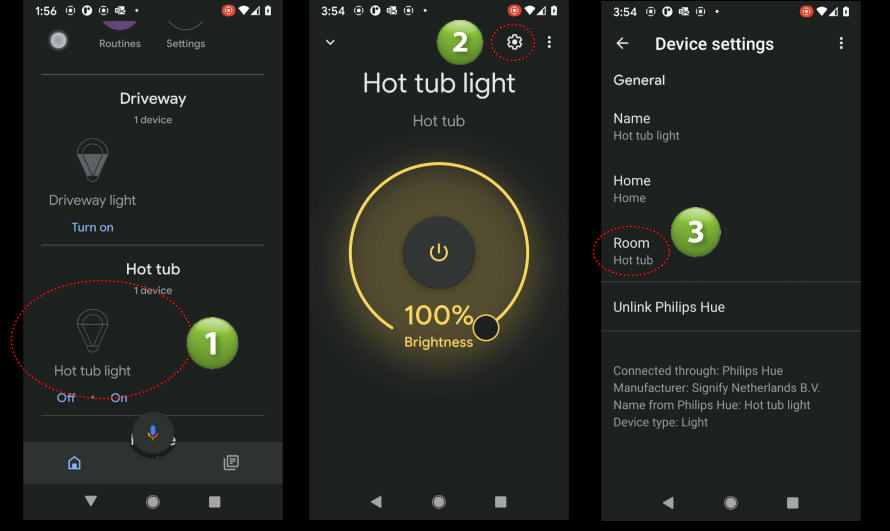
10. You should see your Philips Hue devices.  In our example here we had two devices configured in Philips Hue named Driveway and Hot Tub Lights.  

11. You can now control these devices from within Google Home by using the App as shown below or by simply saying “Hey Google Turn on the Driveway Light“.  You can also set the light level by saying “Hey Google turn Driveway light to 50 percent” and turn off the light by saying “Hey Google Turn off the Driveway light“.


Philips Hue Setup Screen Control Lights

Google Home Rooms

As you can from the above example when the devices were added to Google Home they were added as separate Rooms.  This may be what you want but in many cases you want these new devices to placed in an existing or even new rooms.  This can be done by changing the room through the Device settings.

To change your devices room:

1. Open the device screen by taping on it.  

2. In the top right select the Settings icon to open the Device Settings screen.  

3. You can see in our example the Hot Tub light is shown in a room called Hot tub which was created during the linking process. Tap/click on the Room link/title.  A new screen will appear allowing you to select an existing room or to create a new one.

Philips Hue Setup Screen With Brightness Indicator

4.  Choose or create a new room then hit the Save button.  In our example we chose Living Room as the new room for the Hot tub light  

5. Return to your Home screen to see that your device/light has changed rooms to Living Room.

Philips Hue Setup Screen

Summary

In this article we showed you how to link Philips Hue to Google Home.  We would love to hear what you have to say about this article so please leave a comment below.  If you have any questions or need help you can post your question using the Ask Phil  or the Community forums. If we don’t know the answer we will help find it.

Products Included in this Article
Smart Home Protocols

Logos Of Different Automation Protocols

Home Automation Protocols

Logos Of Different Automation Protocols

In this article we will cover the many different automation protocols used in the Home Automation industry.  

BLUETOOTH (Mesh) Protocol

Bluetooth is a low-power wireless technology that uses radio waves to transfer data between devices. Most of us know Bluetooth as the method we use to connect audio devices like speakers, head phones or cell phones.  All of which use Bluetooth extensively.  

Bluetooth Low-Energy technology (BLE) is used by many devices and Hubs in the Home Automation industry.  This is a variant of the classic Bluetooth and is targeted at low power devices like the Internet of Things(IoT).  It is different from the classic pairing version above in that it does not use pairing technology.

In 2017 Bluetooth Mesh profile was released which added the ability to perform a many-to-many style of communication with provisions for message relay from one device to another.  This would  create a flexible mesh topology with multiple potential paths between devices (nodes) to ensure delivery of messages.  This means that data is relayed by transmitting data over the air (flooding) so that all devices in range can receive the transmission.  Each device that then receives the transmission will use the unique sequence ID (included in every message) to determine it it needs to re-transmit (relay) the message Devices keep track of the sequence ID’s and do not relay if they have already seen or relayed the message.  Messages also use a time-to-live counter (TTL) that gets decremented by one every time it gets relayed.  The TTL is typically set to 3 and as it hops and reaches a value of 1 the device will no longer relay the message. 

Bluetooth BLE is  intended for devices that only need to transmit small amounts of data periodically, which can extend battery life by months or even years.

More at https://www.bluetooth.com/

Thread Automation Protocol

It is a low-power wireless mesh networking protocol based on the universally supported Internet Protocol (IP), and built using open and proven standards.  A Thread network can self-heal  meaning that if one of the devices in the network becomes inoperable the network can adjust and continue to operate.  Thread is interoperable by design.

Devices in a Thread network are authenticated and communications are encrypted.  Devices also use very little power and can operate on battery power for years.

A thread network will consist of Router and End Devices.  A Router is a node that forwards packets for other devices and provides services for devices trying to join the network.  A End Device is a node that communicates primarily with a single Router and does not forward packets for other network devices.  It can also disable its transceiver to reduce power consumption.  The relationship between a Thread Router and End Device is that of a Parent-child. A End Device will attach to only a single  router.  The Router is always the Parent while the End Device the child as a child.  

More info at https://www.threadgroup.org

Wi-Fi

Wi-Fi is wireless networking technology that uses radio waves to exchange data between a wireless router and Wi-Fi enable devices throughout your home.  You may think that Wi-Fi is an acronym for something but it’s not.  Wi-Fi is actually a brand name created by a marketing firm.

The IEEE 802.11 standard is what defines the protocols that allow communications between Wi-Fi enabled devices.  There are multiple versions of this standard which include 802.11n (Wi-Fi 4), 802.11ac (Wi-Fi 5) and 802.11ax (Wi-Fi 6).  There is even an extension to W-Fi 6 named Wi-Fi 6E that allows communication over a new frequency at 6GHz.    

Wi-Fi Versions
IEEE Standard Created Maximum Speed Frequency Band
Wi‑Fi 6E (802.11ax) 2020 600 to 9608 Mbit/s 6 GHz
Wi‑Fi 6 (802.11ax) 2019 600 to 9608 Mbit/s 2.4/5 GHz
Wi‑Fi 5 (802.11ac) 2014 433 to 6933 Mbit/s 5 GHz
Wi‑Fi 4 (802.11n) 2008 72 to 600 Mbit/s 2.4/5 GHz
(Wi-Fi 3)802.11g 2003 6 to 54 Mbit/s 2.4 GHz
(Wi-Fi 2) 802.11a 1999 6 to 54 Mbit/s 5 GHz
(Wi-Fi 1)802.11b 1999 1 to 11 Mbit/s 2.4 GHz
(Wi-Fi 0)802.11 1997 1 to 2 Mbit/s 2.4 GHz

Wi-Fi is the most recognized of the protocols/standards because it used by so many products and devices purchased by the general public.  Almost every home has a W-Fi router installed which makes connecting Wi-Fi based Home Automation device a snap.  In fact,  Internet of Things (IoT) devices that utilize this protocol require no additional hardware or equipment.  They basically just work out of the box.  

Wi-Fi routers will typically use two different radio frequencies 2.4GHz and 5 GHz to communicate with Wi-Fi devices throughout your home.  The 2.4GHz frequency has been around from the early days and is shared with many devices like cordless phones, microwaves, baby monitors,  audio devices and more common devices used in a home.  If you have a lot of these devices in your home you could experience overcrowded channels which will result in interference with your home automation devices.  While many older home automation devices would work only on the 2.4Ghz frequency band newer devices will work on both 2.4 and 5 GHz.

While the 5 GHz band provides for faster data transfer speeds it has more trouble going through walls and obstacles in your home.  This results in a shorter range (distance) which may cause intermittent disconnects of your devices if they are place too far from your router.


Zigbee

Zigbee is wireless mesh network protocol that targets battery-powered devices in a home automation system.  It is based on the IEEE’s 802.15.4 network standard.  Zigbee has been used in the home automation industry for more than a decade for low-powered devices that don’t require a lot of bandwidth – like your smart home sensors.

A mesh network is a local network topology in which the nodes (devices, bridges, etc.)  communicate with other nodes to efficiently route data to clients.  There is no dependency on any  specific node which allows very node to participate in the relay of data.  This means that each wireless node can communicate with each other and share data across a large area.  Zigbee’s ability to utilize mesh networking means it can increase transmission range and provide greater reliability using self-healing algorithms.  

For example,  in a Zigbee based network you could have a master coordinator node that controls other network nodes.  If one node fails for any reason and can no longer communicate with a second node, the master node and second node may re-establish communications by linking to a third node that is within range. In a mesh network every node acts as a repeater of sorts, and all nodes cooperate in the distribution of data – hence mesh network.

Zigbee operates in the 2.4GHz band and can support up to 65,000 nodes on a single network.

Z-Wave

Z-Wave is a wireless communication protocol used mostly in home automation systems to allow devices to communicate with each other.  It is also based on mesh technology allowing each device to act as a repeater to provide a self-healing reliable network.  

There are 1000’s of home automation products that utilize the Z-Wave protocol which allows for integration between many different manufacturers products. Z-Wave has one of the broadest product selections available.

Z-Wave uses a source-routed mesh network architecture. In this type of network devices send data/messages (initiator) which are then relayed by neighboring devices.  Devices can communicate to each other by using other nodes to dynamically route around and circumvent obstacles or radio dead spots that might occur in a typical  home.  For example, data/messages from node A to node C can be successfully delivered even if the two nodes are not within range by using a third node B which can communicate with bot nodes A and C. If the preferred route is unavailable, the message originator will attempt other routes until a path is found to the C node. This means that a Z-Wave network can reach much farther than the radio range of a single node.

Z-Wave operates at 868.42 MHz in Europe, at 908.42 MHz in North America which avoids interference with systems that operate on the crowded 2.4GHz band.  To provide security Z-Wave uses AES-128 encryption.

IP Protocol Over Ethernet

Ethernet is a wired networking technology used in Local Area Networks (LAN) and Wide Area Networks (WAN).  It is also considered one of the key technologies that make up the Internet.  Data is transferred over a physical cable as apposed to Wi-Fi that uses wireless technologies to send over the air.  When it comes to Ethernet vs Wi-Fi speed, Ethernet is almost always lower latency (less delay), and higher bandwidth (more capacity) than Wi-Fi.

Cables for a Ethernet network are almost always classified as Cat 5e, Cat 6e or similar.  The Cat stands for Category.  The number that follows refers to the specification version supported by the cable.  Generally a higher number means higher frequencies and therefore faster speeds.

Category Shielding Max Transmission Speeds Max Bandwidth
Cat 5 Unshielded 10-100Mbps 100MHz
Cat 5e Unshielded 1,000Mbps to 1Gbps 100MHz
Cat 6 Shielded or unshielded 10Gbps up to 55 meters 250MHz
Cat 6a Shielded 10Gbps up to 55 meters 500MHz
Cat 7 Shielded 100Gbps up to 15 meters 600MHz
Cat 7a Shielded 100Gbps up to 15 meters 1,000MHz
Cat 8 Shielded 40Gbps up to 30 meters 2,000MHz

Note:  Maximum distance of an ethernet cable is 100 Meters or 328 Feet

There are many Home automation devices that use the Ethernet (TCP/UDP/IP protocol) over Ethernet. Some examples are IP Cameras, Hubs,  Bridges, Televisions, Media devices and many more. 

A Ethernet network can also supply power to devices using using Power Over Ethernet (POE) .  This is accomplished by sending power over a pair of wires in the Ethernet cable from the POE enabled router.  This can eliminate additional cabling thereby reducing overall time and costs.    


Comparison

Specification Ethernet Wi-Fi Zigbee Z-Wave Bluetooth Thread
Technology Physical Wire Radio
Frequency
Radio Frequency Radio Frequency Radio Frequency Radio Frequency
IP Based Yes Yes No No No Yes
IPv6
Frequency N/A 2.4GHz & 5GHz 915 MHz or 2.4GHz EU 868MHz
US 908MHz
AU 921MHz
2.4GHz 2.4GHz
Mesh Capable N/A No*Yes Yes Yes Yes
Mesh Hops N/A N/AUnlimited 4 Unlimited
(TTL based)
Multiple
Max Devices 253** 25065k 232 32,767 250
Battery Power Consumption N/A High Very Low Very Low Very Low Very Low
Max. Range
(indoor theoretical)
100m
328'
45m
150'
10m
35'
30m
100'
100m
330'
100m
330'
Theoretical Max Speed 10,000 Mbps 700 Mbps 250kbps 9.6-100 kbps 2 Mbit/s 250 kbps
IEEE Standard IEEE 802.3 802.11a/b/g/n/ac/ax 802.15.4 802.15.4 802.15.1 802.15.4

*Devices do not support Mesh (do not communicate with each other).  Wi-fi can support Mesh networks

**Based on a typical home network.  Actual number will depend on network configuration.

Articles you may like

Review of the HBN Smart Plug

Hbn Smart Plug Controlling Lamp On Night Table

In this review I will take a look at the HBN Smart plug available from Amazon. Smart Plugs are one the most useful smart home gadgets you can have.  I can say that from experience as I use them in my home. They are especially useful during the Christmas season to turn on my Christmas tree lights.  Saves me from crawling under the tree to plug it in every night.  

What you get

You get four (4) of the HBN Smart Plugs.    

What you Need

The must haves:
  • 3 Prong Receptacles in your Home/Business
  • Wi-Fi network  (only supports 2.4Ghz.) 
The following are optional but they do provide additional features that make them a great addition
  • Alexa or Google Home Assistant (Optional)

How does the Smart Plug work?

These plugs allow you to turn lights, fans, and appliances on or off from anywhere in the world as long as you have an Internet connection and the Smart Life App installed on your phone.   You simply plug one of them into any existing 3 prong receptacle anywhere in your home/business then plugin the appliance you want to control.  Once connected you can manually control or even have them switch on/off based on the time of day.

There is a simple setup process that must be completed to have these plugs connect to your Wi-Fi.  When we did it only took a few minutes to download the App and have our smart plugs connected to our network.  The instructions were very clear and easy to use. 

If have a Google Home or Alexa assistant you can also control these by simply asking Alex/Google to turn on any or all of the smart plugs.  Hey Google. Switch on the Christmas lights”  or “Alexa. switch on the Christmas lights“.   

Another great feature is the ability to setup a Scene which allows you to control multiple smart plugs with a single command.  

So my overall experience with this smart plug was very positive and I believe they will be a great addition to my arsenal of smart gadgets. 

Features

FAQ

Do these have the ability to dim my lights?

No. They can be used to turn items On or Off only. No dimming functionality.

Can I control a heater with these?

It will depend on the rating of your heater.  These plugs can control up to 1875W Resistive/15A, 625W Tungsten/5A, 1/2 HP.  You need to make sure the heater conforms to these specifications before using.  If unsure then we recommend contacting an electrician for advise.  Heaters are resistive loads.

Do you need Alexa or Google to use these?

No.  You can download the Smart Life  app to control them and set schedules.  However, without these voice assistants you would not be able to issue voice commands. 

Is it compatible with Google Home and Alexa?

Yes.  It is compatible with Alexa, Google Assistant and IFTTT which allows to to connect and control other smart home devices.

What happens when there is a power outage?

On restore of power after a power outage the smart plug will reconnect to your Wi-Fi network and will retain any schedules and information set.  However, the smart plug will remain OFF for safety reasons.

Pro's & Cons

During my review I have identified the following Pros and Cons 

Pros

  • Works with both Google Home and Alex
  • Easy setup and connection to your home network
  • The bottom outlet in your receptacle remains accessible (smart plug must be plugin the top outlet).
  • Uses the Smart Life App which is widely used by other devices allowing you to use one app for many different devices.

Cons

  • Only one smart plug can fit in a single receptacle. 

Conclusion

If you are looking for an easy to install smart plug that is dependable then these units are a good choice for the money.   

Products Included in this Article

SenexAutomation.com is a participant in the Amazon Associates Program, an affiliate advertising program designed to provide a means for sites to earn advertising fees by advertising and linking to Amazon.ca or Amazon.com. As an Amazon Associate, I earn from qualifying purchases.