Phil Ciraolo

How many IP cameras can a router handle

How Many Ip Cameras Can A Router Handle

How many IP cameras can a router handle

How Many Ip Cameras Can A Router Handle

When it comes to figuring out how many IP cameras can a router handle, there are many factors that need to be considered. The most important is your available Bandwidth.   In this article we will take you  through each determining factor that will ultimately determine the number of cameras your network can handle.    If you are interested in learning the why’s and how’s then read on.  If you just want the calculator then jump right to our Calculator section at the end of this article to get your answer. ,

Network Bandwidth

So what is Bandwidth?  Basically its the amount of data that can be sent over your network in a measured amount of time.  To help explain let’s use pipes and water as an analogy.  

Picture two different water pipes that are feeding a large bucket.  The larger water pipe will allow much more water to flow through in a given amount of time.  The smaller pipe will pass much less water in the same time period. In a network the water would be data and the pipes would be your network.  So the more bandwidth your network has the more devices like IP cameras it can handle. 

The amount of network bandwidth you have for your cameras will depend on your router, whether you are using Wi-Fi or hardwired network cables, type of camera equipment, configurations and what other devices are using your network.  Wow you say.  How do I ever figure this out. Well just read on and we help make sense of it.  

One point we need to clarify is that your available network bandwidth is not the same as what was given to you by your Internet Service Provider (ISP).   The speed of your Internet connection has no bearing on your internal network bandwidth/speed.  It will come into play if you plan on viewing or storing video outside of your network.  We will touch on that later in this article.

Before we get started I just want to cover the way we measure bandwidth so that we are all on the same page.  Mbps stands for Megabits (1,000,000) bits per second.  Notice the lowercase “b” as this is important.  A lower case “b” refers to Bits while an uppercase “B” refers to Bytes (a group of 8 bits). So MBps is not the same as Mbps.  Also we will be using Gbps in some cases which is Giga (1,000,000,000)  bits per second.  In this article we will be using Mbps or Gbps to describe bandwidth.

Router With Antennas

Routers and Switches

These days the consumer routers and switches are one in the same.  In other words the switch is built into your router.  If you have multiple port connections on your router than you can safely say that you also have a network switch. 

So how do you figure out your specific bandwidth availability?  You can start by checking the specifications of your router as this would be one of the main determining factors. Here are some items that will help determine your network bandwidth.

Wi-Fi 2.4GHz or 5GHz or the new Wi-Fi6

There are many different types of routers out there.  Older routers are typically single-band that only handle the 2.4GHz signals (frequency).  More modern routers are know as Dual-Band and can handle both 2.4GHz and 5Ghz.  So why do I care?  Well firstly,  a 2.4GHz router has a limited bandwidth of approx. 600 Mbps (in ideal conditions) as compared to 1300 Mbps with 5GHz router.  So if you have a single band 2.4GHz router then right of the bat you have a total bandwidth limit of only 600 Mbps (if using Wi-Fi for your cameras).   

Another point to consider is that 2.5GHz is known to be more vulnerable to external interference which may also affect your IP Cameras connections.  It’s a pretty crowded band.  There are a lot of devices that use 2.4G such cordless phones, baby monitors, Bluetooth devices and even microwave ovens.  On the over hand,  2.4G has a longer range (passes through walls better) than 5G so cameras could work at a greater distance.   However,  the 5G band is much less congested which means you are more likely to get a more stable connection.  In most cases the 5Ghz band would be better for your IP cameras.  

Now one more item that could affect your bandwidth are the 802 standards.  Routers conform to specific standards and some standards provide better speeds.  Therefore depending which standards your router supports will also determine its bandwidth.   I hear ya…does it ever end?  Don’t worry,  we try to take out all this complexity with our easy to use calculator at the end of this article so don’t bail on us yet.  Keep in mind that the cameras used also need to support the 802 standard(s) used by your router.

Now the latest and greatest Wi-Fi6 standard provides much faster speeds and higher bandwidth.  It’s a game changer when it comes to bandwidth and overall capacity.

If you are still using a single-band 2.4GHz router then it might be time to look at upgrading to a 2.4G/5G dual-band router or even better a router that supports the new Wi-Fi 6/802.11ax  standard.

IEEE Standards and their expected speeds

If you are the curious type the following chart provides some data on the 802 standards

Name IEEE Standard Release Date Band/Freqeuncy (GHz) Expected Speed MIMO Coverage/Range
N/A 802.11 1997 2.4 2 Mbps Indoors: 20 m
Outdoors: 100 m
Wi-Fi 1 802.11a 1999 5 54 Mbps Indoors: 35 m
Outdoors: 120/5000 m
Wi-Fi 2 802.11b 1999 2.4 11 Mbps Indoors: 35 m
Outdoors: 120 m
Wi-Fi 3 802.11g 2003 2.4 54 Mbps Indoors: 38 m
Outdoors: 140 m
Wi-Fi 4 802.11n 2009 2.4/5 300 Mbps MIMO Indoors: 70 m
Outdoors: 250 m
Wi-Fi 5 802.11ac 2013 2.4/5 866Mbps MU-MIMO Indoors: 35 m
Wi-Fi 6 802.11ax 2019 2.4/5 GHz 450 Mbps/10.53 Gbps MU-MIMO TBD

Wi-Fi or Ethernet

The way in which you are planning to connect your network IP cameras will also affect your available bandwidth.  As we mention in the previous section Wi-Fi bandwidth is limited by the router’s radio capabilities (router hardware and 802 standards).  However,  using hardwired Ethernet cable connections (network cables from your camera directly to your router/switch) will provide better overall performance as the speed/bandwidth for network cabling is much higher than Wi-Fi.   Also, let’s consider that the Wi-Fi bandwidth that we listed above in the 802 standards is for all cameras connected to that same router.  It is shared between all of the cameras. With Ethernet cables cameras are not sharing their connection to the router/switch.  With the right Ethernet cables and router you can theoretically reach up to 10Gbs. 

Connecting your cameras with Ethernet cables is certainly a better method for connecting your cameras but it comes with some additional difficulties.  Most home/small business owners don’t have the skill nor the ambition to run cables throughout the home/business.  Fishing walls, crawling in attics, crawling in crawl spaces, making holes, etc. are just not the things most want to do.  However, for those with the skills and drive it would certainly pay off in the end if all your cameras were connected by network cables.  Don’t get me wrong, if you have a good Wi-Fi network, the correct amount of cameras properly configured then Wi-Fi will work just fine.
 

Ip-Camera

Cameras

There are many different camera types and configurations which can have a huge effect on bandwidth usage and thereby how many IP cameras can a router handle.  We will go through how different cameras and their configuration can effect your bandwidth. 

Resolution

Resolution is referring to the number of pixels being captured by the camera’s image sensor.  The data from these image sensors are then compressed and streamed (transmitted) over the network.  So a 2 Megapixel (MP) camera would send half the amount of data of a 4MP which in turn will send half of a 8MP camera.  As you can see that higher resolution cameras would eat up your bandwidth quickly if you had a lot of them. 

Typical IP Camera Bandwidth
Resolution H.264 MJPEG
1MP (1280*720) 2 Mbps per camera 6 Mbps per camera
2MP (1920*1080) 4 Mbps per camera 12 Mbps per camera
4MP (2560*1440) 8 Mbps per camera 24 Mbps per camera

Frames per Second (FPS)

Cameras can be configured at different frame rates which will effect your bandwidth usage. For example, a camera set to 1 FPS would be capturing 1 image (frame) per second.  This image would then be compressed and sent over the network using a certain amount of bandwidth.  Now if we were to set the same camera to 10 FPS with all other factors remaining the same we would see a increase in our overall bandwidth requirements.   You may think that since we increased our frame rate by a factor of 10 that our bandwidth would also increased by a factor of 10.  Well this wouldn’t be the case as frame rates do not have a linear affect on bandwidth.  This is due to compression codecs like H.264/5  and how they work.  Suffice to say that you will realize a bandwidth increase in our example but it may be somewhere between 3-4x not 10x as expected.  

Setting the correct frame rate is important and the frame rate you choose will depend on your particular needs for the given camera.  A typical rate used in the industry is 15 FPS which provides the best compromise between details being captured and bandwidth used.  

Video Compression

Video data from IP security cameras is always compressed before sending over a network.  The most common compression standard used in the security industry today is H.264.  Depending on which video compression codec (encoder/decoder) is used by your camera it will have an effect on the overall bandwidth usage on your network.  However, most security cameras today support and default to the H.264 standard.  

The newer H.265 codec is also available and has higher compression rates.  It could improve your compression by up to 50%.  However, it isn’t as widely adopted yet and may have a higher chance on incompatibility with some hardware.  

Standards such as MJPEG is also available in many cameras.  This standard provides high quality video and uses less processing power that H.264/5 but uses much more bandwidth and storage space.  So if you have a choice we would recommend using H.264/5 

Ip-Camera

How you use your cameras will affect your Bandwidth usage.

The way in which you plan to use your cameras will also affect your bandwidth.   

Viewing

If you are not storing video somewhere on the network (see next section) and nobody is viewing any of your cameras then your cameras will be using almost no bandwidth at all.   They would be only sending very small amounts of data just for housekeeping reasons.  Its only when you request to view any video that your camera(s) will start sending their video data and using your available bandwidth. 

Storage

Video storage is the process of retrieving video from your IP cameras and placing it on a storage media device for later viewing.  In a home or small business environment this is typically done by storing locally in the camera on a SD card or on a Network Video Recorder (NVR). 

Storing locally on a SD card means that the video will not be sent over the network, thereby reducing  bandwidth usage, but is stored locally on a small SD memory card inserted into the camera.  This comes with some great benefits but also some drawbacks like limited storage capacity.   Not all cameras have the local storage feature but many do.

Storing video on a Network Video Recorder (NVR) has its own pros and cons but the main drawback is that may use your network bandwidth continuously.  So depending on the frame rates, compression, resolution and other configuration options are set on your cameras there could be large bandwidth usage.  This would be compounded if you have multiple cameras on the network.   

Of course you also have the option of not recoding video at all and relying on features like video motion detection to have video clips sent to your phone.   


Nvr Typical Diagram With Wi-Fi Cameras
Storage Options
Feature Local SD Card NVR
Bandwidth Usage Low med-high
Storage Capacity Low - typically 128G max High
User Experience Med High
Cost Low High

Video Storage

Camera resolution is probably the biggest factor on bandwidth usage.  Resolution is referring to the number of pixels being captured by the camera’s image sensor.  The data from these image sensors are then compressed and streamed (transmitted) over the network.  So a 2MP camera would roughly send half the amount of data of a 4MP which in turn will send half of a 8MP camera.  As you can see that higher resolution cameras would eat up your bandwidth quickly if you had a lot of them.

Summary

So now that we have covered the main factors that affect your bandwidth usage we can start planning or camera system to both meet our needs but keeping within our bandwidth availability.

Bandwidth Calculator

CAMERAS

In this section specify the type and quantity of cameras you will be connecting to the network. For each Type provide the Quantity, Compression used, Frames per second and how you will be connecting the camera. If your camera supports dual streams (Mainstream and Substreams) then enter your Substream settings as well otherwise leave them blank. If only one type of camera will be used then complete Camera Type 1 only. You can add up to 4 different camera types.
Camera Type 1


This is the amount of activity or changes in your scene. Higher activity means higher bandwidth usage. For example, a busy traffic intersection (high) vs. empty parking lot (low)


STORAGE

In this section specify how you will be storing video. Network Video Recorder (NVR) Storage calculations will use the Mainstream settings as specified in the Camera section above.
Camera Type 1
You can select from:
  • No storage - You will not be storing any video.
  • SD Card Stoarge - Stored on the camera itself using a SD Memory card.
  • Local Network - Recording is sent to a NVR on your Local Area Network (LAN). Does not use your Internet connection.
  • External - Which means your video is sent to an NVR that is not on your local area network (uses your Interent connection).
This is how you will be recording your video. Alarm recording refers to only recording when movement is detected while continous sends a steady video stream to be recorded. Video recording calculation uses the Mainstream as specified in the Camera section above.
This is total duration of an alarm video. This should include the pre and post video if set.
This is the estimated number of Alarm activations that will occur in a 24 hour period.

VIEWING

In this section you specify how you will be viewing your video streams. Viewing caculations will use the Substream if specified in the Camera section above.
This is the number of simultaneous video streams you plan on viewing locally on your network (not over the Internet). This could be an App(s) on your phone connected to your Wi-Fi network and viewing a camera (or multiple cameras).
This is the number of simultaneous video streams you plan on viewing Externally (over the Internet). This could be an App(s) on your phone connected using the Internet and viewing a camera (or multiple cameras).

RESULTS

After providng all the necessary information select "Calculate Now" and we will display the results in this section. Please note that these calculations are estimates only and your actual usage may differ based on other factors like the distance of your cameras from the router, obstructions and interference .
Calculate Now

Philips Hue Outdoor Motion Sensor Install

Philips Hue Outdoor Sensor Installation

How to Install Philips Hue Outdoor Motion Detector

In this article we will be covering the installation of the Philips Outdoor Motion sensor.  To use this sensor, you will need a Philips Hue Bridge (Gen 2) and a Hue lamp.   By connecting the sensor to your bridge via the Philips Hue app, you can select which lights go on, even inside your home. You can also choose the scene or light setting that should be activated. The integrated dusk-to-dawn sensor makes sure your lights only switch on when it is actually dark outside helping you to conserve energy.

What you get

You will get everything you need to install this sensor in a multitude of locations.  It comes with a very ingenious base/bracket that allows you to mount flat on a wall, in a inside corner or outside corner

Philips Hue Motion Detector Outdoors

Motion detector.  High quality construction .  Comes with batteries inside

Corner Bracket For Philips Hue Outdoor Motion

Corner mount.  Can be used to mount detector on inside or outside corner.

Wall Mount For Philips Hue Motion Detector

Wall mount.  Used to mount on a flat surface or to pipes/down spouts using a cable tie.

User&Amp;Apos;S Manual

Very detailed user’s manual.

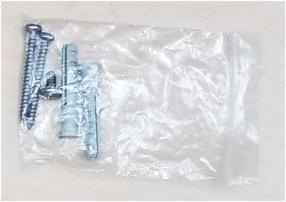
Screws And Anchors

Package of wall anchors and screws for mounting.

Step 1- Add Outdoor Motion Sensor to Philips Hue App

The first thing we need to do is to add your new sensor to the Philips Hue App.  

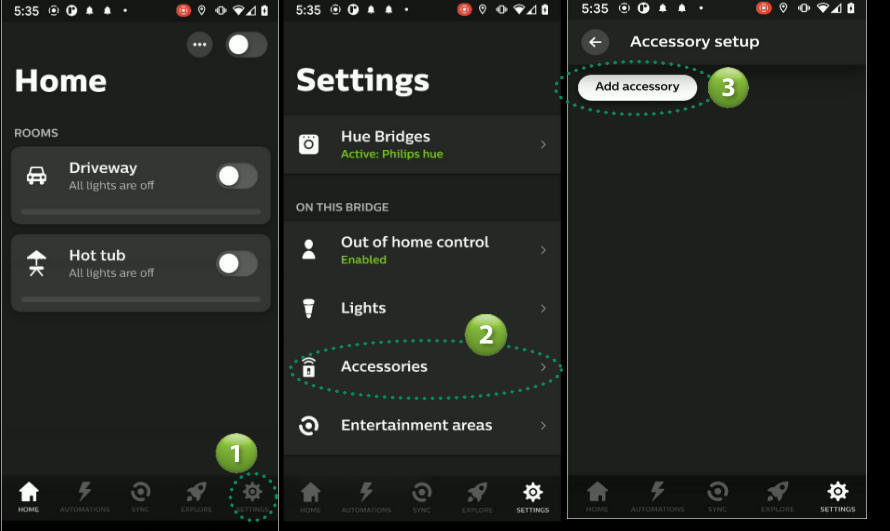
  1. Open the Philips Hue App. From the Home screen select Settings from the menu at the bottom.
  2. Select the Accessories option from the Settings menu.
  3. Select Add accessory button.
Home Accessories Add
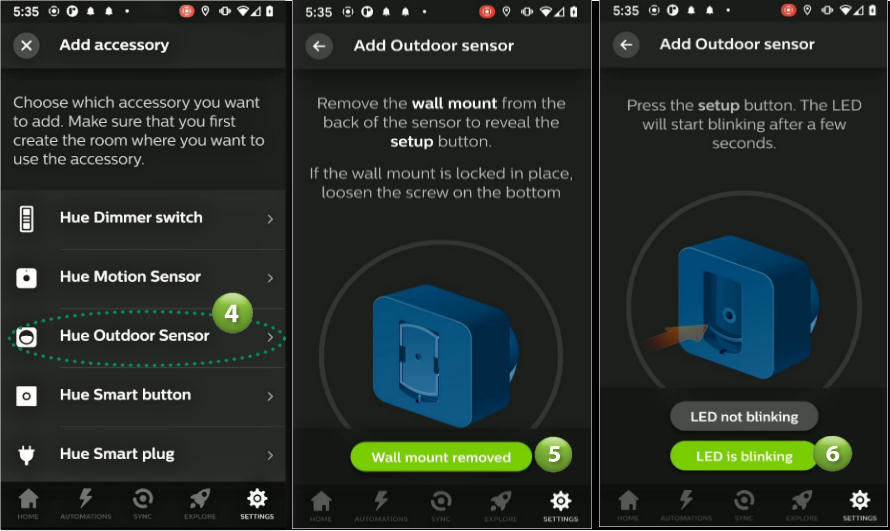
  1. Select the Hue Outdoor Sensor
  2. Remove wall mount from the back of the sensor to reveal the Setup button.  Select the Wall mount removed button
  3. The sensor lens (white portion on front) should now be flashing red to signify it’s ready to be found.  Select the LED is blinking button.
Reset Sensor
  1. The App will now search for the Outdoor Motion Sensor and will display a Success screen when found.  Select the Continue button.
  2. Select the room you would like this sensor to be added to.  In our example we will be adding to our room named Driveway
  3. At this point your outdoor motion sensor has been added to the Philips Hue App but has been configured using default settings.   If the default setup meets your needs, then select the Done button to complete the setup.  If not, then check out the next section for help on configuring the sensor to meet your needs
Sensor Configure Settings

Step 2 - Configuring the Hue Outdoor Motion Sensor

In this section we will look at the many options you have for configuring your sensor. 

  1. Go to the sensor settings screen by selecting the Change Settings button as shown above.  If you are no longer on that screen, then you can select Accessories from Home screen then the name of your sensor.
  2. The sensor’s settings screen will be displayed.  First change the name of your sensor to something that makes sense for you.  In our case we will name the sensor “Driveway Motion”.
  3. Next we need to set the sensor’s behavior during the day. Start by selecting the Between option under the DAY BEHAVIOR section.  Here you can specify when the Day period begins by selecting a time (hour and minutes). In our example we will select 8:00am.  Select SET when done. Don’t worry about the End time as we will set that from the NIGHT BEHAVIOR section later.
Set Day Start Time
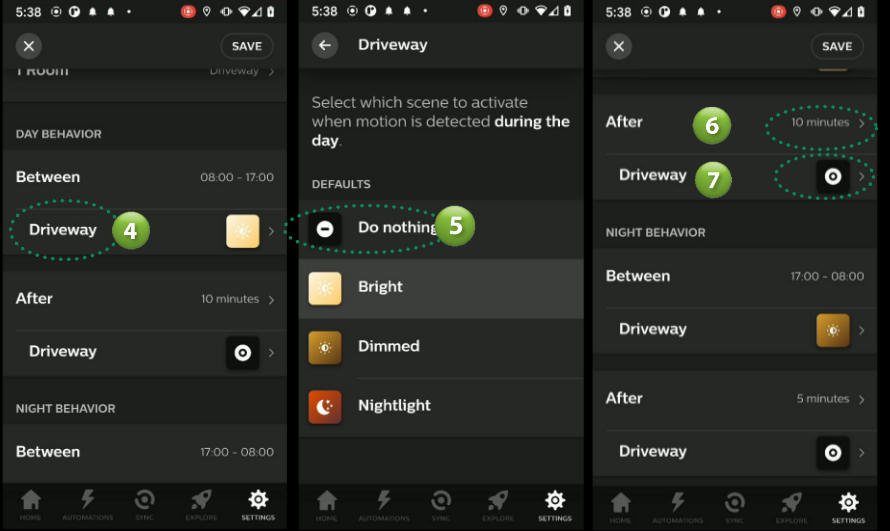
  1. We now need to tell the sensor what we want it to do during the Day time hours as defined above.  From the Settings screen select the Room (in our case we used Driveway, yours may be different).
  2. Select the scene you want the motion to activate during the Day.  In our case we don’t want anything to happen so we will select Do nothing. 
  3. In the After section we can specify what happens after it has tripped during the day.  First we need to specify how much time to wait before activating our action.  It defaults to 10 minutes but you can change this from 1 to 60 minutes.  You can do this by selecting the After option then selecting a time from 1 to 60 minutes.  In our example we are not doing anything during the day so we will skip this setting and leave as is.  Of course, if you have activated an event/scene above then go ahead and set an After Time.
  4. While still in the After section, we need to specify what is to happen when a sensor resets and the time expires from step 6 above.  Since we have selected to Do nothing during the day we don’t need to worry about doing anything so we will leave this at the default of Do nothing.  Again, if you specified some action in step 5 above then you can select what you want to happen After the trip and the After time expires.  For example, if you specified that a Bright scene should be activated during the day in step 5 then you could set the After action here to Off or Return to previous state. 
Setting Day Behavior Screenshot
  1. We now need to setup the NIGHT BEHAVIOR for our sensor.  In our example we are installing the outdoor sensor to turn on a front door light and we will want the light to turn on between the hours of 5pm and 8am.  We do this by setting the Between time.  
  2. We then select what we want to happen by selecting an action from the Driveway room (this could be a different name in your case). Select the Driveway room
  3. Select an action that you want to happen when the sensor is tripped. In our case we will activate the Driveway light Bright scene.
  4. Next we need to set the After action for sensor trips that occur during the night between time.  Start with the After time.  We have set to 5 minutes.  This means that 5 minutes after a sensor is tripped the action you specify in step 12 below will be activated.
  5. In the Driveway room (your name may differ) select an action that you want to occur once the time expires (step 11).  In our case we have selected Return to previous state which will set the light to the state it was prior to the motion being activated.
  6. Finally select Save to save all your changes.
Night Behavior Settings Screenshot

Step 3 - Hue Outdoor Motion Sensor Advanced Settings

In this section we will take a look at the Advanced Settings Daylight sensitivity and Motion sensitivity.  

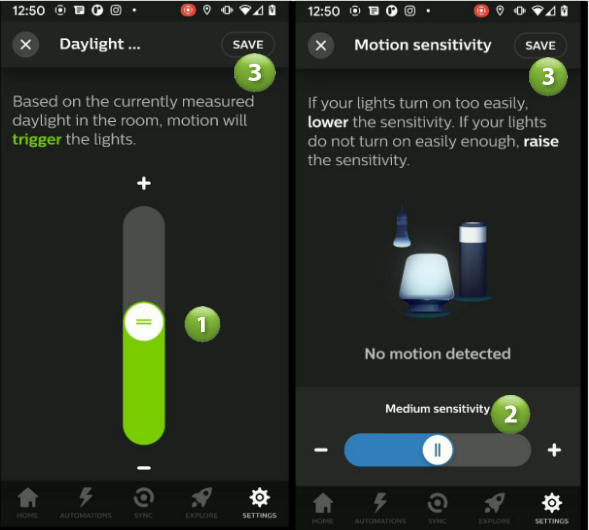
  1. Select the Daylight sensitivity option under ADVANCED SETTINGS.  This is a very important setting and if set incorrectly I believe is the cause of some users thinking that the sensor is defective.  Basically what this setting does is determine when the sensor will trigger events based on the current light levels surrounding the sensor.   You adjust this by sliding the slider button up and down until you see it turn Green and the text states “trigger”.  If the slider turns Orange and the text above states “not trigger” then no matter what happens at the sensor you will not get it to trigger and therefore it may look like the sensor is not working.  However, this is not the case and it’s just that at the selected light level it has been told not to activate.  Now the other item you need to watch for is when you set this light level.  For example, if it is sunny outside and you set this level then the sensor will never trip at night because you told it it needs bright sunshine before activating.  Vise versa if you set this level when it’s pitch black outside (around the sensor) then the sensor would be allowed to trip essentially all the time.   So to set this level properly we would need to adjust it when the light level outside is at a level that we want our sensor to start tripping.  For dusk levels the slider would typically be  at approx. 50%.
  2. To adjust how sensitive the sensor should be select the Motion sensitivity optionIf your lights are turning on too easily then lower the sensitivity here.  If you lights are not turning on when there is movement in its field of view, then increase the sensitivity here.  This screen is also dynamic meaning it shows you when the motion is being tripped in real time.  
  3. Make sure you select Save to save your changes
Advanced Settings Screenshot

Step 4 - Installing the Outdoor Motion Sensor

Sensor Placement

To install your sensor we first need to select the best location to provide the coverage you need for your specific application.  The sensor should be mounted between 1.5m and 2.5m (59″ and 98″)  above the ground. At the 2.5m (98″) height the sensor will detect up to approx. 12m (40′) out from its location.  Lowering its height to 1.5 m (59″) will shorten the range to approx. 9m (30′).

Distance Chart
Distance Chart 5Ft

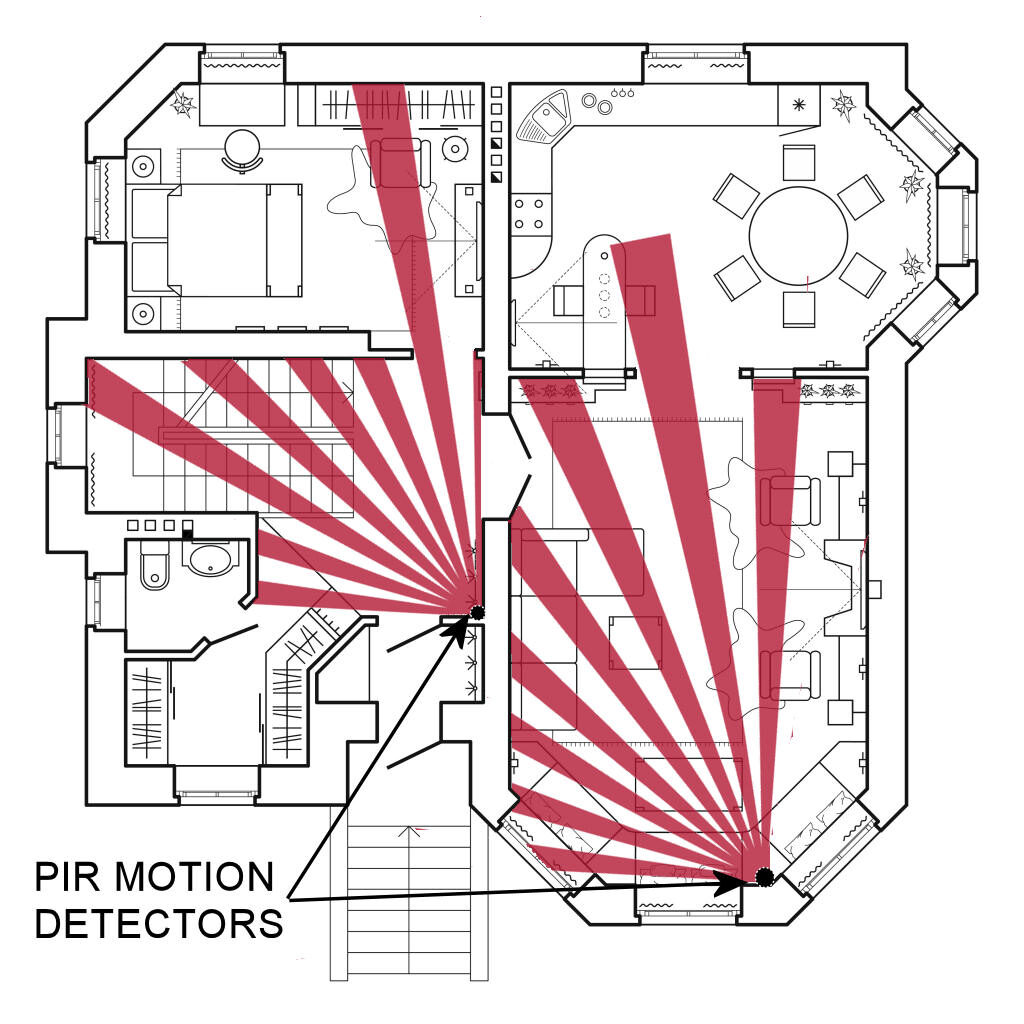
This uses PIR (Passive Infrared) technology which has a specific detection pattern as shown below.  When planning your location keep in mind that the best detection direction is across the fingers as apposed towards/away motion.  Try to place the sensor so that the expected direction of travel would be across the pattern as shown.

Pir-Direction-Of-Movement-Diagram

Mounting the Sensor

The sensor can be mounted flat on a wall, on an outside corner, inside corner or on items such as down spouts.

On a Flat Surface/Wall

Diagram Showing Wall Mounted Sensor

Using the wall mount, fasten it to the surface using the supplied screws and if needed anchors.   Place the Sensor over the Wall mount and then tighten the Lock screw.  Make sure the sensor is sitting flat on the surface.

On Outside Corner

Sensor Outside Corner

Fasten the Corner Bracket to the wall using one 3.5cm (1 3/8″) screw.  Attach the Wall Bracket using the supplied machine screw.  Place sensor over Wall Bracket and tighten the Lock screw.  Make sure the sensor is flush to the Corner bracket.

On Inside Corner

Philips Hue Sensor Mounted Inside Corner Diagram

Using the wall mount fasten it to the surface using the supplied screws and if needed anchors. Fasten Wall bracket to Corner Bracket using the supplied machine screw.  Place the Sensor over the Wall mount and then tighten the Lock screw.  Make sure the sensor is sitting flat on the surface.

On Down Spout/Pipe

Philips Hue Mounting To Pipe Or Downspout

Using the wall mount, fasten it to the sensor and tighten the Lock screw.  Feed a cable tie through the openings on the side of the Wall Bracket and extend around the pipe or down spout.  Tighten tie to securely mount the sensor.

Changing Hue Outdoor Motion Sensor Batteries

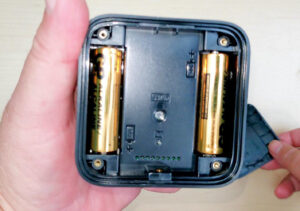
There will come a time when you will need to replace the batteries inside the sensor.  This can be done by first removing the sensor from the Wall mount.  Next unscrew the 4 Philips screws on the rear of the sensor.  Do not remove them entirely.  Remove the Lock screw. Pull on the screws to separate the back plate from the sensor.  If you can’t remove the plate then unscrew the 4 screws until it releases.

There are two AA batteries inside the sensor.  Replace with the new batteries and screw the back plate back on to the sensor.  Replace the Lock screw.

Philips Hue Motion Sensor Battery Replacement

Specifications

Manufacturer ‎Signify Canada Ltd (Philips)
Part Number ‎541730
Product Dimensions ‎7.59 x 5.59 x 7.59 cm; 145.15 Grams
Batteries 2 x AA Batteries
Item model number ‎541730
Colour ‎Black & White
Style ‎Outdoor Motion Sensor
Voltage ‎3 Volts
Item Package Quantity ‎1
Batteries Included? Yes
Warranty Description ‎2 Year Warranty
Item Weight 145 g

Products Included in this Article

Foscam SD2 Wi-Fi PTZ IP Camera Review

Sd2-Camera-Review

Foscam SD2 WI-FI PTZ CAMERA REVIEW

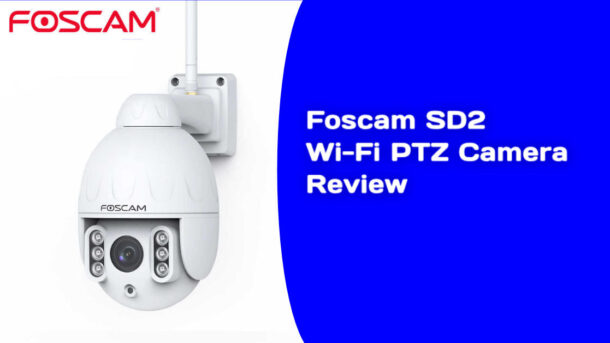
In this review we will look at the Foscam SD2 1080p Wi-Fi PTZ camera.  

What you get

You get everything you need to get your camera setup. 

  • PTX Wi-fi Camera
  • 12VDC power adapter
  • Ethernet Network Cable
  • Wi-Fi Antenna
  • Mounting Bracket
  • Mounting template
  • Small Philips screwdriver
  • Waring decal
  • Connector Protector
  • User’s Manual

The camera shell is made of metal not plastic and the cable leads were longer that normal which makes it much easier to pass through walls.  The power adapter is listed for use in Canada and the USA. 


Foscam What You Get

How does the Camera work?

To perform this review I first setup the camera on the bench.  There’s really not much to the installation.  Just plug the power adapter into a wall outlet and the 2.5 mm plug into the power lead on the camera.  There are two leads coming from the camera. Power and Ethernet network connection.  Once plugged in the camera began its startup sequence which includes panning and tilting and then finally coming to rest.  This all took about 10 seconds.

Next I installed the Foscam App from the App store (Android).  Created an account and was ready to add my first device/camera.  The App installation was a simple process with no surprizes.  However, they do try to sell you on their paid cloud service.  

To connect the camera I decided to use the camera’s hardwired Ethernet connection.  I Plugged in the provided network cable into the camera then my router.   I was very surprised to see network status LED’s on the cameras connector which is a nice feature.  The camera also announced, in English,  that it connected to a wired connection.  This certainly takes the guess work out determining if you are connected or not.

Next I followed the provided instructions and selected the Add Device icon (+) on the APP and then scanned the QR label situated on the cameras bracket.  The App picked up the code before I could even get the phone camera lined up with the label.  The next thing I knew the camera was connected using the Ethernet hardwired connection.

At this point the App recommended that I connect the camera using Wi-Fi. Since I always do what I’m told,  I selected the Configure Wi-Fi button.  I picked my Wi-Fi network from the list and provided the password and  selected Connect.  As expected I received confirmation that the camera was added successfully in about 10 seconds. I then completed the setup by naming the camera and configuring a camera username/password.  Once all the above was done I finally got live video from the camera. 

Now that the camera is setup and I’m getting video I proceeded to test its many features/functions.  Here is what I found.

Video Quality

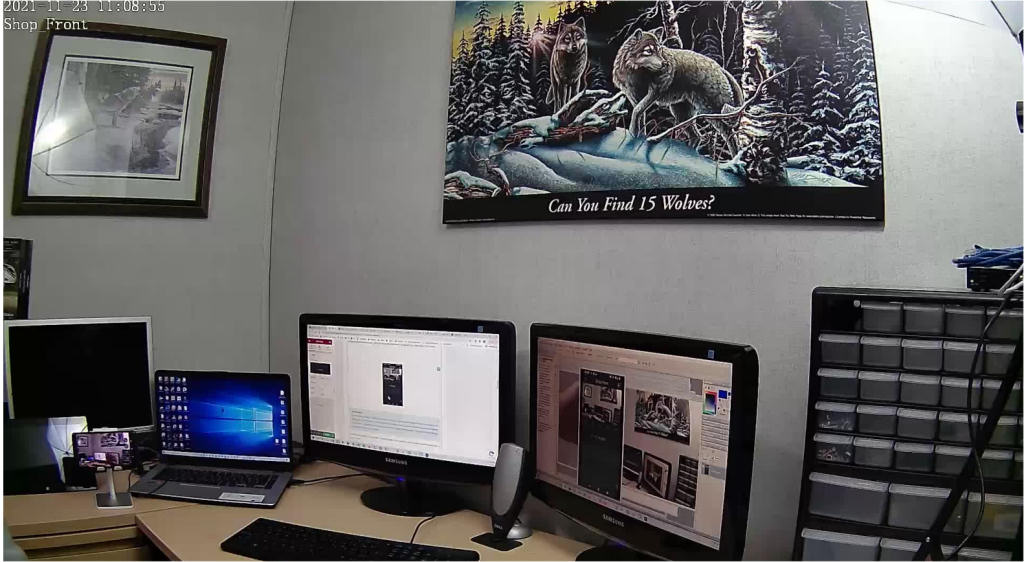
 As you can see from the screen shots the video quality was very good. The Landscape orientation provided an exceptional image which I was happy with.  The camera was set to provide Standard Definition (SD) in the first screenshot and Full High Definition (HD) in the second.  

SD Landscape

Sample Image Of Sd2 Camera View

HD Landscape

Sample Image Of Sd2 Camera Landscape View Of Desk

The only recommendation I would have regarding the video quality would be that the WDR functionality could use some improvements.  I found that if you had a very high contrasted scene (camera looking at a window) the camera would have difficulties handling it and you would end up with some of the image too dark to make anything out.

Pan/Tilt control

The the pan and tilt control of the camera was excellent and it did not exhibit any lagging.  When you release your touch it immediately stopped which made it easy to get the desired image.  I especially liked the way they handled the touch control. Once you touch and swiped you can keep the pan or tilt active for as long as you maintain touch.  It made for a smoother user interface and better control.  The pan/tilt was very smooth with almost no motor noise. 

Sound Detection

The sound detection worked well.  You can set the detection level to one of 5 levels (Lowest, Lower, Low, Medium, High).  It would send notifications to my phone when ever it heard adequate sound in its area.  It also save a short video of what it saw during the sound alarm in the SD Card area.  It was nice to see a list of alarms to choose from and view just by clicking on one. In a way,  I kind of like this method of play back over the standard sliding timeline.  

Motion Detection

Motion detection worked great. Here too you can set the sensitivity to one of 5 levels (Lowest, Lower, Low, Medium, High).    This wide range in sensitivity would come in very useful when dealing with false motion detection due to bugs, leaves, trees and other similar items.  I had to lower the setting to the Lowest setting to get my camera to stop sending false detection alarms. 

AI Human Detection 

You have the option of using standard Motion Detection (above) or AI Human Detection but you cant have both enabled at the same time.  The Human Detection we are testing here is done on the device as apposed to their more advanced online cloud services.  It is supposed to distinguish between human and non-human objects.  To test the AI Human detection I first setup the camera with standard Motion Detection and pointed the camera at a scene that had some plants that where moving due to a light breeze.  The motion alarm was constantly being activated as it picked up the plant moving (I had this set to highest sensitivity).   I then set the camera to AI Human detection with the same scene and monitored.  It was disappointing to see that it continued to generate motion alarms even without anyone entering the field of view.   I expected all detection alarms to stop as there wasn’t anything remotely resembling a human in the scene.  I found this strange so  I contacted their support team just to ensure that I hadn’t setup something wrong that caused this but I never received a reply. 

We also tested the AI Human Detection in a real life environment.  It was installed on a home looking at a large driveway.  When we walked into the view it seemed to work better and it identified us as human and sent a proper notification.  This would be a great feature to prevent false detections as would normally be endured with standard motion detection (bugs, leaves, trees etc.).

Cloud Storage

I normally do not test the online cloud services when I do reviews but in this case I thought I would subscribe and check out their AI Recognition Reminder.  Not sure why they called it a Reminder but in any case according to the documentation its supposed to identify the differences in packages, human bodies, pets and vehicles.  So I went ahead and signed up for the Free 30 day trial subscription.  The sign up was super easy which I did right from the App by selecting the MyPlan icon from the settings screen. 

The cloud video storage worked flawlessly.  If an alarm was tripped it stored the video in the cloud and I was able to easily view the events.  The playback interface was very responsive and didn’t exhibit any lagging or stuttering.  The provided sliding time line displayed all my alarm events and I was able to zero in on the exact video I was looking for.

I then proceeded to test the the Cloud AI Recognition features (Packages, Human, Pets and Vehicle) starting with Human Detection.  Please note that the AI detection features being tested here are those performed on the cloud service not locally on your camera.  How this works is that the camera sends the video to the cloud service which will then analyse the video to determine if its a package, vehicle, pet or human.  If detection is successful it will push a notification with the detected type to your phone.   

Note:  In the App they provided a list of cameras and countries that supported the Cloud AI Recognition features.  The SD2 camera was not listed and neither was Canada.  I sent a request to Foscam support to confirm if its officially supported and have not yet received a response.  I will update this review if/when I do get a response. However, despite not be listed as supported it still worked.  

I setup the camera with a full view of me walking towards the camera.  I walked at a normal pace towards the camera and I got varying results.  Sometimes it detected me and pushed a notification and other times it didn’t detect me at all.  In most cases it would detect me but would push a generic notification “Motion detection alarm”.  The distance from me and the camera was about 12′ or 365 cm.

Next I tried the Package detection feature.  I setup the camera to view a counter on which I would place a box (approx. 12″ x 12″) and walked away.  Again, it was not able to detect the package all the time and most of the time I got a notification saying “Motion detection alarm” without it specify that it was a package.

Next up was the vehicle detection.  I pointed the camera at a empty spot in a driveway.  We then had a vehicle park in the cameras FOV.   It did pick up the vehicle and sent a proper notification.

So I would have to say that the AI detection is probably about 90% reliable but I would also believe that different environments could provide different results.

Would I subscribe to this cloud service even without these features?  Well I would if I needed to store longer periods of video that couldn’t be handled by the on board SD Card.    

Play Back from SD Card

The camera has the ability to record video on a SD card that you insert into the back of the camera.  I had a 32GB SD card lying around so I installed it into the camera (SD cards are not included with camera).  I then proceeded to cause some motion and sound alarms.  With each alarm I received a notification on my phone and a new recording stored within the SD Card section of the App.  The way they organize the alarm recordings is by using a simple list with the type of alarm recording (Sound, Motion or Human Detection) along with the time of the alarm and a video clip.  This made it easy to find the event I was looking for.  When you open an alarm event it provided a playback view where can easily view the alarm video. You also have the ability to jump forward or backwards within the video clip. The video playback was excellent.   You can even download the videos for long term storage.   I was very happy with the SD card storage feature.

Sharing 

If you want to share your cameras you can do that too.  You just need to go to the Share Camera menu option and add the account you want to share with.  The person will need to have an account setup prior to using this feature.  The App wont send an invite to them which I think could be a great feature for the manufacturer to add.

IR Night Vision

As with any camera I find the IR illumination range mentioned in the specifications rarely line up with reality.  In my test I estimate the IR illumination for the SD2 would reach approx. 10m in my environment.  

Pan/Tilt control

The the pan and tilt control of the camera was excellent and it did not exhibit any lagging.  When you release your touch it immediately stopped which made it easy to get the desired image.  I especially liked the way they handled the touch control. Once you touch and swiped you can keep the pan or tilt active for as long as you maintain touch.  It made for a smoother user interface and better control.  The pan/tilt was very smooth with almost no motor noise. 

Sound Detection

The sound detection worked well.  You can set the detection level to one of 5 levels (Lowest, Lower, Low, Medium, High).  It would send notifications to my phone when ever it heard adequate sound in its area.  It also save a short video of what it saw during the sound alarm in the SD Card area.  It was nice to see a list of alarms to choose from and view just by clicking on one. In a way,  I kind of like this method of play back over the standard sliding timeline.  

Motion Detection

Motion detection worked great. Here too you can set the sensitivity to one of 5 levels (Lowest, Lower, Low, Medium, High).    This wide range in sensitivity would come in very useful when dealing with false motion detection due to bugs, leaves, trees and other similar items.  I had to lower the setting to the Lowest setting to get my camera to stop sending false detection alarms. 

AI Human Detection 

You have the option of using standard Motion Detection (above) or AI Human Detection but you cant have both enabled at the same time.  The Human Detection we are testing here is done on the device as apposed to their more advanced online cloud services.  It is supposed to distinguish between human and non-human objects.  To test the AI Human detection I first setup the camera with standard Motion Detection and pointed the camera at a scene that had some plants that where moving due to a light breeze.  The motion alarm was constantly being activated as it picked up the plant moving (I had this set to highest sensitivity).   I then set the camera to AI Human detection with the same scene and monitored.  It was disappointing to see that it continued to generate motion alarms even without anyone entering the field of view.   I expected all detection alarms to stop as there wasn’t anything remotely resembling a human in the scene.  I found this strange so  I contacted their support team just to ensure that I hadn’t setup something wrong that caused this but I never received a reply. 

We also tested the AI Human Detection in a real life environment.  It was installed on a home looking at a large driveway.  When we walked into the view it seemed to work better and it identified us as human and sent a proper notification.  This would be a great feature to prevent false detections as would normally be endured with standard motion detection (bugs, leaves, trees etc.).

As our camera was not listed as being supported we did not test the Cloud AI Detection but You can watch a video about their cloud AI Human Detection here.

Cloud Storage

I normally do not test the online cloud services when I do reviews but in this case I thought I would subscribe and check out their AI Recognition Reminder.  Not sure why they called it a Reminder but in any case according to the documentation its supposed to identify the differences in packages, human bodies, pets and vehicles.  So I went ahead and signed up for the Free 30 day trial subscription.  The sign up was super easy which I did right from the App by selecting the MyPlan icon from the settings screen. 

The cloud video storage worked flawlessly.  If an alarm was tripped it stored the video in the cloud and I was able to easily view the events.  The playback interface was very responsive and didn’t exhibit any lagging or stuttering.  The provided sliding time line displayed all my alarm events and I was able to zero in on the exact video I was looking for.

I then proceeded to test the the AI Recognition features starting with Human Detection. Please note that the AI detection features being tested here are those performed on the cloud service not locally on your camera.  How this works is that the camera sends the video to the cloud service which will then analyse the video to determine if its a package, vehicle, pet or human.  If it is successful it will push a notification with the detected type to your phone.   You can watch a video about their 

I setup the camera with a full view of me walking towards the camera.  I walked at a normal pace towards the camera and I got varying results.  Sometimes it detected me and pushed a notification and other times it didn’t detect me at all.  In most cases it would detect me but would push a generic notification “Motion detection alarm”.

Next I tried the Package detection feature.  I setup the camera to view a counter on which I would place a box (approx. 12″ x 12″) and walked away.  Again, it was not able to detect the package all the time and most of the time I got a notification saying “Motion detection alarm” without it specify that it was a package.

Next up was the vehicle detection.  I pointed the camera at a empty spot in a driveway.  We then had a vehicle drive into view and park in the cameras FOV.  

Last but not least I tested the Animal detection.  The start of our test was Racer.  

So I would have to say that the AI detection is probably just not there yet and that you cannot rely on it to notify you 100% of the time.

Would I subscribe to this cloud service even without these features?  Well I would if I needed to store longer periods of video that couldn’t be handled by the on board SD Card.    

Play Back from SD Card

The camera has the ability to record video on a SD card that you insert into the back of the camera.  I had a 32GB SD card lying around so I installed it into the camera.  I then proceeded to cause some motion and sound alarms.  With each alarm I received a notification on my phone and a new recording stored within the SD Card section of the App.  The way they organize the alarm recordings is by using a simple list with the type of alarm recording (Sound, Motion or Human Detection) along with the time of the alarm.  This made it easy to find the event I was looking for.  When you open an alarm event it provided a playback view where can easily view the alarm video. You also have the ability to jump forward or backwards. The video playback was excellent.   You can even download the videos for long term storage. 

Sharing 

If you want to share your cameras you can do that too.  You just need to go to the Share Camera menu option and add the account you want to share with.  The person will need to have an account setup prior to using this feature.  The App wont send an invite to them which I think could be a great feature for the manufacturer to add.

IR Night Vision

As with any camera I find the IR illumination range mentioned in the specifications rarely line up with reality.  In my test I estimate the IR illumination for the SD2 would reach approx. 10m in my environment.  

Features

Compact size PTZ
350 degree pan / 90 degree tilt
2.8~12mm lens (4X optical zoom)
6X digital zoom
Colour day vision
Night vision with IR illumination up to 50M
IR cut filter, 6 LEDs
Ethernet connection
Wi-Fi 2.4 & 5 GHZ 802.11 b/g/n/ac
Free iOS and Android apps
Cloud recording available
CD card slot for local recording
Powered by included 12VDC 2A plug-in power supply
Wide Dynamic Rage (WDR)
IP66 outdoor rated
Rated to -20C.

FAQ

Does this camera support ONVIF?

Yes.  This camera does support the ONVIF standard.

Can I view video from the camera when on vacation?

Yes . As long as you have a suitable Internet connection you can view video and control this camera from any where.  

Can I record video?

Yes.  You can record video using the onboard SD card or you can subscribe to their online cloud (paid service) service.  Both methods will let you search and playback video.

Is it compatible with Google and Alexa?

Yes.  It is compatible with both Alexa and Google.

Can I install and view multiple cameras?

Yes.  You are limited only by your home network bandwidth.  

Pro's & Cons

During my review I have identified the following Pros and Cons 

Pros

  • Good price for a camera of this quality level
  • No cloud service required as you can store and retrieve video on/from the SD card
  • Onboard storage of video using a SD card
  • Night vision
  • Supports Wi-Fi and wired Ethernet connection

Cons

  • No auto tracking.  
  • Cloud AI Detection needs some improvement
  • Camera Human Detection needs improvement
  • Usable night vision was only 10m 
  • Very difficult to connect the camera to WiFi.  Would take multilpe resets before connecting.

Conclusion

As you can see from our testing there are a number of areas where this camera could be improved but it did perform adequately in most environments.   Based on its low price price point and the available features this may be a camera worth considering.  However,  their lack of response to my support requests would raise some concerns.  Based on the performance and the lack of customer support I would recoemend looking at other models or brands in this price range. 

Specifications

Manufacturer Foscam
Place of Business USA
Batteries Not required
Item model number SD2
Dimensions 180mm x 111mm x 180mm
7.1" x 4.37" x 7.1"
Colour White
Lens 2.8~12mm lens (4X optical zoom)
Display Resolution 2.0 megapixels (1920x1080)
Image Compression H.264
Storage Micro SD card (max 128GB), local, FTP, NVR & Cloud storage
Wireless Standard IEEE802.11b/g/n/ac
Wireless Security WPA,WPA2
Network Protocols IP, TCP, UDP, HTTP, HTTPS, SMTP, FTP, DHCP, RTSP, ONVIF
App Foscam App
Power Source 120VAC Adapter - 12VDC 2A Output
Mounting Type Surface Mount
Usage Indoor/Outdoor use
Temperature -20c ~ 50c
-4°F~122°F
Included Components PTZ Camera x 1, Power Supply X 1, Mounting Accessories
Warranty Description 1 Year Manufacturer

Other products you may be interested in

Anbiux Wi-Fi Camera P17B Review

P17B Wi-Fi Ptz Camera

ANBIUX WI-FI CAMERA REVIEW

Cameras-Red-Blue-Lights

In this review we will look at the ANBIUX Wi-Fi camera model P17P 1080p PTZ.  This camera is a product of China and can be purchased on websites such as AliExpress.  You will also find many similar cameras on Amazon possibly under a different brand name.  They are known for their extremely low cost but many consider these cameras to be of low quality.  I always don’t believe what I hear so I thought I would check it out myself to see how this particular product would perform.   So I ordered one from AliExpress and performed a detailed impartial review on it.

What you get

You can order multiple versions of this camera so for this review I ordered the single camera with the 32GB SD memory card.  This particular model has the red and blue warning LED’s and will speak in English with different messages.  The shipment came very well packaged and took about 3 weeks to arrive.  That’s actually pretty good as it typically takes 4-6 weeks depending what shipping method was chosen. Here’s what I received:

P17B Camera

One (1) 1080p Wi-Fi IP PTZ camera

Power Adpater

One (1) 12vdc power supply

Memory Card

One (1) 32G SD memory card

Foam-Gasket

Wall bracket foam gasket 

Screws-Anchors

Screws and wall anchors

Small-Philips-Screwdriver

One (1) 32G SD memory card

User-Manual

User’s Manual

How does the Camera work?

To perform this review I setup the camera on the bench.  There’s really not much to the installation.  Just plug the power adapter into a wall outlet and the 2.5 mm plug into the power lead on the camera.  There are three leads coming from the camera. Power, Ethernet network connection and a reset button.  Once plugged in the camera will begin a startup sequence which includes panning, tilting and flashing the Red & Blue LED’s.  It will eventually stop and sit idle after about 30 seconds.

I first used the camera’s Wi-Fi connection to setup the camera as this would likely be what most would use.  I started the learning process by installing the App YCC365Plus from the Google Play store.  The App install was super easy and uneventful.  Once installed I followed the instructions and started the learning process for a Intelligent camera. At this point it gave me 3 options for connecting the camera:  1) Scan code;  2) AP Hot Spot;  or 3) Direct connect using a cable.  I started with the AP Hot spot. 

After selecting the AP Host Spot and following the instructions to reset/boot the camera I had no problems finding the camera’s AP Hot Spot (CLOUDCAM_xxxx) in my list of Wi-Fi networks on my phone and connected with no issues.  At this point the process failed.  The App just sat idle with nothing happening. I waited at least 5 minutes but no luck.  The App would not connect and give me the option to input my Wi-Fi credentials.  I tried this complete AP procedure multiple times with the same results. I eventually gave up with AP Hot Spot and moved onto using the scan code option to learn my camera. 

I followed their instructions for use a scan code and after presenting the QR code to the camera it was immediately learned and showed up in my App.  I now had live video.

The video looked great on both SD and HD modes.  I was very happy with the quality of the image.

I then proceeded to test the many functions:

Panning/Tilting control

The the panning and tilting control of the camera was quite good and didn’t exhibit any extreme lagging.  The only possible issue I saw was that the camera would continue to try panning or tilting even though it reached its limits.  My concern with this would be the possible wear and tear on the inner gears. 

Intelligent Tracking

One of the best selling features of this camera is its ability to perform Auto Tracking.  In my tests it worked quite well in picking me up in it’s field of view.  It would follow me just fine as long as I didn’t move too fast.  If I was fairly close to the camera and walked at a faster than walking pace it would tend to lose track of me.  At a normal pace it worked fine.  Now it would only track me on the horizontal plane so if you expect vertical tracking you would be out of luck.  

Sound Detection

The sound detection worked as advertised.  It would send notifications to my phone when ever it heard adequate sound in its area.  It pick up me talking at normal volume about 8 feet away.  

Motion Detection

Motion detection worked quite well. Actually too well in some cases.  It would detect cars headlights from cars about 100 feet away, reflections of those same headlights off other objects, rain, bugs and blowing leaves.  Basically unusable in any area where any of the above could be seen.  Indoors it seemed to work fine. This was using the Low motion setting. 

Cloud Storage

I did not test the cloud storage as it required a paid subscription.  At the time of this review they were offering 7 days all day storage for approx. $69 USD per year.  I found the onboard SD card storage worked fine for me but of course you will be limited on much you can store on a SD card.  When using a SD card the older recordings will be overwritten with new video if the SD card becomes full.  The number of days you will be able to store will depend on if you setup to record on motion only or record all the time.  

Play Back from SD Card

As mentioned you can have video recorded on a SD card.  It supports up to 128GB.  In my test we used a 32GB card.  I first setup recording to Continuous recording mode.  I then viewed the recorded video with the built in viewer and it seem to work just fine.  I was able to move back and forth between different times and it adjusted fairly quickly.  I recorded for one hour and checked the percentage of storage used.  It was .21% which roughly translates to 1.6GB/ day which provide approx. 20 days of storage on the SD card.  This was recorded with almost no movement in the camera’s field of view (FOV).  Having continuous movement in the FOV would drastically increase the amount of storage used for the same time period.  So the amount of storage you will get will depend on your environment.

Sharing 

To give other people access to watch video from your camera you need to share your camera with them.  There is a Sharing menu option on the App where you can enter their email or phone number.  It will then send them a email with instructions on how to setup an account and access and control live video on your camera.  They will not be able to view recorded video unless you subscribe to the paid cloud service.

Major Issue Found

Hold on a minute! During my review testing the camera started to exbibit some strange behaviour.  After more investigation I found that once you connect this camera to the App it would constantly perform a reset approx. every 30 minutes.  During this reset it would start panning left and tilting up, and turn on the Red and Blue LED’s.  This would take about 10 seconds.  It would then return to the original position and resume normal operation.  During this time all communications would stop with the App.  I contacted the supplier/manufacturer in China and provided them with all the details.   I completed this review hoping that they would resolve the issue (possibly issue new firmware) but at the time of this review release the  issue was not resolved or acknowledged.  So at this time I can not recommend that you purchase this  camera.

Features

FAQ

Does this camera support ONVIF?

No.  This camera does not support the ONVIF standard.

Can I view video from the camera when on vacation?

Yes . As long as you have a suitable Internet connection you can view video and control this camera from any where.  

Can I record video?

Yes.  You can record video using the onboard SD card or you can subscribe to their online cloud (paid service) service.  Both methods will let you search and playback video.

Is it compatible with Google Home and Alexa?

No.  It is Not compatible with Alexa, Google Assistant or IFTTT.

Can I install and view multiple cameras?

Yes.  You are limited only by your home network bandwidth.  

Pro's & Cons

During my review I have identified the following Pros and Cons 

Pros

  • Great price. A very inexpensive way to get an IP Camera with PTZ
  • No cloud service required as you can store and retrieve video on/from the SD card
  • Built-in Auto Tracking
  • Red and Blue alarm LED’s
  • Onboard storage of video using a SD card
  • Night vison
  • Supports Wi-Fi and wired Ethernet connection

Cons

  • Major issue with it resetting every 30 minutes  
  • Power adapter not approved for use in Canada or USA  
  • Could not get the AP Hot Spot to work

Alternatives

Conclusion

I guess the old adage “You get what you pay for” comes into play here.  With the issue of resetting every 30 minutes set aside for now, this camera worked as advertised for the most part.  The video it produced was good and the playback worked flawlessly.  While most of the other features worked  there were concerns with the motion alarm sensitivity and of course the power adapter approval.  If you are looking something very basic, extremely inexpensive and have environment suitable for this camera then this may be a camera for you.  However,  I would prefer to pay a little more and get a more professional grade camera. 

In any case this is all mute at this time as the camera has an issue that basically makes it unusable in any environment until they get the Reset issue resolved.  If the supplier/manufacturer resolves the issue I will update this review. 

Specifications

Manufacturer ANBIUX
Place of Business China
Batteries Not required
Item model number P17B
Colour White
Lens 3.6mm
Resolution 1920x1080P
App YCC365Plus
Power Source 120VAC Adapter - 12VDC Output (No UL or CSA listings)
Mounting Type Surface Mount
Usage Indoor/Outdoor use
Included Components PTZ Camera x 1, Power Supply X 1, Mounting Accessories
Warranty Description 75 Day Buyer Protection

Skyline SK-200 Wireless Alarm System Review

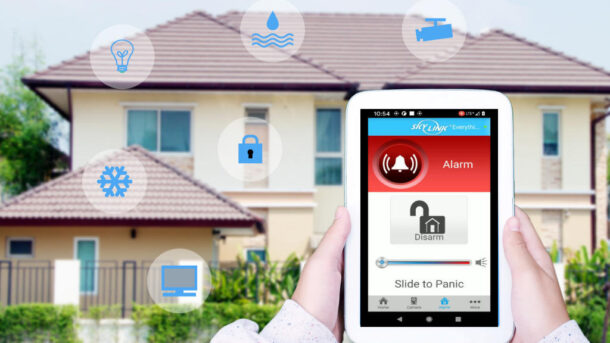
Skylinknet-Sk-200-App-Controlling-House

Skylink SK-200 Wireless Alarm System Review

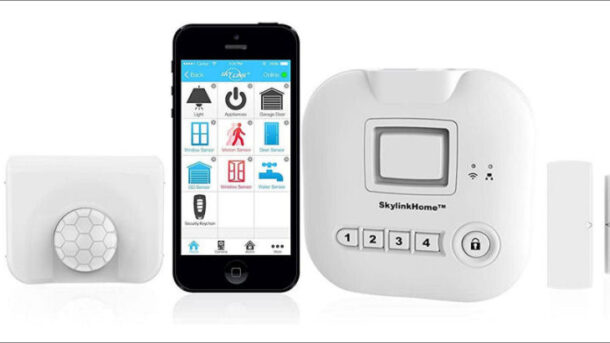
Looking for a wireless alarm system that you can install yourself?  With a huge selection of DIY systems out there it can be difficult to choose the right system for your situation.   This review will help you decide on if the SK-200 Wireless Alarm is a system worth considering.     

What you get

The SK-200 is a starter kit is just that. A starter kit.  You don’t get all the bells and whistles with this kit but you do get the components for a basic system.   

Photo-Skylink-Hub

Kit includes one (1) Hub.  The Hub communicates with the other devices in your home.  It connects to the Internet through your existing Internet router to sends notifications to your phone.  It also receives commands  like arm/disarm.  Requires 4 AAA batteries.  (Batteries not included).  

Wireless Motion Open Battery

Kit includes one (1) Passive Infrared Receiver (PIR) Motion Detector.  This detector can be placed anywhere in your home to detect movement.  Place on a table or mount on a wall. You can purchase additional detectors if/when needed. Requires one AA battery (Batteries not included).

Remote-Key-Fob-Labeled

Kit includes one (1) 4 button Keychain Remote.  Arm Away, Arm Home, Disarm and Panic.  You can purchase additional Remotes as needed.  

Door-Sensor-Diagram

Kit includes two (2) WD-MT Wireless Door/Window sensors. Requires one (1) AAA battery  (Batteries not included).

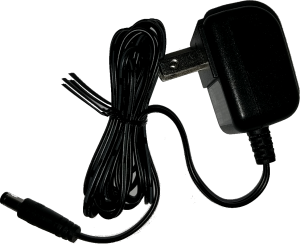
Power Adapter

One (1) Power Adapter (output 6vdc .5 amp) for the Hub. Comes with 6′ cable

Network-Cable-6-Foot

One 6′ Ethernet Network Cable for connecting the Hub to your existing router.

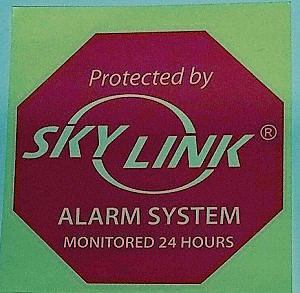
Skylink Decal

Two (2) Skylink decals.

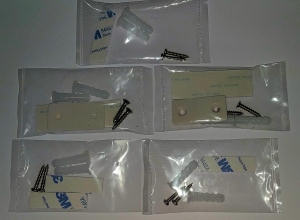
Mounting-Accessories

Multiple screws, wall anchors, 3M double sided tape and spacers.

How does the SkylinkNet System work?

The Skylink system is a Wireless system so there is no need run cables throughout your home.  You simply peel the double sided tape and mount the sensors on a door or wall.  I found the sensors to be of good quality.  Mounting on doors or windows was not a problem at all.  The double sided tape seems to be of good quality so I would expect they should stay stuck for a long time.

The Hub needs to be plugin to your Internet router using the supplied network 6′ cable.  In my opinion, this does not give you a lot of leeway and may be a bit of an issue depending on where your router is located.  For me, I would want the Hub to be easily accessible when entering and exiting my home.  If your router is stuck away in some obscure corner then this may not be feasible.  However, with a Remote Key FOB available to arm/disarm we wouldn’t need to access the Hub frequently so we could get around this limitation.   Of course, there is also the option of purchasing a longer network cable to move the Hub to a more usable location.  If your Wi-Fi router is in a good location then this wouldn’t be a concern at all.  The built-in siren was extremely loud at 110 decibels.

The Motion sensor was also easy to mount on a wall.  They come with two spacers that for the life of me I can’t figure out how they would be useful.  Not sure why you would want to space out your sensor a 1/4 “.  I even contacted the manufacturer to confirm the use of these spacers and they confirmed they were indeed for the motion detector.  In any case,  I didn’t need them but if anyone finds a use for these please let us all know.  The only other comment I have for the motion would be that they didn’t have any holes on the angled sides to be able to mount in a corner.  If I wanted to use screws to mount (which I always tend to do) I would need to pre-drill some holes. Not the end of the world and it probably just old guys like me that still like to mount using screws.

Battery installation was a snap.  The door sensors opened easily by pressing the side tabs and opening the motion with a coin worked great. The Hub has a cover that presented no issues even for my big fingers.  I also like the fact that the system uses standard batteries instead of specialized batteries which can get expensive.

The Remote Key Fob is a great feature and makes arming/disarming your system quick and easy.  Its construction looks like it would withstand a lot of abuse.  It’s size is smaller than most which makes carrying around on your key chain  almost unnoticeable.

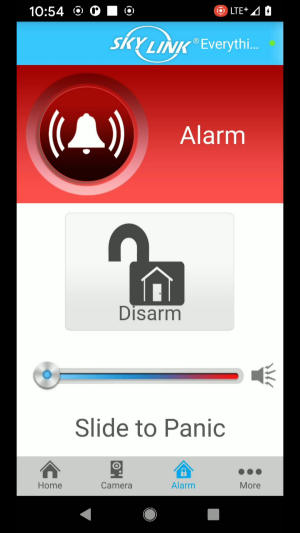
I installed the app on my Android phone with no issues at all.  The instructions where extremely easy and intuitive.  I like the way they laid out the buttons on the bottom so you access the different areas of the app (Home, Camera, Alarm, More) . The screen layouts were also of good design.  I especially like the use of large icons for each sensor that change status in real time.  The App was very responsive.  

Lastly,  they provided decals to warn would-be intruders that there is an alarm system installed which a great added feature and are worth their weight in gold.

Features

Integrates with the SkylinkNet Security Cameras

Seamlessly Integrates with the WC-400PH and WC-520 wireless IP cameras.  

Built-in Chime Feature

Easily enable a chime  for each of your sensors.  Whenever a sensor trips the Hub will emit a soft chime.  

Control your System from Anywhere

Arm/Disarm or receive alarm notifications on your phone from anywhere you have a Internet connection.  

FAQ

Do you need to purchase a monitoring agreement/service?

No.  This system is really intended for the do-it-yourselfer so it does not have the capability to be professionally monitored.  You do your own monitoring using the free iOS or Android App.  No contract or monthly fees.

Do I need a Internet Connection?

Yes . To be able to use the smart App the Hub needs to be connected to your router using a hardwired connection for Internet connectivity.  

Can I add sensors to this kit?

Yes.  You can add up to 100 devices so you can add Motions, Doors , remotes , smoke detectors and more.

Is it compatible with Google Home and Alexa?

Yes.  It is compatible with Alexa, Google Assistant and IFTTT which allows you to connect and control other smart home devices.

Can I use this with other manufacturers sensors?

No.  This system is compatible with SkylinkNet sensors only.

Pro's & Cons

During my review I have identified the following Pros and Cons 

Pros

  • Great price. A very inexpensive way to get started with a security system
  • No monitoring fees or long term contracts
  • Expandable.  You can add up to 100 devices at any time.
  • Compatible with other smart home devices
  • Integrates with surveillance cameras
  • Has Low Battery monitoring for the sensors
  • Loud internal siren

Cons

  • Hub does not connect using Wi-Fi. The Hub needs to be within 6′ of your router to facilitate a hardwired connection.  This may be an issue in some cases which may require the purchase of a longer network cable.  
  • Requires a minimum of 8 digits for the arming/disarming code when using the keypad on the Hub.  I have trouble remembering 4.  

Conclusion

If you are looking for an easy to install wireless system that wont break the bank then the SkylinkNet SK-200 Wireless Alarm kit is probably a good bet.  

Specifications

Manufacturer Skylink
Product Dimensions 38.74 x 10.16 x 12.7 cm; 589.67 Grams
Batteries AA and AAA (not included)
Item model number SK-200
Colour White
Power Source 120VAC Adapter - 6VDC Output
Mounting Type Surface Mount
Usage Indoor use only
Included Components Internet Hub HU-100 X 1, Door/Window Sensor WD-MT X 2, Motion sensor PS-MT X 1, Keychain Remote MK-MT X 1, Power Adapter X 1, Ethernet Cable X 1, Mounting Accessories
Warranty Description 1 Year
Item Weight 590 g

How to Install the Skylink SK-200 Wireless Alarm System

Skylinknet-Sk-200-Alarm-Starter-Kit

Skylink SK-200 Alarm System Installation

In this article we will be covering the installation of the Skylink SK-200 Alarm Starter Kit.  The  SK-200 alarm and automation starter kit provides you with the basics needed for a do-it-yourself alarm security.   The included Hub connects to your local network and provides easy cloud based remote control and notifications through the Internet.  Why is this system perfect for a DIY project? Well there are no set-up or monthly fees. You use the iOS or Android app to monitor and control your system from almost anywhere.  Push notifications can be sent to your smartphone whenever an alarm is activated.   

What you get

The SK-200 is a starter kit so you only get the devices for a small home or apartment but you can easily add more sensors to expand your system as needed.   

Q? Encoding=Utf8&Amp;Asin=B010Tlzomi&Amp;Format= Sl160 &Amp;Id=Asinimage&Amp;Marketplace=Ca&Amp;Serviceversion=20070822&Amp;Ws=1&Amp;Tag=Senex01 20&Amp;Language=En CaIr?T=Senex01 20&Amp;Language=En Ca&Amp;L=Li2&Amp;O=15&Amp;A=B010Tlzomi

Kit includes one (1) Hub.  This is basically the brains of the system which communicates with the other devices in your home.  It connects to the Internet through your existing Internet router to send notifications to your phone and receives commands (arm/disarm).  Requires 4 AAA batteries.  (Batteries not included).  

Q? Encoding=Utf8&Amp;Asin=B00Si44Nvc&Amp;Format= Sl160 &Amp;Id=Asinimage&Amp;Marketplace=Ca&Amp;Serviceversion=20070822&Amp;Ws=1&Amp;Tag=Senex01 20&Amp;Language=En CaIr?T=Senex01 20&Amp;Language=En Ca&Amp;L=Li2&Amp;O=15&Amp;A=B00Si44Nvc

Kit includes one (1) Keychain Remote with 4 buttons.  Arm Away, Arm Home, Disarm and  Panic.  You can purchase additional Remotes as needed.  

Q? Encoding=Utf8&Amp;Asin=B00Si3Zqxm&Amp;Format= Sl160 &Amp;Id=Asinimage&Amp;Marketplace=Ca&Amp;Serviceversion=20070822&Amp;Ws=1&Amp;Tag=Senex01 20&Amp;Language=En CaIr?T=Senex01 20&Amp;Language=En Ca&Amp;L=Li2&Amp;O=15&Amp;A=B00Si3Zqxm

Kit includes one (1) Passive Infrared Receiver (PIR) Motion Detector.  This detector can be placed on a table or mounted on a wall and will detect movement within its field of view. Again,  you can purchase additional detectors if/when needed. Requires a single AA battery (Batteries not included).

Q? Encoding=Utf8&Amp;Asin=B00Sl5Bb3G&Amp;Format= Sl160 &Amp;Id=Asinimage&Amp;Marketplace=Ca&Amp;Serviceversion=20070822&Amp;Ws=1&Amp;Tag=Senex01 20&Amp;Language=En CaIr?T=Senex01 20&Amp;Language=En Ca&Amp;L=Li2&Amp;O=15&Amp;A=B00Sl5Bb3G

Kit includes two (2) WD-MT Wireless Door/Window sensors. Requires one (1) AAA battery  (Batteries not included).

Power Adapter

One (1) Power Adapter (6v .5 amp) for the Hub. Comes with 6′ cable

Network-Cable-6-Foot

One 6′ Ethernet Network Cable for connecting the Hub to your existing router.

Skylink Decal

Two (2) Skylink decals.

Mounting-Accessories

Multiple screws, wall anchors, 3M double sided tape and spacers for the motion detector.

Step 1- Hub Installation & Power Up

The first thing we need to do is setup the Alarm System Hub.  The Hub needs to be placed/mounted within 6 feet of your Internet router.  This will allow you to connect the Hub using the supplied 6′ Ethernet network cable.  If needed,  you could order a longer network cable if the Hub needs to be mounted further than 6′.  I have included a link to a longer network cable in the Product section at the end of this article.

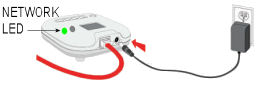
Connect the Hub to an available network port on your router with the supplied network cable.  Then plug in the power adapter to both the Hub and wall outlet. At this point the small network LED should show green. If Red then there is a network connection issue.

Illustration Of Hub-Router-Connection
Skylink Hub Adapter Green- Led

Next open the rear compartment on the Hub and insert 4 AAA batteries.   These batteries are optional but will keep your Hub operational during a power power outage and is highly recommended.

Batteries In Skylink Hub

Step 2 - Download & Install SkylinkNet App

With your Android or Apple smart phone,  go to your App store.   For Android, this would be the Google Play Store while Apple would be the Apple App Store.  These store App’s should already be somewhere on your phone. 

Google Play And Apple Store Icons

1. Once in the store search for the “SkylinkNet” App.  

2. Make sure you choose the correct App.  The icon has a house with a blue background. 

3. Next, select Install.  

4. When installed, select the Open button to start the App.  Alternatively, you can close the installation screen, find the new icon for the SkylinkNet App and open from there. 

Skylinknet-App-Install-Screens

Step 3- Create an Account

1. You should now have the Logon screen showing on your phone.  If you don’t already have an existing account with Skylink then select the “Create Account” link at the bottom of the screen.  Otherwise Login with you existing credentials.

2.  Read the Terms & Conditions then select the “I accept” checkbox.

3. Select “Continue” 

4. Fill in your Name, Email and Password

5.  Select the “Sign Up” link to register


Skylink-Create-Account-Screens

You should now receive an email with a link.  Click the link to complete the sign up process and activate your account.  Once you click the link you should be brought to a web page confirming you have successfully setup your account. 

Sign-Up-Success-Page

Step 4- Setup Hub

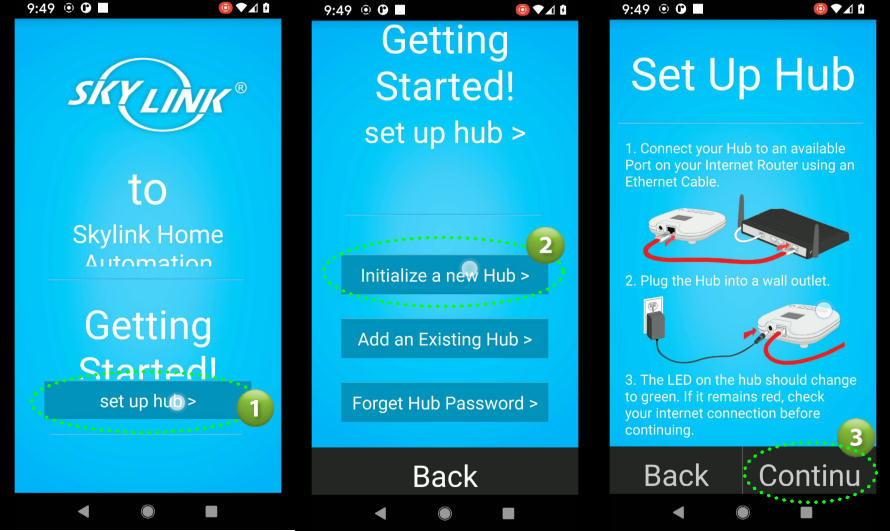
1. The Getting Started screen should be displayed in the SkylinkNet App.  Select the “Setup Hub” link.

2. Select “Initialize a new Hub” button

3. A confirmation screen will be displayed confirming that you have installed the Hub and that it is powered up.  This was done in Step 1 above so click the “Continue” link.

Getting-Started-Hub

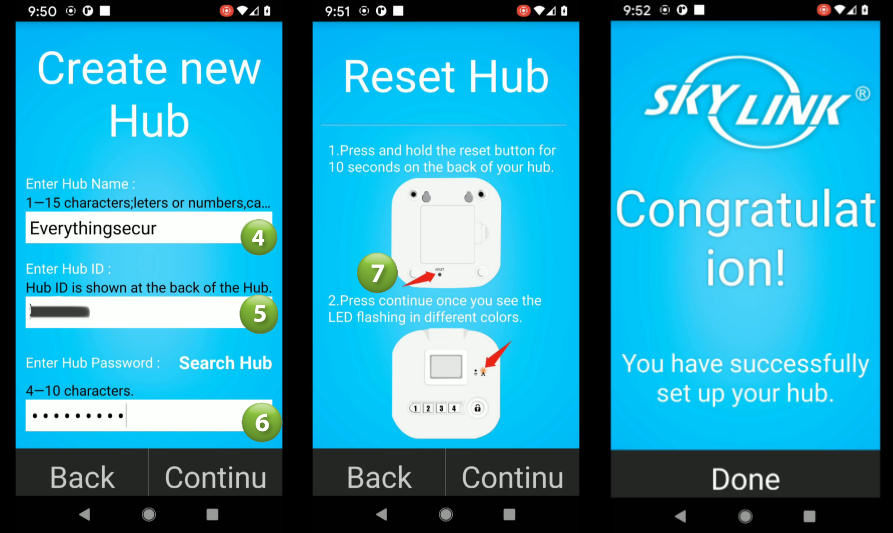
4. The Create new Hub screen will be displayed.  Enter a name for your Hub.  This name will show throughout the app and describes your Hub.  For example, if you only have one hub and it’s in your home then I would recommend “Home” as the name.  

5. Look at the bottom of your Hub for its Hub ID number and enter into the Hub ID field.

6. Enter a Password.  This is not the code for the alarm.  It’s used whenever the App/Server needs to communicate with the Hub.  

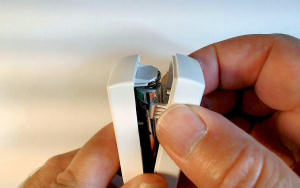
7. Using a small screw driver or paper clip press and hold the Reset button on the bottom of your Hub. The LED should start flashing in multiple colors.   This will initialize communications with your App. The Congratulations screen should now be displayed indicating successful connection to your App. Select “Done” to go to your Home screen.


Skylinknet-Hub-Setup

Step 5 - Power Up Sensors

Before we can learn or enroll our sensors, we will need to first power them up.  

For each Door Sensor open the cover by pressing on both sides of the cover (tabs) and pulling.  Insert a AAA battery.  The red LED should flash when you insert the battery. 

Battery-Open-Door-Sensor

Do the same for the Motion Detector.  To open you can use a coin or a flat head screw driver.  Again, the LED should flash indicating it is transmitting to the Hub when the battery is inserted.  Motion Sensors take a AA battery.

Wireless Motion Open Battery

Step 6 - Enroll Door Sensors

We now need to tell the system what Door Sensors you will be installing.  The App should be on the Home screen from Step 4 above.

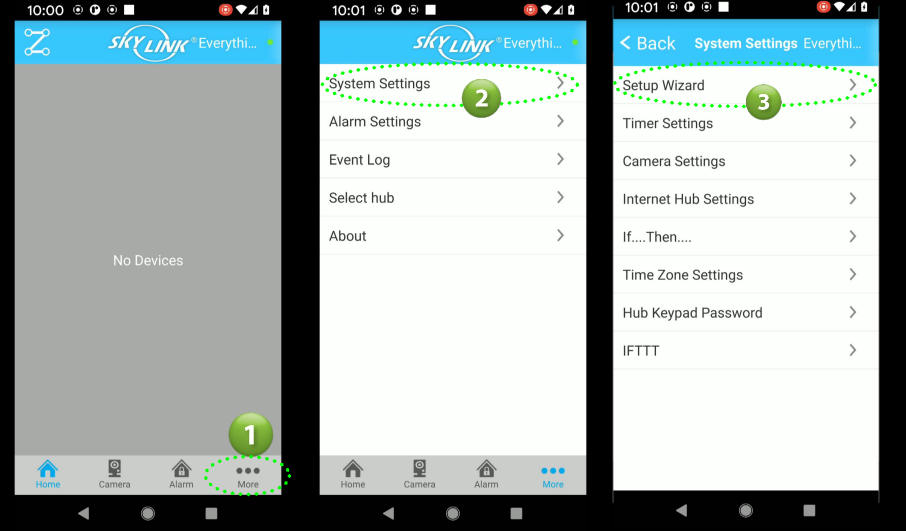
1. From your Home screen select “More” (three dots) to show the Setup Menu. 

2. From the menu select “System Settings

3. Select “Setup Wizard” from the System Settings menu 

Skylinknet-App-Settings-Menu

4. Select “Add Device” from the Setup wizard menu

5. Select “Sensors” from the Add Device menu

6. Select “Door Sensor” from the Select Type menu

Skylinknet-Add-Device

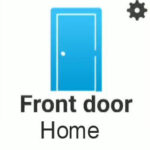
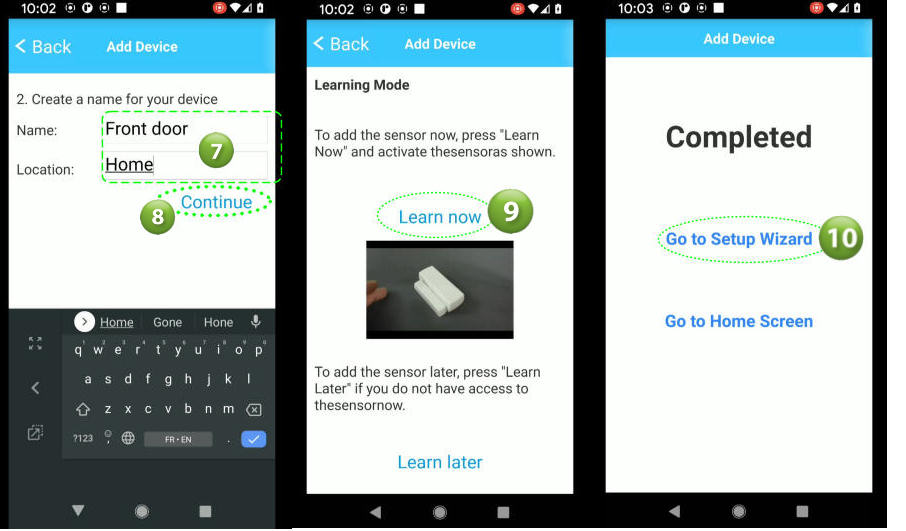
7. Enter a name for this door sensor (i.e. Front door) and a Location (i.e. Home).  These two text descriptions will be used to describe the sensor on the App’s Home screen.  You can use any combination of text that makes sense for you.  So using the text in our example above the sensor icon would look like the icon shown to the right.

8. Select “Continue” 

You should now be showing the Learning Mode screen.  Before we start the enrolling make sure the sensor you are adding has it’s magnet placed next to the sensor as shown below  

App-Door-Icon
Door-Sensor-Diagram

9.  Select the “Learn now” link.  The App will then try to connect to your Hub and learn a sensor.  Activate (remove magnet away from sensor) your sensor.  The red LED should flash indicating it has transmitted a signal to the Hub.  At this time the Completed message should appear confirming that the sensor has been learned.

10. To enroll additional sensors select the “Go to Setup Wizard” link and repeat the above steps.   When done with all door sensors select “Go to Home Screen“.

Skylinknet-Learn-Door-Sensor

Step 7 - Enroll Motion Sensors

Adding Motion detectors is almost the same process as adding the Door Sensors above.  The only difference will be selecting “Motion Sensor”  from the Select Type menu.

You should now be at the Setup Wizard screen.  

1. Select “Add Device

2. Select “Sensors” from the Add Device menu

3. Select “Motion Sensor” from the Select Type menu

Skylinknet Add Motion Sensor

4. Enter a Name and Location

5. Select “Continue

The Learning Mode screen will be displayed

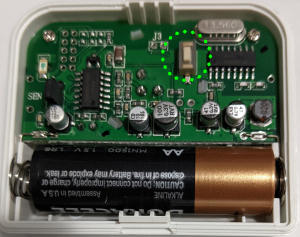
6. Select the “Learn now” link to put the system into Learning mode.  Push the Learn button located inside the motion detector.   


Motion-Learn-Button


7.  The Completed screen will be display to confirm that the motion detector was enrolled or learned.  Select Go to Setup Wizard and then repeat the above steps if you have more sensors to enroll.

Skylinknet-Motion-Learned

Step 8 - Enroll Remote Key fob

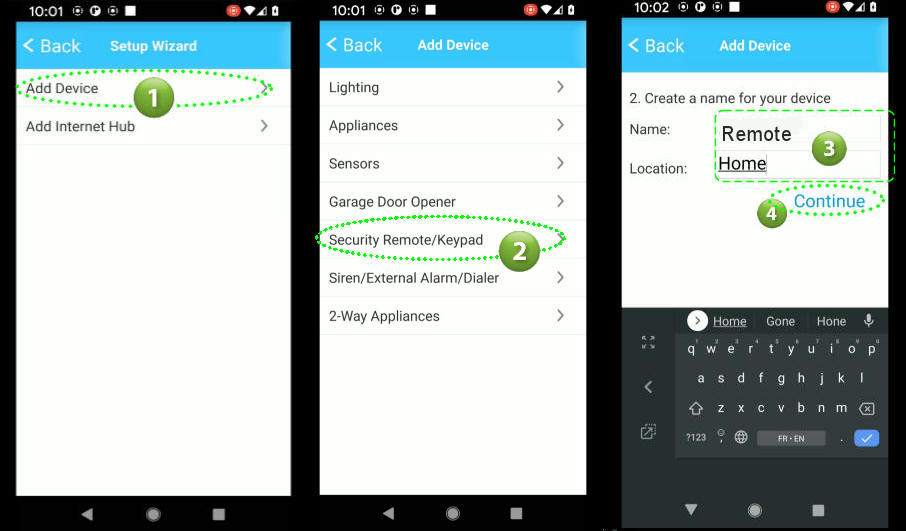
To enroll or learn a remote key fob follow the same process as adding a Motion Detector but instead you select “Security Remote/Keypad” from the Add Device menu.

Skylinknet Add Remote
Skylinknet-Remote-Learn

Step 9 - Installing Door Sensors

There are two parts of a WD-MT Wireless Door Sensor.  A Magnet (smaller piece) and a Sensor.  The Magnet is typically installed on the door or window  while the Sensor is installed on the unmoveable frame.  However, depending on your particular door/window you can reverse this if needed.  Choose the best orientation for your situation while ensuring the gap between the Magnet and the Sensor is no more than 10mm or 1/4″.  Important: Make sure the small triangle markings on each piece is lined up and facing each other.  To install,  use the supplied  double sided tape and firmly place each item on the door and frame. When done open the door/window to ensure the two pieces do not touch or rub.  The Red LED should flash when you open the door/window.  This signifies that a signal has been transmitted.  Repeat these steps for all of your door/window sensors.

Door Sensor Mounted On Door
Door-Sensor-Diagram

Step 10- Installing Wireless Motion Detector

Q? Encoding=Utf8&Amp;Marketplace=Us&Amp;Asin=B00Si3Zqxm&Amp;Serviceversion=20070822&Amp;Id=Asinimage&Amp;Ws=1&Amp;Format= Sl250 &Amp;Tag=Senextech 20

Placement of your PS-MT Motion Detectors is important to ensure you get the best possible detection while avoiding false alarms.  The following are some do’s and don’ts when mounting your detector.

Don’ts

  • Don’t point a detector at a window.  Sun light will trip a PIR sensor.
  • Don’t install this sensor where pets could enter the field of view (FOV).  There are special detectors intended for use with pets.
  • Don’t point at a hot air source like vents, heaters, air ducts, refrigerators or stoves
  • Don’t mount pointing at ceiling fans or curtains
  • Don’t mount detectors in a high humidity area like bathrooms and attics

Do’s

  • Do mount between 6-8 feet (182cm-243cm) high from the ground/floor.
  • Do mount sensor in a corner where possible.  Corners tend to provide better coverage based on the pattern a detector senses.
  • Expected direction of movement should be across the sensor rather than towards/away from sensor if possible.  Always try to place sensors where you can take advantage of the cross motion direction. 
  • Motions placed in central hallways are always a good location as an intruder would typically use the hallway to access different areas.

Direction of Movement

Pir-Direction-Of-Movement-Diagram

Floor plan with PIR Motions

Motion-Detectors-On-Floor-Plan

Mounting the Sensor

To mount a Wireless Motion Detector you can use the supplied double side tape or screws.  

To mount on a wall with double sided tape simply apply the tape to the rear sensor and press firmly onto any wall surface.  

Note: Removing double sided tape from a wall may damage your surface (remove paint or surface).

If using screws first separate the sensor by removing its back.  You will see two indentations for the screws.  You will notice that they don’t protrude all the through the sensor.  One may be hidden behind a small piece of round foam.   Using a Phillips head screwdriver (star) screw the sensor onto the wall through these indentations.  You may want to pre-drill to make it easier but with adequate force and a good screwdriver you shouldn’t have any issues.

Corner mounting is a bit more difficult as there are no pre-drill holes or indentations in the sensor.  You will need to drill some holes in the angled sides of the sensor back.  Then use the screws (and anchors if needed) to mount the back plate of the sensor each wall. 

Replace the front of the sensor and you are done.

Step 11 - Configuring the system to meet your needs

In this step we will configure your new system by setting the different options to meet your particular needs.

Setting your System Code (Hub Keypad)

The Hub has four (4) button keypad marked 1-4.  These can be used to Arm and Disarm your system by entering an eight (8) digit code.  

1. To set a code select the More (3 dots) at the bottom right of your Home screen.  

2. Select “System Settings” 

3. Select “Hub Keypad Password” from the System Settings menu.

Skylinknet App Hub Password

4.  In the Password field enter eight digit code.  You can only use the digits 1,2,3 and 4.  Any combination of those four digits will work.  

5.  When done select “Save

Skylinknet-Enter-Hub-Password

To test your new code,  enter it into the Hub keypad and press the Lock key.  This should arm your system and start a count down timer (beeping). Enter your code again and press the Lock button to Disarm the system

You now have a code to Arm and Disarm your system from the Hub.

Setting your Time Zone

To operate properly the system needs to know which Time Zone you are in.  To set your Time Zone:

1. To set the Time Zone select the More (3 dots) at the bottom right of your Home screen.  

2. Select “System Settings” 

3. Select “Time Zone Settings

Skylinknet-App-Time-Zone-Settings

The App will set the Time Zone to what you already have configured in your phone.  

4.  If the default Time Zone is what you want then just select the Yes link

5. If you would like to choose a different Time Zone then you can do that here.  Just select the correct time and the Time Zone will automatically be assigned.

6.  Select “Save” to set the Time Zone

Skylinknet-Time-Zone-Select

Alarm Timing Settings

The Alarm Settings screen allows you to set multiple system timing values.

Siren Duration:

This setting tells the system how long the siren should sound when an alarm is tripped.  Select the duration on the right to change the value.  Options are 0 (no siren), 1 min, 3 min, 5 min, and 10 min.  

Entry delay:

The amount of time the system will delay or wait to activate an alarm when you trip a sensor that has been setup to have a delay.  Options are 0 (no delay/instant), 30 sec, 45 sec, 60 sec and 75 sec. Typical setting is 30 secs.  A slow pulsing beep will be heard when you trip an Entry sensor and speed up as it gets closer as it counts down to zero seconds.  This allows you to enter your premise without tripping the alarm and disarm.

Exit delay:

The amount of time the system will delay arming your system.  A slow pulsing beep will be heard during this delay and will speed up as it counts down to zero.  This gives you time to exit your premise without tripping any sensors.

Beep Level:

The system will emit beeps to alert you of timer count downs, system armed and system disarmed.  This setting allows you to control the volume. Options are Disabled, Normal, Low and high. 


Step 12 - Sensor Setup

One of the last things we need to do is to set the Alarm Type for each sensor so that they react to the way you use the system.  For example,  you may want to have your motion sensors only be armed when you are out of the house (Away Mode).  To make this happen you set the sensor Alarm Type to “Arm Away Only”  which means this sensor would only be active when you are out of the house (Away).  To be armed in the Home mode means that you are still in the house when the system is armed.  The following are the different settings available that you can assign to your sensors.  

Alarm Type Setting Armed Away Armed Home Disarmed Delay on Exit Delay on Entry
Arm Away Only
Arm Home/Away
Instant Alarm
Disabled

Setting your Alarm Type

1. If not already on your Home screen, select the Home Icon at the bottom of your screen.  A screen with multiple icons should be displayed that match the number and type of sensors you enrolled in the previous steps.

2. Select the settings icon  of the first sensor (in our case it’s the Front door sensor).

3. Select “Alarm Settings” button

4. In our case we will select this sensor’s Alarm Type to “Arm Away Only“.   This would mean that this sensor can only trip the alarm if the system is set to the Armed Away mode.  Select your Alarm Type by clicking on it in the list.  The type will then be set and you will be returned to the Home screen.

Skylinknet-App-Alarm-Types

Repeat the steps 1-4 above to set the Alarm Type for each sensor in your system.

Setting up Push Notifcations

The system has the capability to send notifications to your smart device.  This is called Push Notifications.  Example of a notification would be an Door Opened message or Alarm tripped message. 

You setup Push Notifications for each sensors and Remote in your system. 

1. Go to your Home screen.

2. Select the settings icon  of the first sensor (in our case its the Front door sensor).

3. Select “Push Notifications” button

4. Select During Alarm Only or Always depending your needs.  If Alarm Only is selected then you will receive notifications from the sensor only when the system is armed Away or Away/Home.  Typically you would select During Alarm to prevent continuous notifications when the door is opened/closed.  Once you select you will be brought back to the Home screen.  Repeat the above steps for each sensor and Remotes.

Skylinknet App Push Notifications

Setting up the Chime Feature

Every sensor can have a Chime assigned to it so that when the door/window is opened or a Motion is tripped you will get a Chime sound from the Hub.   This is a fantastic feature and can be useful in many situations.  

1. To setup a Chime for any sensor go to your Home screen and select a Sensor button.

2. Select the Chime button from the sensor screen

3. Select Yes to turn on the Chime or No to disable.  You will be brought back to your Home screen.  Repeat for each sensor you want to Chime.

Skylinknet App Settings Chime Feature

Step 13 - Testing your System

One of the most important steps when installing alarm systems is testing the system after the install.  Even professional alarm technicians some times fail to perform proper and complete checks.  It’s important to thoroughly check every device/feature to ensure they work as inspected.   

To test your system you can use your phone App and walk the premise while tripping each sensor while putting the system in the different armed state (Disarmed, Armed Away or Armed Away/Home).  

1. Start with the system disarmed and proceed to the first sensor.  

2. Open the door/window or trip the motion detector.  The red LED should flash on the sensor. Verify on the smart App that the intended result has occurred.  Depending on the Alarm Type you may or may not receive an alarm trip.  Only sensors set as Instant alarm types should cause an an alarm when the system is disarmed. 

3. Next Arm the system and verify the Exit count down begins (beeping). 

4. Open the door/window or trip the motion while in the exit count down. You should not receive an alarm.  

5. After the count down as expired, open the door/window and the entry beeping should start. Once the entry delay expires you should receive an alarm. Verify the proper icon displays the alarm.  Also, make sure the duration of the entry delay is adequate to allow you time to disarm the system (if using the Hub keypad).  

Repeat the above 5 steps for each sensor installed while also verifying the proper zone/sensor icons are appearing on the App.  

Next remove the Hub power adapter from the receptacle and ensure your system remains operational.  You should be able to arm and disarm the system as normal.  Replace the adapter and verify no change on your smart App.

You should now have a fully installed and tested system.

Step 14 - Using your New Wireless Alarm System

In this section we will cover the day to day use of your new alarm system.  The different screens below can be opened by selecting the appropriate icon on the bottom of your screen.

Skylinknet Home Screen With Alarms
Home Screen

The Home screen is where you can quickly see the status of every sensor in your system.  Each sensor will show a button with a icon depicting the type of sensor (Door, Motion, Remote etc.). These are real time status icons so they change as the sensor status changes.  When a sensor is tripped or open it will show a red icon and a blue icon when its in normal state (closed/no motion detected).

Alarm Screen

The Alarm screen displays the current armed status of your system (Disarmed, Arm Home or Arm Away).  You can also arm your system into any mode from this screen.   

Skylinknet-App-Arm-Status-Screens
Skylinknet-Panic-Alarm-Screen
Panic

The Alarm screen displays also provides a Panic feature were you can activate the Panic feature of the system by using the slider and swiping to the right.  This will activate the siren in the Hub (if not disabled in the Alarm Timing Settings in Step 9 above).  It can be used if at any time you feel threatened. Once activated you can turn it off by by the App, Remote or keypad on Hub. 

Remote-Key-Fob-Labeled
Remote Key Fob

The MK-MT Remote key fob is probably going to be the most used method to arm/disarm you system as it is so convenient.  It has four buttons on it that allow you to arm/disarm and initiate a Panic alarm.  

Photo-Skylink-Hub
Hub Keypad

The Hub includes a 4 digit keypad (1-4) which allows to you to Arm and Disarm your system.  You setup a 8 digit code in Step 11 above.  To Arm your system simply input the 8 digit code then press the Lock button.  The system will bein its exiting sequence count down.  To Disarm just enter your code and press the Lock button.  

There are two LED’s on the Hub which indicate the following:

LED Green Red Flashing Red Slowly Flashing Red Rapidly Orange
NA System Armed Alarm Activated Memory Sending/Receiving Data NA
Network Connected No Network Connection Connecting NA Connecting to Network
Skylinknet-Event-Log
Event Log

The Event log can be found by going to your Home screen, selecting the More (…) link then selecting “Event Log“.    Here, you can see everything that has happened on your system with the date and time it occurred.  

Step 15 - System Maintenance

The last area to cover is the ongoing maintenance for your system.  Since this is a Wireless system you will need to replace the sensor batteries on a regular basis.  How long a sensor battery lasts will depend on the activity of the sensor.  More activity means shorter battery life.  As an example, a motion detector placed in your main hall way where there would be a lot of traffic would most certainly need battery replacement more frequently.  The sensors in this system are equipped with a Low Battery feature which will alert you when a battery is low and needs replacement.

Battery-Open-Door-Sensor

To replace batteries in the Door/Window sensor open the sensor by pressing on the tabs on the side and pulling open.  Replace with a AA battery. 

Wireless Motion Open Battery

To replace batteries in the Motion Detectors use a small standard flat head screw driver or coin to pry open the sensor to expose the batteries.  Replace with a AA Battery. 

Batteries In Skylink Hub

To replace the Hub batteries open the cover on the rear and replace with 4 AAA batteries

Specifications

Manufacturer Skylink
Product Dimensions 38.74 x 10.16 x 12.7 cm; 589.67 Grams
Batteries AA and AAA (not included)
Item model number SK-200
Colour White
Power Source 120VAC Adapter - 6VDC Output
Mounting Type Surface Mount
Usage Indoor use only
Included Components Internet Hub HU-100 X 1, Door/Window Sensor WD-MT X 2, Motion sensor PS-MT X 1, Keychain Remote MK-MT X 1, Power Adapter X 1, Ethernet Cable X 1, Mounting Accessories
Warranty Description 1 Year
Item Weight 590 g

Products Included in this Article

Tuya Wireless Alarm System Installation

Tuya-Wifi-Alarm-System

Tuya Wireless Alarm System Installation

Wireless Alarm System

In this article we will be covering the installation of the Tuya Wireless Alarm System.  You may find this system sold under different brand names but the system installation and setup would be the same for all.   We purchased our test system from AliExpress.com

What you get

When purchasing this system you will need to choose from an array of kits/packages.  The only difference would be quantity of sensors, fobs and remotes included.  The actual devices  would be exactly the same.   A typical system would consist of a keypad/display, wireless door sensor(s), PIR motion detector(s), RFID Fobs, Remotes, and a siren.


Step 1- Keypad/Display Power Up

The first thing we need to do is setup the Keypad/Display.  Connect the power adapter using the supplied USB cable into the Display’s USB micro connector on the side.  Plug the adapter into a standard house wall receptacle. 

Remove the battery tab (plastic tab) from the Display.  This will connect the internal battery which will power the Display should there be a power outage.  Next turn On the Display by pushing and holding  the side Power Switch.  At this point your Display should now be active and the LCD screen should display the default menu.

It defaults to English so if you want another language (total of 9 available) you can quickly change it by selecting the Down arrow(), select Settings() , x 3 until you get to Language then to select. Select the appropriate Language by using the key then .  The Display should now be in your language of choice.

Wireless Alarm Keypad Power Switch
Smart Life App Icon

Step 2 - Installing the Smart Life App

To be able to receive notifications and control your wireless alarm system you will need the Smart Life App installed on your phone or device.  

  1. Go to the App store on your phone and search for a App named Smart Life and select the Install button.  In our example below we are using the Google Play Store. 
  2. Accept the User Agreement and Privacy policy then select the Sign Up button.
  3. Fill in your Country and Email Address then select Get Verification Code.  You will get a code sent to your email address.  Enter the code into the Verification screen.
Screenshot Of Smart Life App Device Setup Create-Account -Snapshots
  1. Enter a Password then Select Done
  2. Enable or disable the Data Analysis option as you see fit.  In my case I disable this option.  Select the Go to App button.  If you are prompted to allow Location permissions then go to your settings and turn on (allow) the Location Permission. 
  3. You should now be in the Add Device screen 
Screenshot Of Smart Life App Setting Password
Alarm-Display-Keypad

Step 3 - Adding the Alarm System to App

We now need to add your system to the App using your Wi-Fi network.  Before beginning make sure your Phone/device is connected to same Wi-Fi network that will be used for the Alarm System.

  1.  From the App’s Add Device screen select the Add Device button.  Again, if you are prompted to allow Location permissions then select Settings -> Permissions -> Location  -> Allow only while using app.  Use the back key to return to App.
  2. From the Add Device screen select  the option Sensors from the left menu.
  3. Next select Alarm (Wi-Fi)  option from the sensor screen
  4. On the Wi-Fi screen enter the name (SSID) of your Wi-fi network. This needs to be a 2.4GHz network.  This system will not work on 5GHz.  Both your Phone and the Alarm system need to be on the same 2.4GHz network.  Enter your network password and select Next
Screenshot Of Smart Life App Device Setup Select-Wifi-Screens
  1. At this point you may be presented with a “Reset the Device first” screen.  This screen is intended for other types of devices that have a LED.  Our system here has no such LED so simply select the Confirm option and select Next.
  2. An “Adding device…” screen will appear showing that it is scanning the network for the system. In about a minute it should detect your system and automatically add it to the App.
  3. When successful you will be presented with a screen stating the device was added successfully.  It will also let you name the system.  Go ahead and name it by selecting the Edit icon. Finally select Save then Done.
Screenshot Of Smart Life App Device Setup
  1. A Notification Test message appears when security devices are added to the app on Android mobile phones. To ensure that notifications can be received, tap Test and follow the tips to verify that the autostart and battery usage detection permissions are granted to the app.  You may not have these settings in your phone as it depends on your version and make.  Newer versions do not require these settings.  Select Next then Done
Screenshot Of Smart Life App Setup Autostart-Notification-Test
  1. The Wireless Alarm System is now added to the Smart Life App and you should see your Alarm system in the Device list.
  2. To access your newly created alarm simply select it in the list.  You should be presented with the Alarm’s main screen.
Smart-Life-Main-Screen

Step 4 - Enrolling Remotes

Keychain Remote

Key remotes allow you to Arm Away, Arm Stay, Disarm and generate an SOS.  To add your remotes you need to be on the Main App screen.

  1. Select Accessories  from the menu.
  2. Select Remote from Accessories then the Plus + to add
  3. At this point press and release the arm or disarm button on your remote while holding it near the display/keypad.  The system should instantly read your remote and add it to the system. 
Screenshot Of Smart Life App Accessories
  1. A Confirmation screen will be displayed.  Select Confirm.
  2. To name your remote select it in the list and a editing screen will be displayed.
  3. Enter your name and select Save
Screenshot Of Smart Life App Setting Device Name
Wireless Door Sensor
Wireless-Motion-Sensor

Step 5 - Enrolling Sensors

We now need to tell the system what door/window/motion sensors you will be installing.  This process is called enrolling.  You can enroll sensors directly with the Display/keypad or by using the App.  We will be using the App as it is a much easier process.

  1. From the App Main screen select Accessories.
  2. From the Accessories screen select Detector then the Plus + to add
  3. The App will then search for your new sensor.  Place sensor near Display and activate it.  For a Door/Window sensor you can press the button or separate the magnet from the sensor. For a Motion sensor first turn it On by sliding the small switch on the rear of the sensor.  Once activated the system will detect the sensor and will add it automatically to the system.  
Screenshot Of Smart Life App Showing Add Device
  1. A Confirmation screen will be displayed.  Select Confirm.
  2. To name your sensor select it in the list and the Device edit screen will be displayed.
  3. Select Sub device name and enter your new name
  4. Select Zone attribute and select how you want this sensor to reactive when tripped. Refer to table below Zone Attributes.
  5. Select Device type and select the type that best describes this sensor  i.e.: Door Alarm
  6. Select Save 
Screenshot Of Smart Life App Device Setup

Zone Attributes

Out Arm Active Active when you arm system in Away mode
24 Hours ActiveActive always – 24/hrs/day with siren
CloseSensor is deactivated- will not cause an alarm
Door BellThe sensor will act like a door bell and ring a chime (ding/dong) when tripped/activated.
24 Hours SilentActive always – 24 hrs/day but with no siren
Stay Arm Active without DelayActive when you arm system in Stay mode and has no delay. Will instantly cause an alarm when tripped
Out Arm Active without DelayActive when you arm system in Away mode and has no delay
Stay Arm ActiveActive when you arm system in Stay mode

Step 6 - Installing Wireless Door/Window Sensors

Door-Sensor-Installed On Door

There are two parts of a wireless door sensor.  A Magnet (smaller piece) and a Sensor.  The Magnet is typically installed on the door or window itself while the Sensor is installed on the unmoveable frame.  However, depending on your particular door/window you can reverse this as shown in the above image.  Choose the best orientation for your situation while ensuring the gap between the Magnet and the Sensor is no more than 10mm or 1/4″.  Important: Make sure the small triangle markings on each piece are lined up and facing each other.  To install,  remove the double sided tape backing from the magnet and Sensor and firmly place them on the door and frame.  When done open the door/window to ensure the two pieces do not touch or rub.  The Red LED should flash when you open the door/window.  This signifies that a signal has been transmitted.  Repeat these steps for all of your door/window sensors.

Step 7 - Installing Wireless Motion Detector

Wireless-Motion-Sensor
Motion Sensor Rear-Switch

To install a Wireless Motion Detector first remove the detector section from the mounting bracket by holding the bracket then sliding the sensor up.  Mount the bracket on the wall with the supplied screws and anchors if needed.

On the back of the sensor slide the ON/OFF switch to the ON position.

Placement of your motion detectors is important to ensure you get proper detection while avoiding false alarms.  The following are some dos and don’ts when mounting your detector.


Don’ts

  • Don’t point a detector at a window.  Sun light will trip a PIR sensor.
  • Don’t install this sensor where pets could enter the field of view (FOV).  There are special detectors intended for use with pets.
  • Don’t point at a hot air source like vents, heaters, air ducts, refrigerators or stoves
  • Don’t mount pointing at ceiling fans or curtains
  • Don’t mount detectors in a high humidity area like bathrooms and attics

Do’s

  • Do mount between 6-8 feet (182cm-243cm) high from the ground/floor.
  • Do mount sensor in a corner where possible.  Corners tend to provide better coverage based on the pattern a detector senses

Step 8 - Mounting Keypad/Display

The Display/Keypad can be mounted on a wall or placed on a countertop or table using a stand like the Lamicall Adjustable Stand Placing on a stand will allow you to somewhat hide the cables.  On the other hand if you were to mount on a wall there would be cables running from the Keypad to the receptacle and siren that would be more visible.  In any case both mounting types would work fine and would depend on your situation. 

To mount on the wall first remove the mounting bracket from the back of the Keypad by sliding up.  Mount the bracket using the screws and anchors provided.  I would recommend using a level to ensure it’s straight.  Slide the keypad back onto its mount and connect the power cable.  

Mounting on stand is much easier.  The Keypad comes with a built-in tamper switch on the rear of the Keypad.  This is used to create an alarm should anyone remove the Keypad from the wall.   You need to make sure the mounting bracket is installed into the rear of the Display. Then simply place the Keypad on the Stand and run you power cable to the closest receptacle.


Step 9 - Installing the Siren

The system comes with a hardwired siren that plugs into the side of the Keypad.   However, it only comes with a short 3′ cable so you are limited on how far you can mount the Siren from the Keypad.  Choose a suitable location and mount the siren using the screws provided then simply plugin the siren plug into the siren jack.  

If you need to install the siren further from the Keypad you can purchase a 25′ extension cable.   

Tuya Wireless Alarm Keypad Connections

Step 10 - GSM

Sim-Cards

We will not be covering GSM for this system.  This version of the PG-103 only supports 2G which is no longer supported across Canada and the USA.  If you purchase this particular version of the PG-103 then you will be able to monitor your system using the App only. 

If you would like to have your wireless alarm system monitored over GSM then you should purchase systems that supports 4G or  newer.

Step 11 - Settings

You can access the Settings screen from the menu in the Main screen.

Exit Delay When arming the system this is the amount of time in seconds the system will delay arming so you can exit the premise without tripping an alarm. Typical value would be 60 seconds. A count down beep will be heard during the exit period.
timer The timer setting allows you to create timed events. For example, you could have the system Arm everyday at 10pm and/or Disarm everyday at 8am. Timer Events can be created for Disarming, Arming, Arm Home and SOS.
Arm Beep When enabled/On every time you arm the system the siren will chirp to let you know the system armed.
Siren When Enabled/On the siren will sound on any alarm. Disable/Off will turn the siren off.
Siren Duration Setting this value to anything above zero will set the siren duration when activated. A typical setting would be 3 minutes meaning the siren will automatically turn off after 3 minutes of sounding.
Arm SMS Arm SMS (Short Message Service) will have the system send you a text message when arming. Important: You must be using GSM (cellular) for this feature to work. This setting has no effect for this version of the PG-103 which does not support GSM or SMS.
Backlight Turns the Display/Keypad LCD background light ON or OFF when not in use.
Alarm message propel If disabled/Off then Alarm events will not be sent to your phone/device. alarm. When Enabled/On alarm notifications will be pushed to your phone/device.
Entry Delay The amount of time (secs) the system will give you to disarm the system when tripping a Entry zone.
Alarm call unit Allows you to add phone numbers when using GSM
Virtual password Password used when communicating using GSM

Step 12 - Testing your System

One of the most important steps when installing alarm systems is when you test the system.  Even professional alarm technicians some times fail to perform proper and complete checks.

To test your system take your phone and test each sensor in all armed states of the system. This is to ensure that the sensor works and that you have set the Zone Attribute properly.  Start with the system disarmed and proceed to the first sensor.  Open the door/window or trip the motion detector.  The red LED should flash on the sensor. Verify on the keypad that the intended result has occurred.  Only 24 hour programmed sensors should cause an alarm at the keypad when disarmed. Next Arm the system and open the door/window or trip the motion.  Again, verify the proper operation as intended.  If the sensor is an Entry delayed sensor ensure you test the proper duration expires before an alarm occurs. 

Repeat the above for each sensor installed while also verifying the proper zone/sensor descriptions are appearing on the keypad.

Next remove the Keypad/Display power adapter from the receptacle and ensure your system remains operational.  You should be able to arm and disarm the system as normal.  Replace the adapter and verify no change on your Keypad/Display.

You should now have a fully installed and functional system.

IMPORTANT: You must continually check your sensors for proper operation to ensure the batteries still have a enough energy to be able to send a signal to your keypad/display.  This system does not have the capability to monitor your sensor batteries and notify you of troubles.  This means a sensor could stop working or be removed entirely and you would be unaware.  You will need continually test your system to ensure all sensors are functioning. 

Step 13 - System Maintenance

The last area to cover is the ongoing maintenance for your wireless alarm system.  Since this is a Wireless system you will need to replace the sensor batteries on a regular basis.  How long a sensor battery lasts will depend on the activity of the sensor.  More activity means shorter battery life.  As an example, a motion detector placed in your main hall way where there would be a lot of traffic would most certainly need battery replacement more frequently. 

Wireless Door Sensor Opened Showing Cr2032 Battery

To replace batteries in the Door Sensors just slide off the cover to expose the battery compartment.  Replace the battery with a CR2032 Battery. 

Wireless Motion Sensor Opened Showing Batteries

To replace batteries in the Motion Detectors first remove from its mounting bracket.  Use a small standard flat head screw driver to pry open the sensor to expose the batteries.  Replace the batteries with two AA Batteries. 

Keychain Remote Opened Showing Battery

The Remote can be opened with a small flat head screwdriver.  Insert into the small opening along the side and pry open.  Replace with a CR2032 Battery. 

Rfid-Alrm-Fob

The RFID tags do not have batteries

Tuya Wi-Fi Alarm Panel Opened Showing Batteries

The Display also contains batteries but I don’t believe the manufacture intended the end user to replace them.  Opening the display runs the risk of damaging the display.   However, if you are willing to take the risk then you can open the case by removing the two rubber plugs that hide the screws keeping the display together. One plug is on the side above the Siren jack and the other is on the back center.  Once the screws are removed you can carefully pry open the display to expose two batteries.  The 1000ma 3.7 V (in mine part# WZY 523450) rechargeable battery used to provide backup power during power failures and the CR 1220 that I would assume is for the clock and/or memory.   

WARNING!  Opening the display may result in damage and most certainly would void any warranty you may have.  Open only if the display has become a brick.

Products Included in this Article

Security & Automation Glossary of Terms

Security-Glossary-Of-Terms

Security & Automation Glossary of Terms

To help you get a handle on Security vocabulary and the associated jargon, we’ve compiled this comprehensive glossary with definitions, helpful links and images.

2.4G Wireless

2.4G is short for the 2.4GHz radio frequency band used in Wi-Fi routers. The 2.4G band will provide longer range than the newer 5G band but cannot handle the same amount of bandwidth (channels) as 5G. It also is more likely to be affected by external interference like devices using Bluetooth, ZigBee, and cordless phones .

5G Wireless

5G is short for the 5GHz radio frequency band used in Wi-Fi routers. The 5G band has higher bandwidth (more channels) than the older 2G band so it can provide much faster downloads, uploads and video streaming. However, it's range (distance coverage) is less than the 2G bands (almost 50% less).

Ampere Hours (Ah)

An Ampere Hour or amp hour (Ah) for short is a unit of electric charge. In simpler terms its the number of amps (current) a battery will provide per hour. One AH would be 1 Amp for one hour. In the security world its used to describe the backup capacity of a system. To use an alarm system as an example. If your alarm uses a continuous one (1 ) amp of current in normal operation, there is a 7Ah battery installed in the Control Panel and there's a power outage. The alarm will continue to operate for approx. 7 hours.

12V-7Ah-Battery-For-Alarm

Backup Battery

Typically placed inside in the Control Panel and is used to provide power to the system during a power outage. They are rechargeable so once the power has been restored the control panel will replenish its charge. Batteries come in many different sizes and are measured in Ampere Hours (Ah). Typical battery life would be approx. 3-5 years but some have been known to reach 10+ years. Checking these batteries should be part of a regular maintenance routine.

Burglar-Alarm-System

Burglar Alarm System

An electronic system consisting of a Control Panel/HUB, detection sensors and Keypads and or Touch screens. Systems can activate sirens and/or strobes and be monitored remotely. Used to detect unauthorized entry into a premise.

Control-Panel With Battery

Control Panel

A Control Panel is considered the brains of an alarm system. It will typically will take the form of a small metal enclosure that houses an electronic circuit board inside. This is where you would wire in sensors (if a hardwired system), connect keypads, install the backup battery and connect to household power. Optional or specialized circuit boards are also installed inside this control panel. It will in many cases have a lock on the door to prevent unauthorised entry.

Cellular Monitoring

Alarm Systems that use Cellular Monitoring means that it is using a digital cellular network to send alarm, trouble and supervisory messages to a remote Monitoring Station system. The system uses a cellular communicator normally inside the control panel to send signals.

Field-Of-View-Fov

FOV

FOV stands for Field of View. This term is used in multiple areas in security. For Motion Sensors it describes the area that a Motion can detect movement. For Cameras it's the area that can be seen by the camera.

Frames per Second (FPS)

The frame rate measured in Frames per second. This is the rate at which images are captured or displayed. Used with video cameras to describe how many frames (images) are being captured per second. A video camera set to 30FPS means it is capturing the image/scene at 30 images per second.

GPRS - General Packet Radio Service

A data packet oriented data standard used on the 2G and 3G cellular communications networks. It is an enhancement to the standard GSM network infrastructure. It provides for moderate speed data transfer. 2G is almost all but phased out (service no longer available) and 3G is is in the process of being phased out by the major carriers.

GSM

The Global System for Mobile (GSM) is a international standard that defines the protocols used with digital cellular networks . It is a 2nd generation technology (2G) and is almost all but phased out (service no longer available) in US and Canada. GSM was a digital cellular technology used to transmit data and voice communications at a frequency range between 850MHZ and 1900MHZ.

Hardwired System

A Burglar Alarm system that uses wires and cables to connect it's devices to the main Control Panel.

Hardwired Security Diagram

Mesh Network

A mesh network allows each device in a network to operate as a repeater and pass the signal on to another device. This causes mesh networks to be more versatile. They cover greater distances and can even work around obstacles.

Mesh Hop

A wireless mesh network is a network where the nodes in the network communicate with other nodes to achieve increased coverage and connectivity by forwarding messages on behalf of others.

Monitoring-Station

Monitoring Station (MS)

Monitoring Stations or Centers are facilities that monitor alarms, troubles and supervisory events from security systems. When an event is received by a MS trained operator they will dispatch the appropriate authorities and/or depending on the event contact the customers representative (pass card holders). Monitoring Stations run 24 hours a day and provide all the automated computer systems to be able to handle 1000's of alarm per day. Depending on what type of monitoring is being provided a MS may be listed with organizations such as UL, ULC. If listed it means that they have demonstrated compliance to the strict monitoring station requirements of theses organizations. Ongoing audits are conducted by these organizations to ensure ongoing compliance.

Motion-Detector-Sensor

Motion Detector/Sensor

Motion Detectors are also called Motion Sensors or just plain Motions. It is a device that detects movement of objects in it's field of view (FOV). They come in many shapes and can use different technologies to actually sense movement. The most common type of Motion is a Passive Infrared Sensor (PIR). It uses an electronic sensor inside that measures the amount of infrared (IR) light coming from a object. It also uses electronics inside to determine if the amount and type of movement is enough to trip the sensor. Other technologies used include Microwave and in the old days Ultrasonic. Nowadays Ultrasonic detectors have been replace with PIR but is still used in may other industries.

Ip-Camera

IP Camera

IP (Internet Protocol) Camera refers to digital cameras that transmit their video over a IP based network. They are typically connected using a standard Ethernet cable (cat5 or cat6). They can also use Wi-Fi instead of a hardwired connection to transmit it's video. IP Cameras typically provide higher resolution video as compared to their Analogue counterpart. The power needed to operate an IP Camera could be provided using POE (Power Over Ethernet) or separate power cables. However, in order to use POE both the camera and the network device (router) its connected too must support POE.

IR

IR stands for Infrared radiation. It is a type of radiant energy that's invisible to human eyes. All objects radiate some amount of IR but Humans and animals radiate a good amount. That's why PIR's use IR technology to detect people. It is sometimes referred to as the Heat being radiated from a human body.

PIR

PIR stands for Passive Infrared. It is a type of sensing technology used in Motion Sensors that detects movement using the Infrared Energy (IR) being radiated from an object. See Motion Detector/Sensor.

POE - Power Over Ethernet

POE is a technology that allows the powering of network devices, like IP cameras, over the same network cable used to send/receive network communications for the device. In the security industry this is used mostly when using IP Cameras but can also be used with other devices.

RFID

Radio Frequency Identification (RFID) is a technology that allows the storage of digital data inside a Tag, Key Fob or Card which can then be captured by a reader using radio waves. RFID devices are typically made of durable plastic and contain an integrated circuit and an antenna. There are Active Tags and Passive Tags. Active Tags have built-in power (battery) while Passive Tags are powered-up by the RFID reader. When a Passive Tag is presented to a RFID reader they receive power (from the reader) and in turn will transmit the data contained inside.

Sim-Cards

SIM Card

SIM stands for Subscriber Identity Module. A SIM Card is basically a integrated circuit running a Card Operating System (COS) Operating system. It stores the identity of a subscriber and is used to authenticate on a mobile phones, satellite phones, smart watches, computers and other devices. It also stores carrier specific information. There are three different types of SIM's. Standard, Micro and Nano. Both the Standard and Micro are rarely used these days. Nano SIM cards are by far the most widely used.

Streaming

The act of transmitting video and audio files (media) continuously over a wired or wireless network. It is a delivery method not the content.

ULC - Underwriters Laboratories of Canada

Underwriters Laboratories of Canada (ULC) is an independent product safety testing, certification and inspection organization. They accredited by the Standards Council of Canada. ULC set requirements for Monitoring Stations

Wireless System

A Burglar Alarm system that does not use wires and cables to connect it's devices to the main Control Panel. Devices communicate to the Control Panel using Radio Frequency (RF).

Wireless Security Diagram

Wireless Vs. Hardwired Alarm System. Which is best?

House-With-Sensors-Burglar

Alarm Systems are installed to safeguard your home and your family, so it is always paramount to install one that will be reliable.  Basically, alarm systems come in three configurations: Wireless, Hardwired and a hybrid of both. It’s important to understand the benefits and disadvantages of each to help you make an informed decision when choosing the right alarm system for your home.

Each homeowner will want something different based on their situation and why they need the alarm. So in the rest of this article, I’ll go over all the different configurations while highlighting their pros and cons.

Wireless Systems

Wireless Security System Diagram

Historically wireless alarm systems had a bad reputation as they where not as reliable.  In Fact, I remember when my first wireless system was installed.  It was new technology back then and we were constantly returning to adjust/reconfigure trying to make the system more reliable.  We have come a long way since then and can now consider a wireless system as reliable as their hardwired counterpart. 

In a wireless system,  the doors and windows will have wireless sensors that transmit their status (open/closed) to the main control panel using Radio Frequency (RF).  Sensors like water detectors, smoke detectors, glass breaks and others can also be installed and would transmit their status to the main control panel as well using RF.  There are some limits on the number of wireless sensors that can be assigned to a control panel. The actual number will vary based on the brand/model of the Panel you use.   You will need to ensure that your panel can handle the number of sensors you plan to install. This is usually not a problem for most homes/businesses as typical systems could handle anywhere from 8 to over a hundred wireless sensors.

Keypads and/or Touch Screens are used to control your alarm system and are typically installed at your entry/exit points to allow quick access when leaving or entering the premise.  These keypads can use RF to wirelessly transmit your commands (Turn On/Off) and  receive status signals like windows/doors opened.  

Wireless Sirens/Strobes can also be added to a wireless system.  When an alarm event occurs the Control Panel will activate the siren/strobe by sending a RF signal to it.

The Control Panel needs to be connected to your regular household power. This would normally take the form of a small adapter/transformer that would plug into a receptacle then wired to the panel.   This powers your system and charges the stand-by battery located inside the control panel.

To be able to send messages/data outside your home to services like monitoring stations and/or a smart phone apps the Control Panel can be connected to the Internet through your home Wi-Fi router.

Wireless systems can also be connected remotely by using a standard Cellular network.  A SIM card would be installed into the control panel just like a regular cell phone.  It is not mandatory to use a cellular connection but is usually included in a professionally installed system that is connected to a monitoring service.  Using cellular connection would provide for a better level of security but is not required if you plan on doing it yourself (DIY) and want to do your own monitoring.

Signal Interference

When working optimally, the Radio Frequency (RF) of a wireless system should be able to travel through walls and floors. However, there is always a chance that the signal will not reach its destination/sensor or that another signal may interfere with it.  The number of walls and the construction type will also affect the signal reach.  Signal quality will also differ depending on the system type/model used so what may work with one system may not work on another. 

If you have a large home, this could leave some areas unprotected. In addition, wireless alarms are more susceptible to false alarms if they are not installed correctly or if there is interference from other devices.

Batteries

One of the most important differences to consider is how the two systems use batteries.  

Wireless devices such as door sensors,  motion detectors, water sensors, smoke alarms and others are usually powered by a small 3v lithium battery.  Life expectancy for these batteries is typically 1 to 3 years.  How often a motion is tripped or a door is opened (transmits a signal) will determine the actual life span.

A Wireless system would typically have a larger backup battery installed in the Control Panel (7AH or more for you techies) .  This battery is continuously charged by the regular household power.  It is generally only used when you have a power outage. It will keep your Control panel and any connected devices  working for many hours.  Of course, a power outage would not affect your wireless sensors as they have their own batteries and do not receive power from the control panel.

An important thing to consider when choosing between a hardwired and wireless system is the maintenance required for the wireless sensor batteries.  You will need to go to every device/sensor to replace the battery every 1-3 years.   At the time of writing this article a set of 4 standard  CR2032 batteries costs approximately $10. For CR 123A batteries the cost is around $23 for a package of 4.  However, the type and cost for batteries will depend on the type of system.

The Pros and Cons of a Wireless System

Below are the Pros vs Cons of a typical Wireless System as compared to a Hardwired system

Pros

Cons

Hardwired System

In a Hardwired system all devices would be connected to the Control Panel using cables (hardwired).   Devices would include Door Contacts, Window Contacts, Motion Detectors, Water Sensors, Smoke Detectors and many more.  Hardwired systems are perfect for when you have access to inside your walls like when you are doing renovations.

There are limits on the number of sensors that can be connected to a given control panel which varies based on the brand/model of the Control Panel you use.  The number of zones will determine the number of sensors.  Now, some of you who may be familiar with alarm systems may say that there is no limit as you can connect multiple sensors to any given zone.  While you would be correct I would highly recommend that you place a single device per zone for identification purposes. Should you have a false alarm (alarm tripped) from a sensor that is connected to a zone that has multiple sensors connected then it would be impossible to tell which sensor actually tripped the alarm.    

While the sensors/sirens/strobes would be installed using wire/cables the main control panel would still use some wireless communications.  This could be in the form of cellular and/or Wi-Fi depending on your particular setup.   Cellular networks when connected to a monitoring service and/or Wi-Fi when connecting to your Wi-Fi router.   Both methods would allow for smart phone app access to your system.  

Hardwired Security System Diagram

The Pros and Cons of a Hardwired System

Below are the Pros vs Cons of a typical Hardwired System as compared to a Wireless system

Pros

Cons

*Note: Professionally installed systems are typically lower cost when a locked in contract is offered.

Hybrid System

In a Hybrid system you get the best from both Wireless and Hardwired devices.  These systems allow you to use wireless sensors and hardwired sensors together in one system.  It is more common to find Hybrid systems when using a professional grade system but can be found in the DIY level systems as well.   

Hybrid-Alarm-System-Diagram

The Pros and Cons of a Hybrid System

Below are the Pros vs Cons of a typical Hybrid Alarm System.

Pros

Cons

*Note: Professionally installed systems are typically lower cost when a locked in contract is offered.

Summary

Deciding between a hardwired, wireless and Hybrid system can be a difficult decision. The three main things to consider is who will be installing (DIY or professional installer), where you plan to install it and your budget. If you are technically inclined and like doing it yourself then a Wireless System would probably be your best choice.  However, if you have more advanced skills then tackling a Hardwired or Hybrid system is not out of the question.  Especially if your home/business is currently under construction and you have access to inside your walls.   

Of course if your budget can handle it,  then having a professional installer do the work will save you a lot of time and work.  

My recommendation?  Well if I would be installing a system I would likely go with the Hybrid system just so that I’m covered in case there are issues with Wireless sensor range.  This way I can run a wire if needed. 

No matter which direction you go you can always rely on EverythingSecurity.net to help you along the way.  Please feel free to Ask Us any questions you may have.  We would love to hear from you.  


Products Included in this Article

Senex Technologies - Home Security &Amp; Automation Logo

Review of The Kono Smart Wi-Fi Thermostat KN-S-AMZ-004

Thermostst Kono Kn-S-Mg1
Q? Encoding=Utf8&Amp;Asin=B07Ct3Gnz8&Amp;Format= Sl250 &Amp;Id=Asinimage&Amp;Marketplace=Ca&Amp;Serviceversion=20070822&Amp;Ws=1&Amp;Tag=Senex01 20&Amp;Language=En CaIr?T=Senex01 20&Amp;Language=En Ca&Amp;L=Li3&Amp;O=15&Amp;A=B07Ct3Gnz8

Lux aren’t new to thermostats – over 16 million homes in the United States and Canada are using one of their devices and they’re well known for making high-quality products. If you’re in the market for a smart thermostat, anything made by Lux is probably a good option, and none more so than the Kono.

 The Lux Kono smart thermostat is modern, sleek, and just a little bit sexy. It connects to most other smart home devices with ease and even works with your phone, regardless of how far away from home you are. It can be personalized with snap-on covers and comes with a very reasonable price tag.

If you want something smart and good-looking, this thermostat could definitely be the one for you.

Smart Features

Kono is a thermostat that has so many features it can do pretty much anything when it comes to controlling the temperature in your home.

Its main feature is how effortlessly it connects to all the major smart home devices. This includes Amazon Alexa, Google Assistant, and Apple Homekit. We’ll look at compatibility a bit later in the post, but if you have multiple other smart home devices of different makes, the Kono certainly won’t limit you on what it can work with – it likes to be friends with everyone.

Another really useful function is its ability to connect with your phone via the Lux mobile app. Even if you’re on the other side of the world if your phone has internet access you can control the temperature at your home. You can set heating and cooling schedules, view runtimes and control the target temperature. It’s a great feature for making sure your home is nice and warm for when you get home from work!

You can even add more than one thermostat to the device, so if you have multiple properties or want different temperatures in different rooms, you can easily control them all at the touch of a button.

Radius geofence also comes to the rescue if you forget to turn off your air conditioning when you leave for work – you can set it up so that it will automatically switch off when you’re away from home. This Home and Away Aware feature provides savings on your energy bills, as the system won’t be running all day when you’re not at home. There’s also a utility cost estimator, so you get an idea of what your bill will be before it’s even sent to you.

Appearance

Obviously, the Kono is a lot more than just a pretty face, but you can’t ignore the fact that this is a good looking device. Kono puts an emphasis on personalization with its changeable Décor-snap covers, so it can blend in seamlessly or stand out and make a statement.

And if they don’t have the color you want? No problem! They even give you the option of painting a blank one. It can’t get much more personal than that.

Available Covers

Compatibility

The Kono works seamlessly with Amazon Alexa, Google Assistant, and Apple Homekit, and comes with clear instructions for a seamless integration into your home. Even without one of these devices, you can still control it from the app on your phone. 

Powered by the C-Wire or LUX Power Bridge, the Kono can even control your forced air, oil, gas, electric furnaces and heat pump systems. There’s a whole lot of flexibility.  The C-Wire bridge is a fantastic feature of this product.  It allows you to use this thermostat even when you don’t have what they call a C-wire (Common Wire).   

Price

If you have a budget or don’t want to be splashing out too much cash, the price point of the Kono makes it even more attractive. It’s less expensive than most of its competitors whilst still being great at what it does.

Whether your budget is high or low, the price point of the Kono, as well as what its capable of doing, makes it a very attractive option for any smart home setup.

Conclusion

The Lux Kono thermostat is the perfect addition to any home. It’s smart, modern, easy to use, and it looks amazing. For anyone looking for a smart thermostat without spending a fortune, this is a great option to consider.

It has so many great features its difficult to quickly sum them all up. From its sleek appearance and personalization options to its convenience and ease of use, purchasing a Kono is guaranteeing yourself an easier time of controlling the temperature in your home.

Lux have always proved themselves as producers of high-quality products, and they’ve proven it again with the Kono. If you want a smart thermostat that will integrate effortlessly with your modern day life, this is the one you should get.

Products Included in this Article

Senex Technologies - Home Security &Amp; Automation Logo